---
title: Bulk Transfer Between Locations
description: Bulk Inventory Transfer Between Locations
---
[Skip to content](https://knowledge.techpos.ca/en/knowledge/bulk-transfer-between-locations#main-content)
[Customer portal](https://knowledge.techpos.ca/portal?hsLang=en)

Open main navigation
Close main navigation
- [Customer portal](https://knowledge.techpos.ca/portal)
Hello. How can we help you?
- There are no suggestions because the search field is empty.
1. [Knowledge Base](https://knowledge.techpos.ca/en/knowledge?hsLang=en)
2. [Inventory](https://knowledge.techpos.ca/en/knowledge/inventory?hsLang=en)
3. [Bulk Transfer](https://knowledge.techpos.ca/en/knowledge/inventory?hsLang=en#bulk-transfer)
# Bulk Transfer Between Locations
## This article will walk you through on the process of transferring products between locations.
####
**January 20, 2026 Update:**
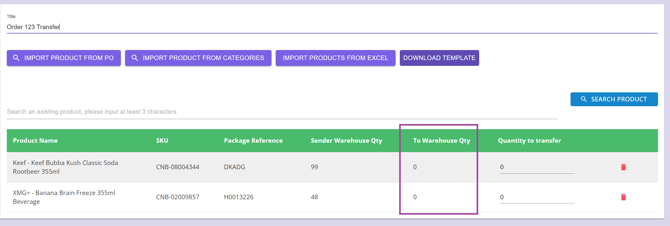
A new column called **“To Warehouse Qty”** is added on the Bulk Transfer page.
This column shows the **real-time quantity in the destination (To) warehouse** for each item, so you can quickly confirm what is currently available in the receiving warehouse.
**Where to find it**
- Go to the **Bulk Transfer** page and view the items table.
- You will see the new **To Warehouse Qty** column alongside the existing quantity columns.
### 1. Access Main Menu
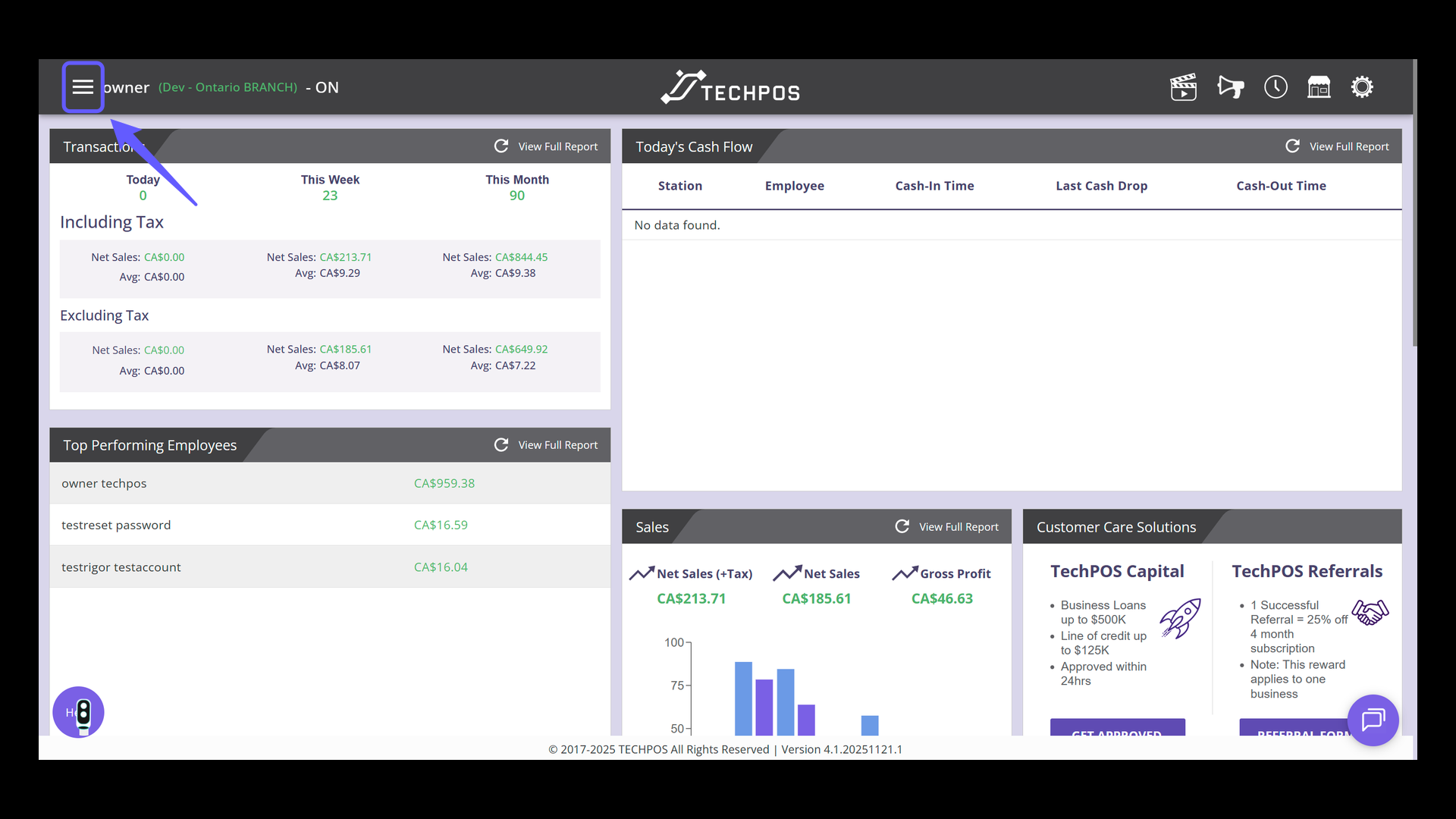
Click the menu icon to access the main navigation panel.
### 2. Access Inventory Menu
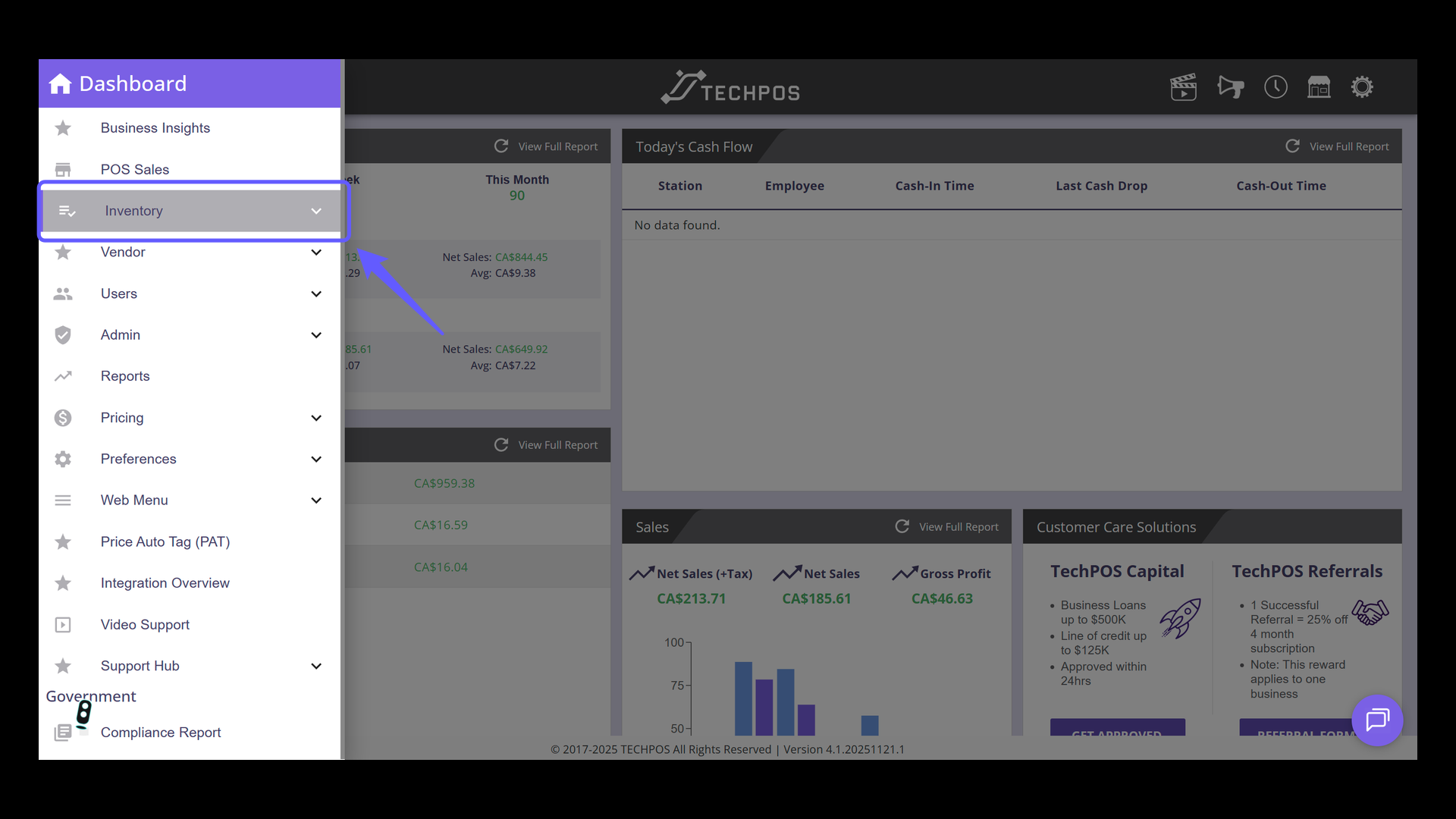
Select Inventory.
### 3. Access Bulk Transfer
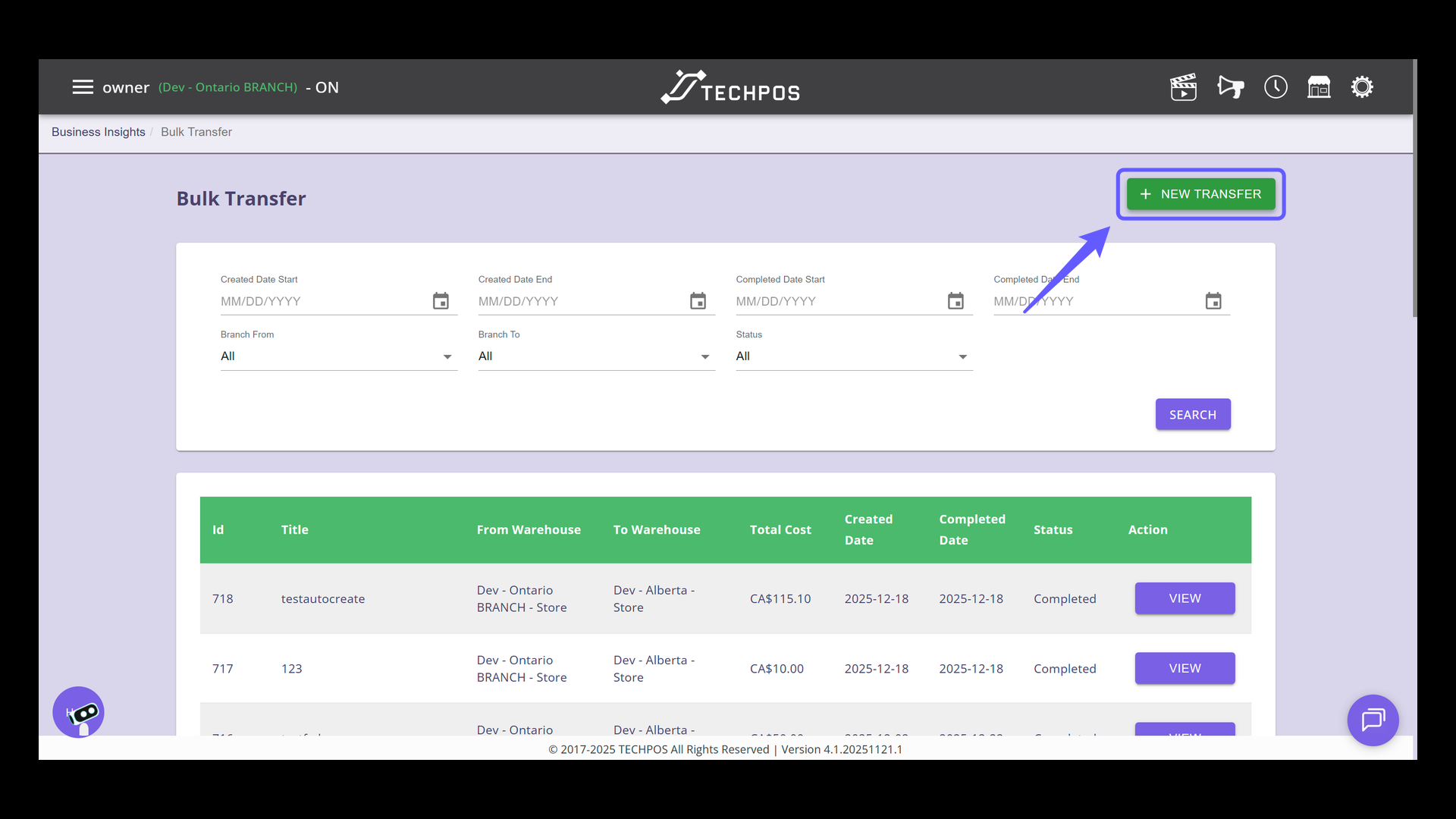
Select 'Bulk Transfer' from the menu to initiate a transfer of inventory items between locations.

### 4. Initiate a New Transfer
Click on 'New Transfer' to start the process.
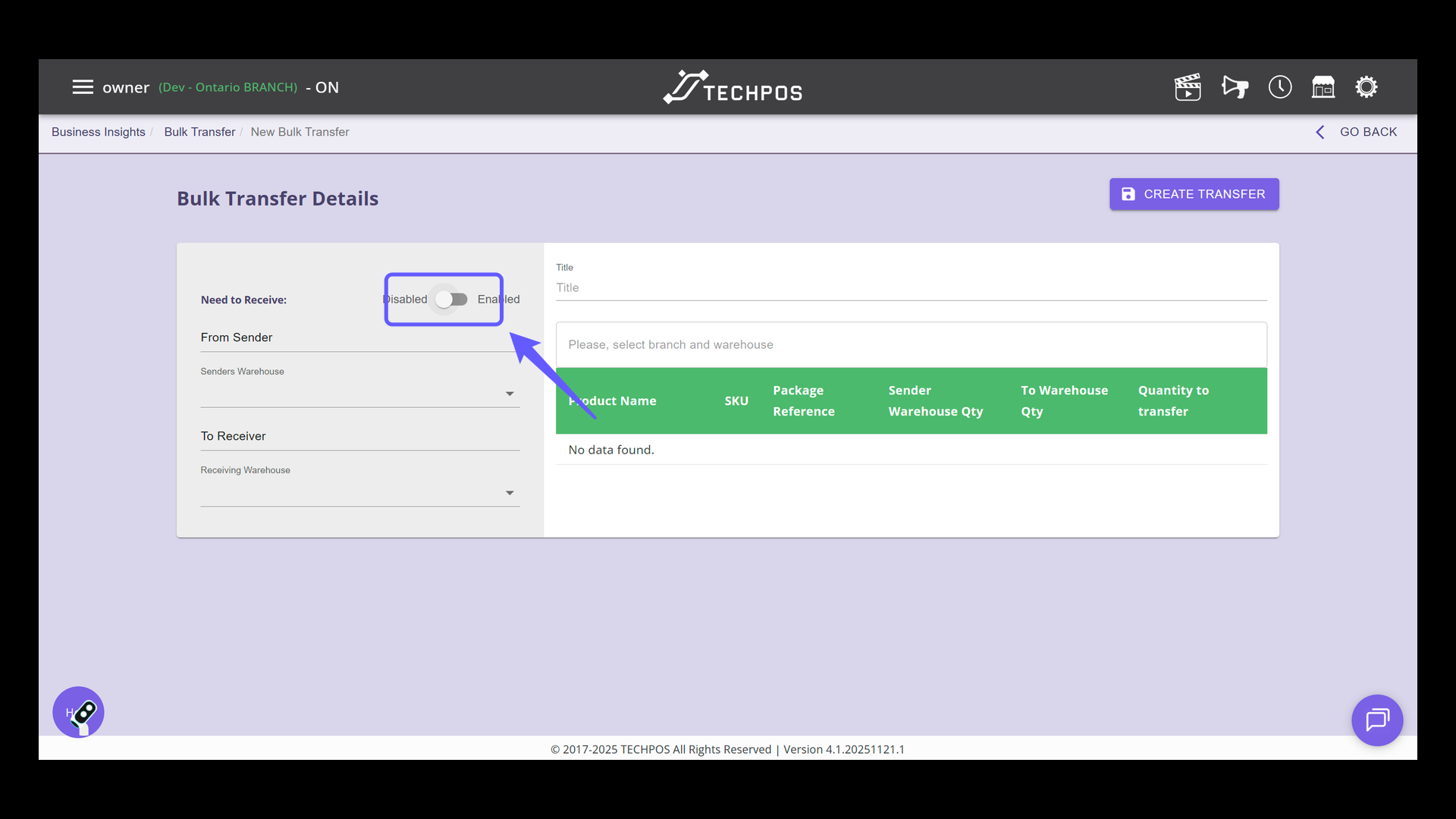
### 5. Enable/Disable Need to Receive Setting
Toggle the switch to 'Enabled' or 'Disabled' to determine the bulk transfer flow. When set to 'Enabled,' you'll be prompted to enter the received quantity for each SKU. With 'Disabled,' simply clicking the transfer button moves all products immediately, bypassing any quantity confirmation.
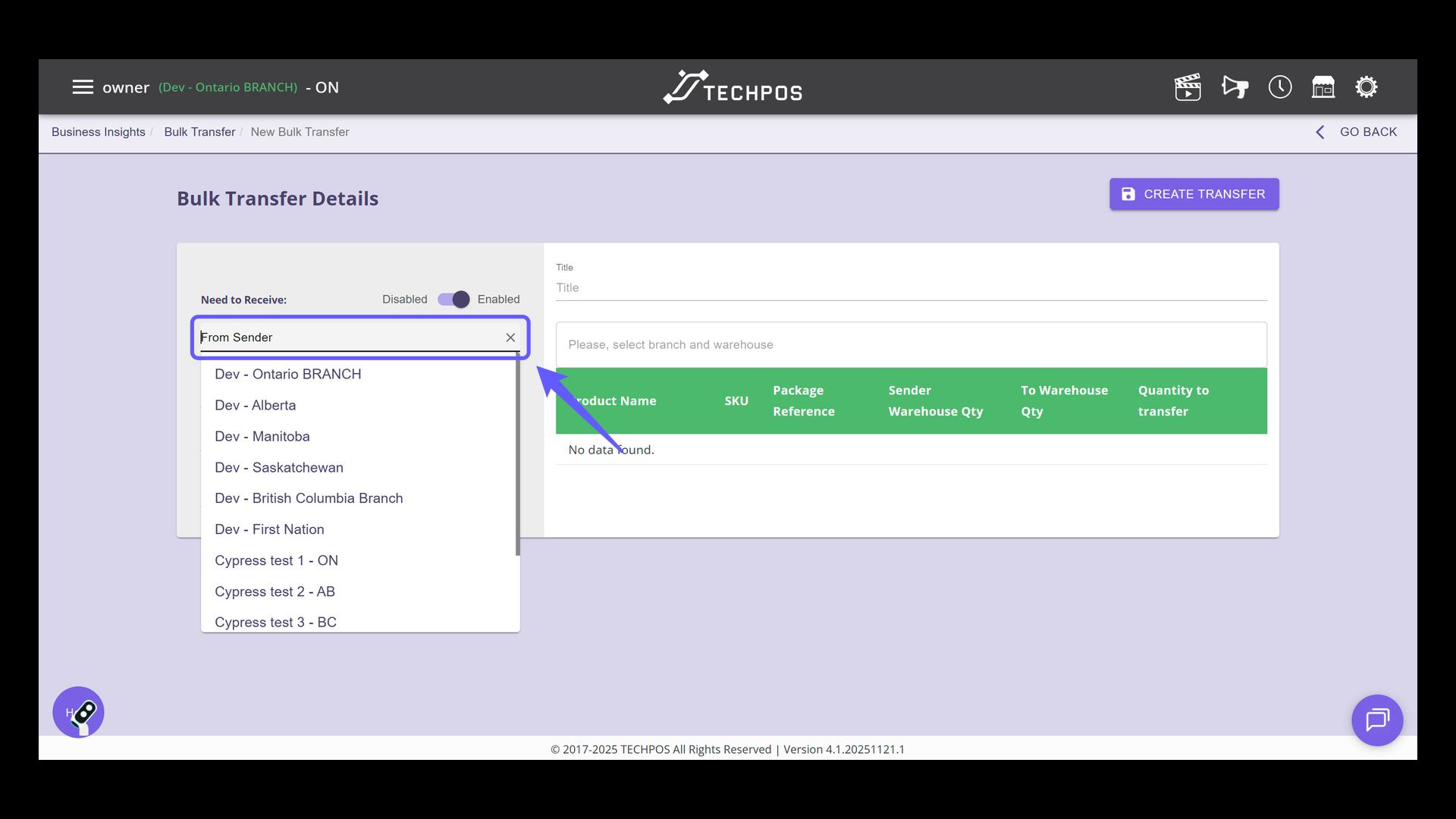
### 6. Select Sender Branch
Select a sender from the dropdown menu. This is the source from which products will be shipped.
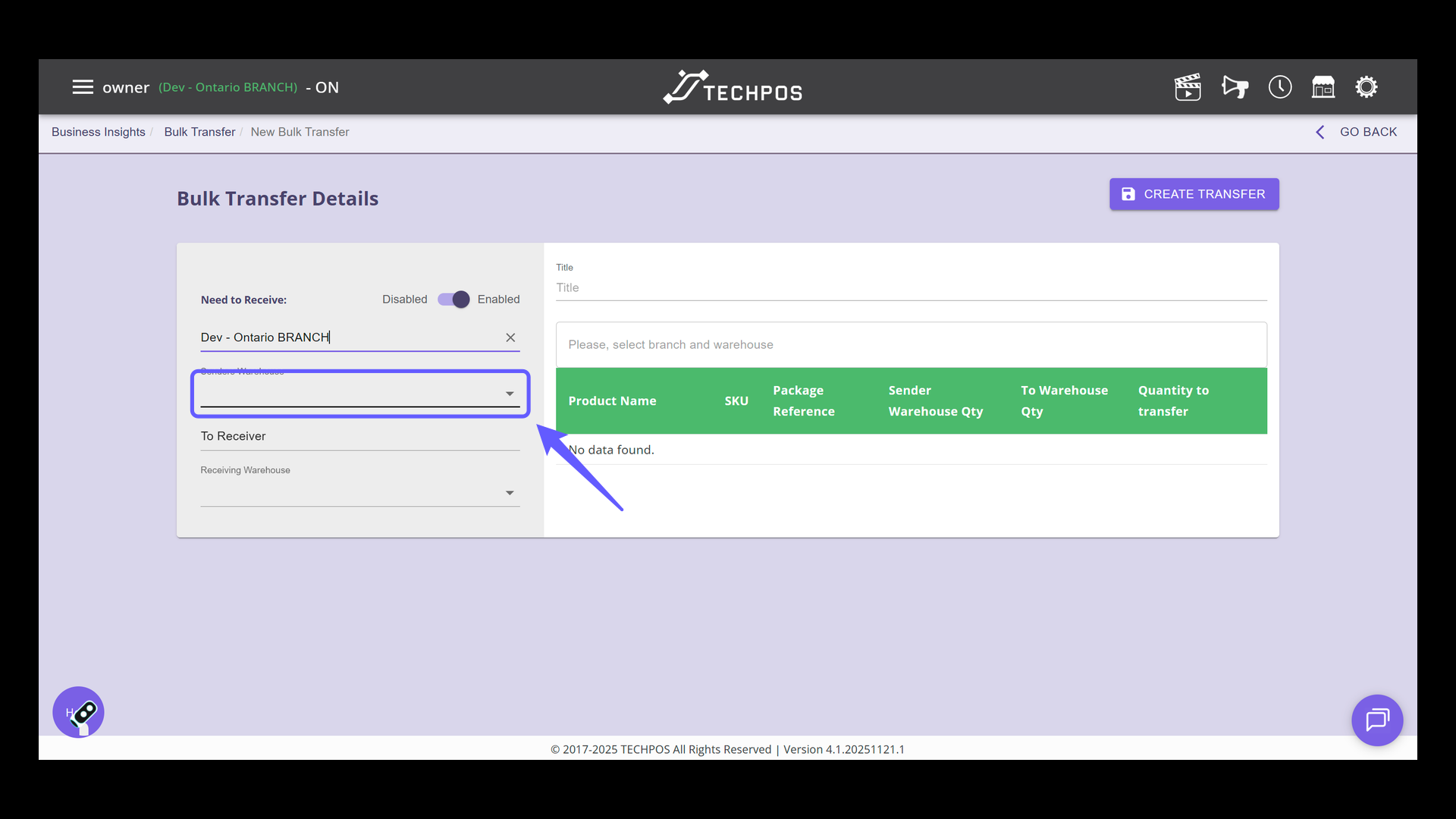
### 7. Select the Sender's Warehouse
Select an option from the Sender's Warehouse dropdown to initiate the bulk transfer setup. Ensure the inventory you're transferring is located in the chosen warehouse.
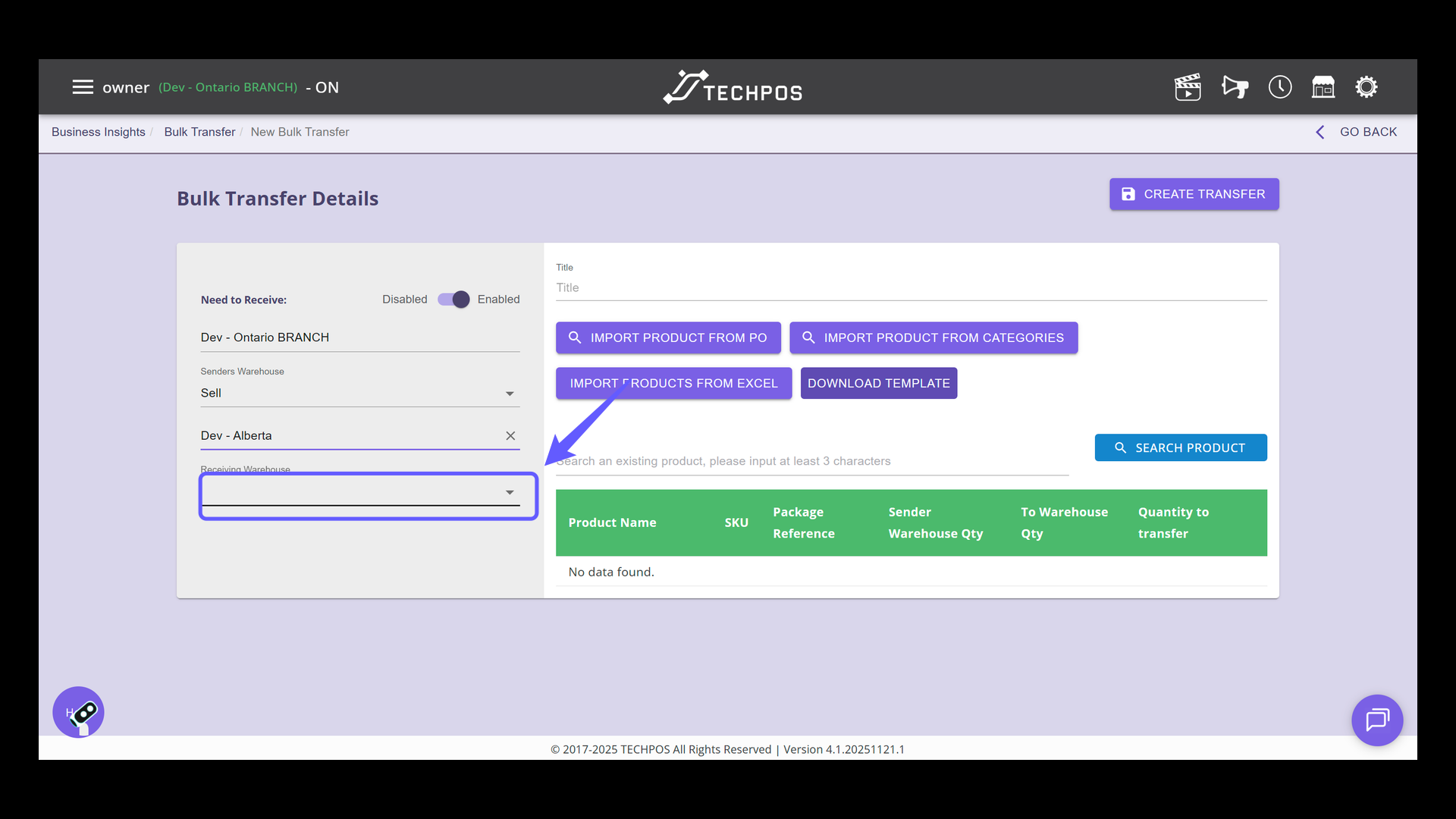
### 8. Select Receiving Store
Choose the destination store or branch from the dropdown menu to designate where the products will be transferred.

### 9. Select Receiver Warehouse
Choose the appropriate option from the dropdown menu labeled 'Receiving Warehouse' to specify where the items will be delivered.
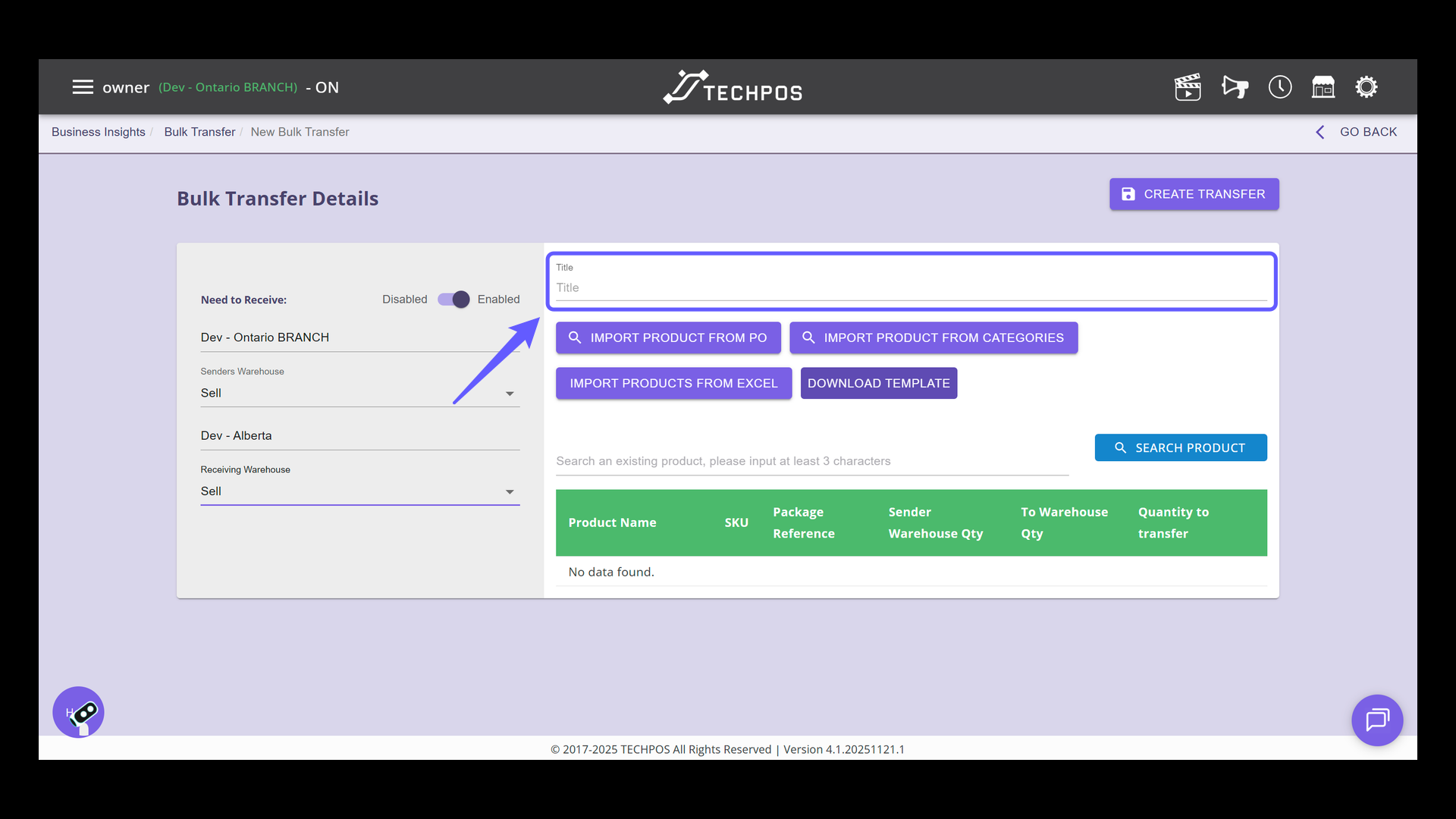
### 10. Enter Title for Bulk Transfer
Enter a title describing the bulk transfer in the field provided.
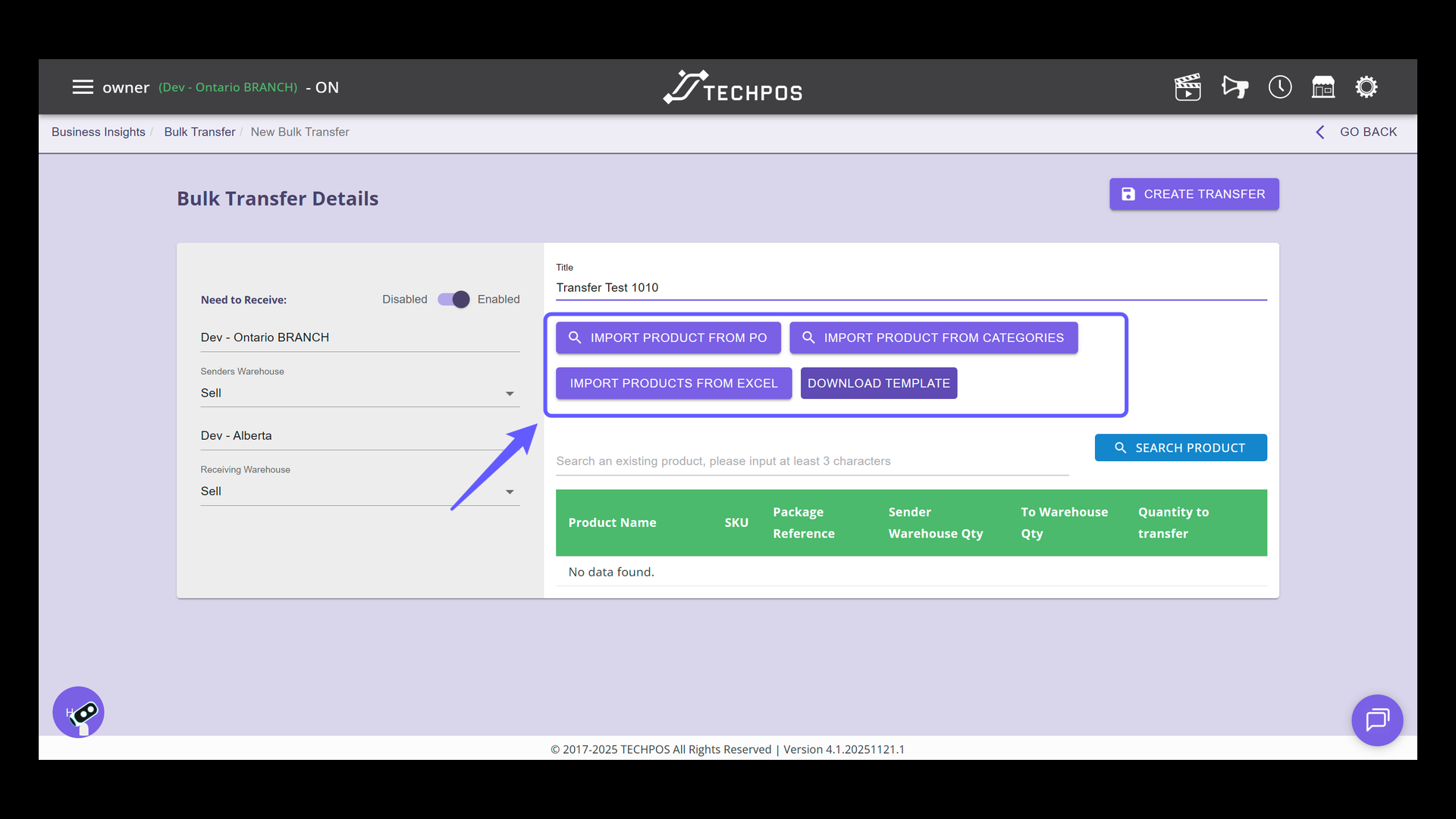
### 11. Manage Bulk Transfer Products
Choose either from Import Product from PO, from Categories, or from the template to add the products to be transferred.
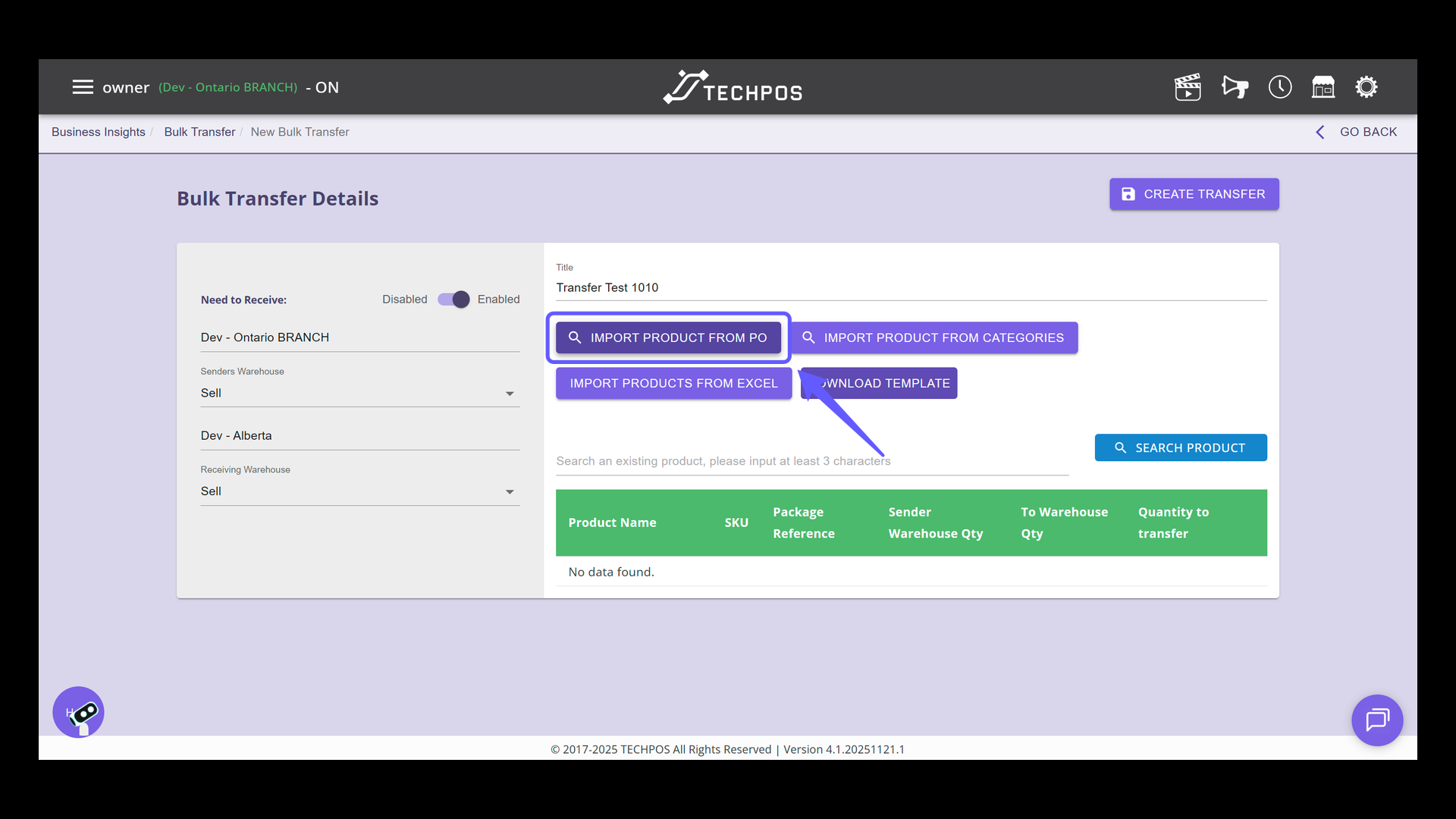
### 12. Import Product from PO
Select the button labeled 'Import Product from PO' to initiate product importation from purchase order.
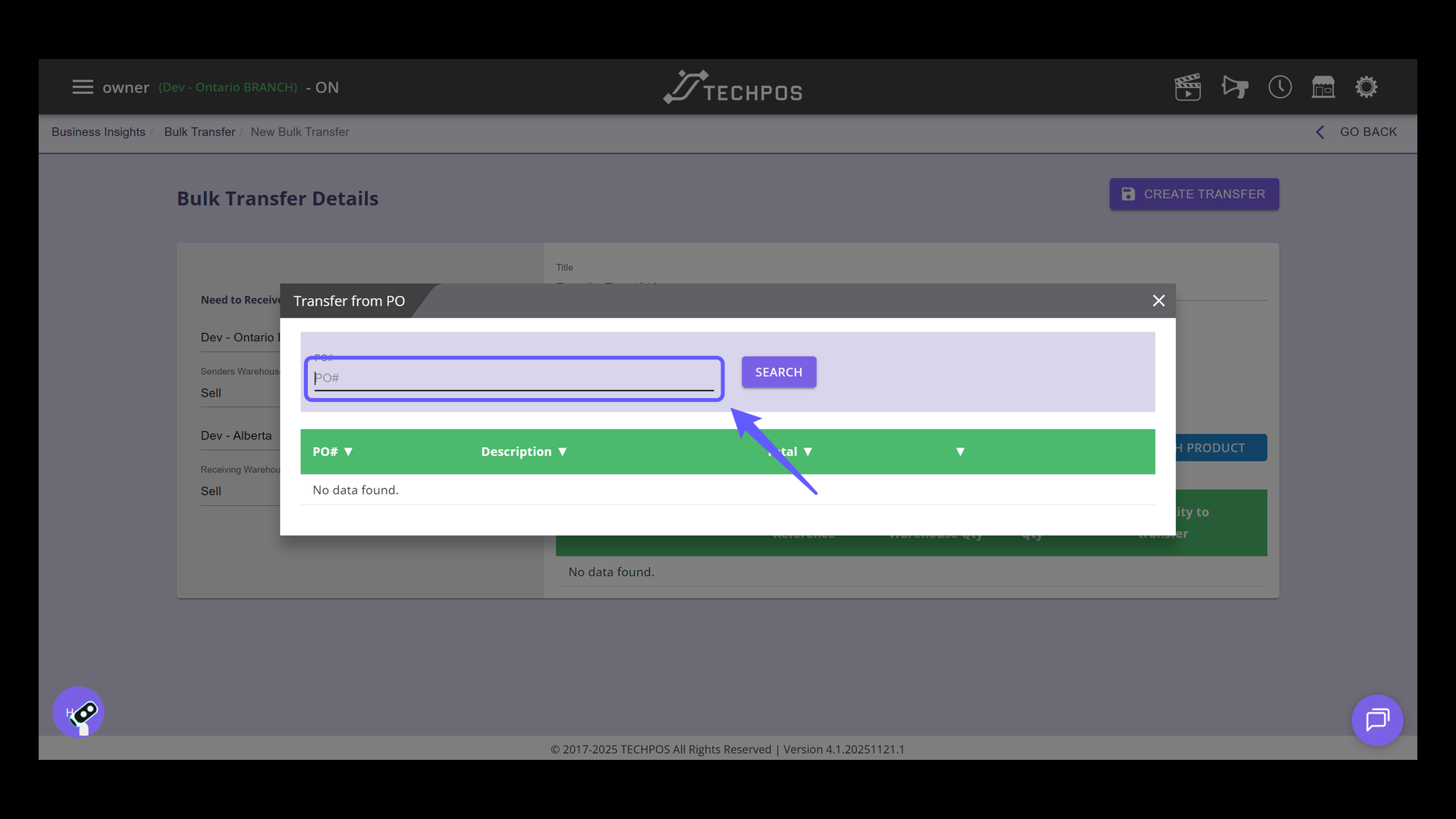
### 13. Enter Purchase Order Number
Input the purchase order number in the PO# field to proceed with the search.
### 14. Select Purchase Order Details
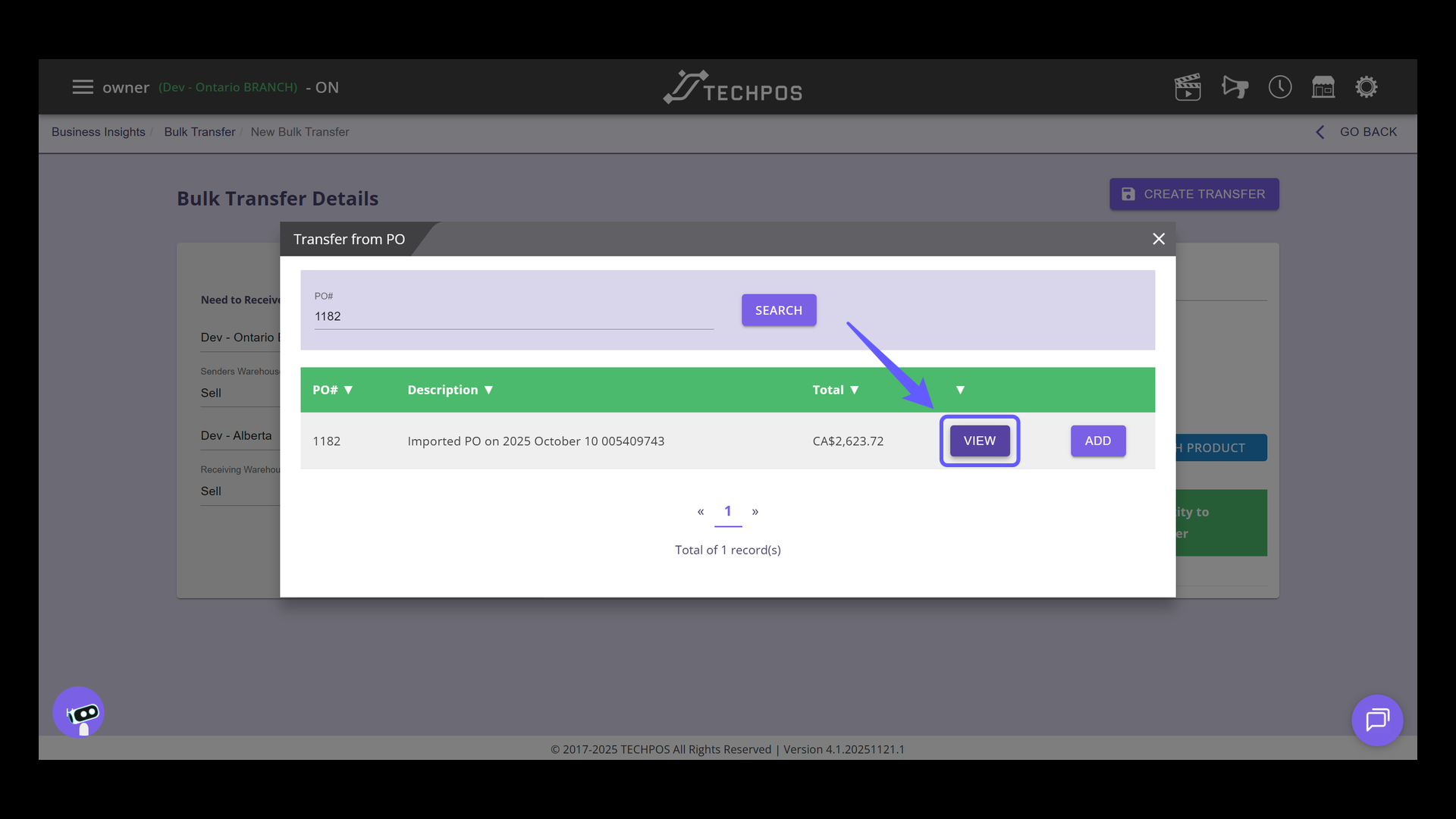
Click 'VIEW' to access the details of the selected purchase order.
### 15. Add a Purchase Order
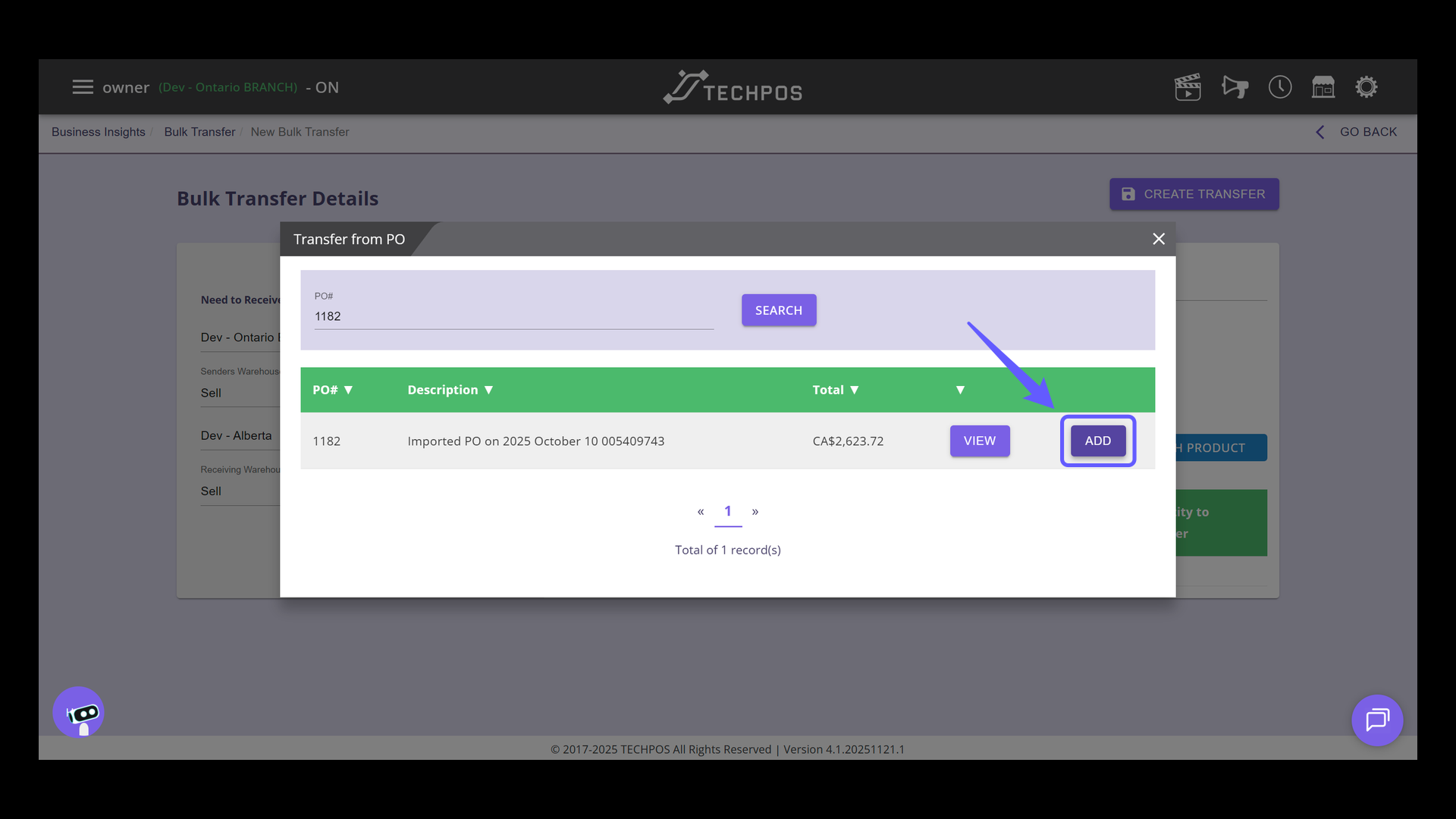
Click the 'Add' button to include the selected purchase order in the transfer list.
### 16. Import Product from Categories
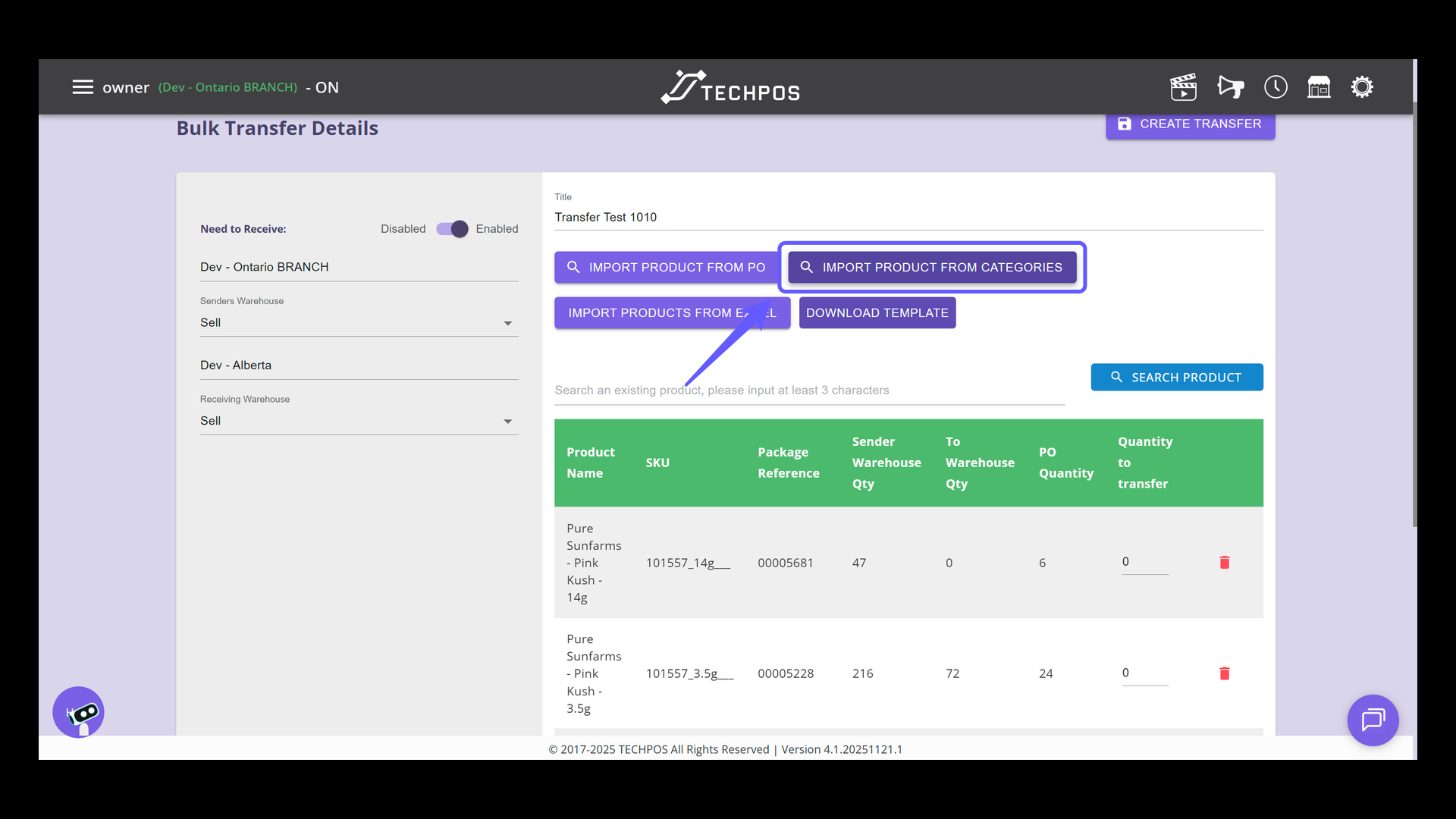
Select "Import Product From Categories" to browse and import items into the system based on their specific categories.
### 17. Select a Category
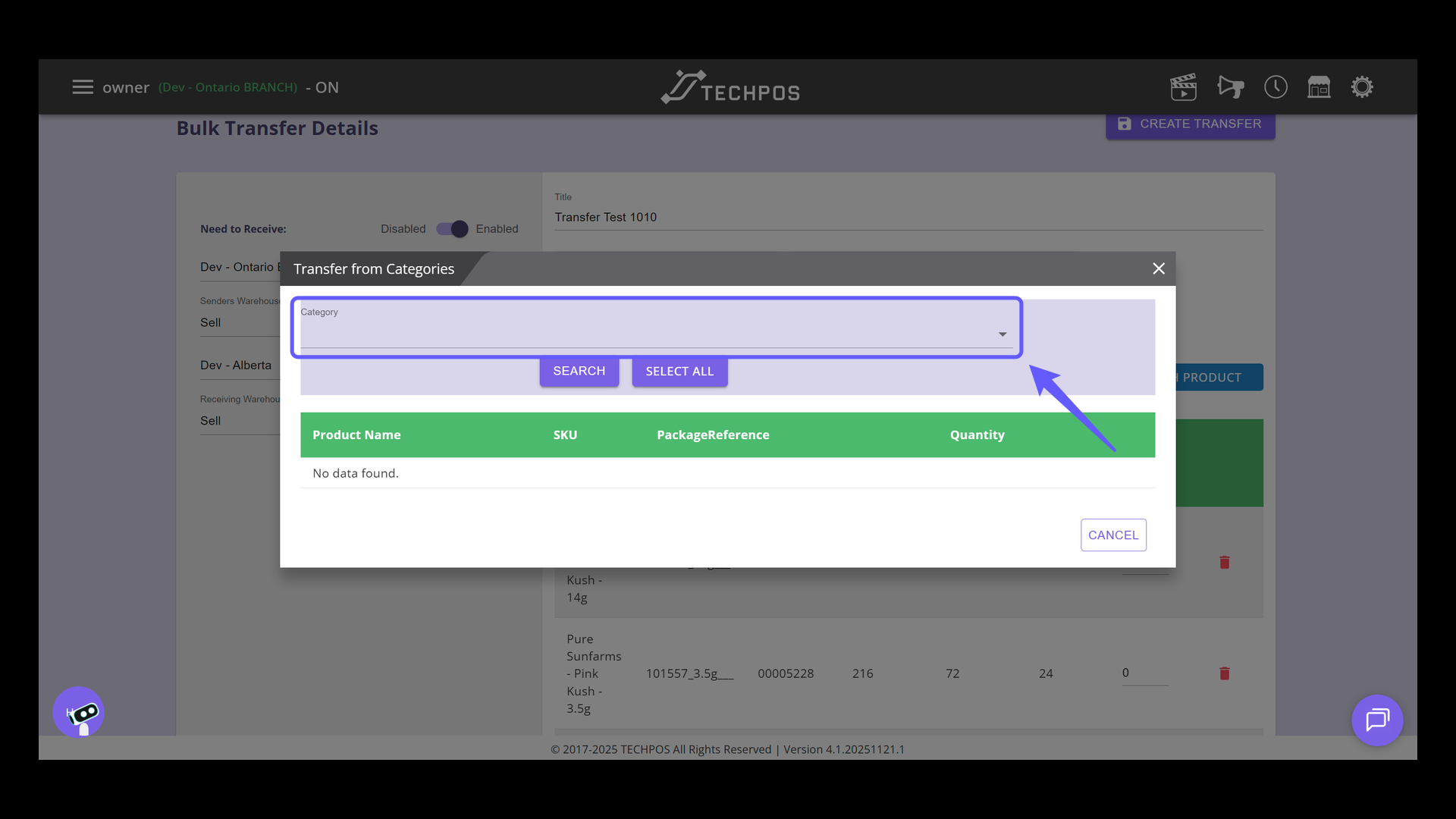
Choose a category from the dropdown menu to proceed with the transfer.
### 18. Download the Template
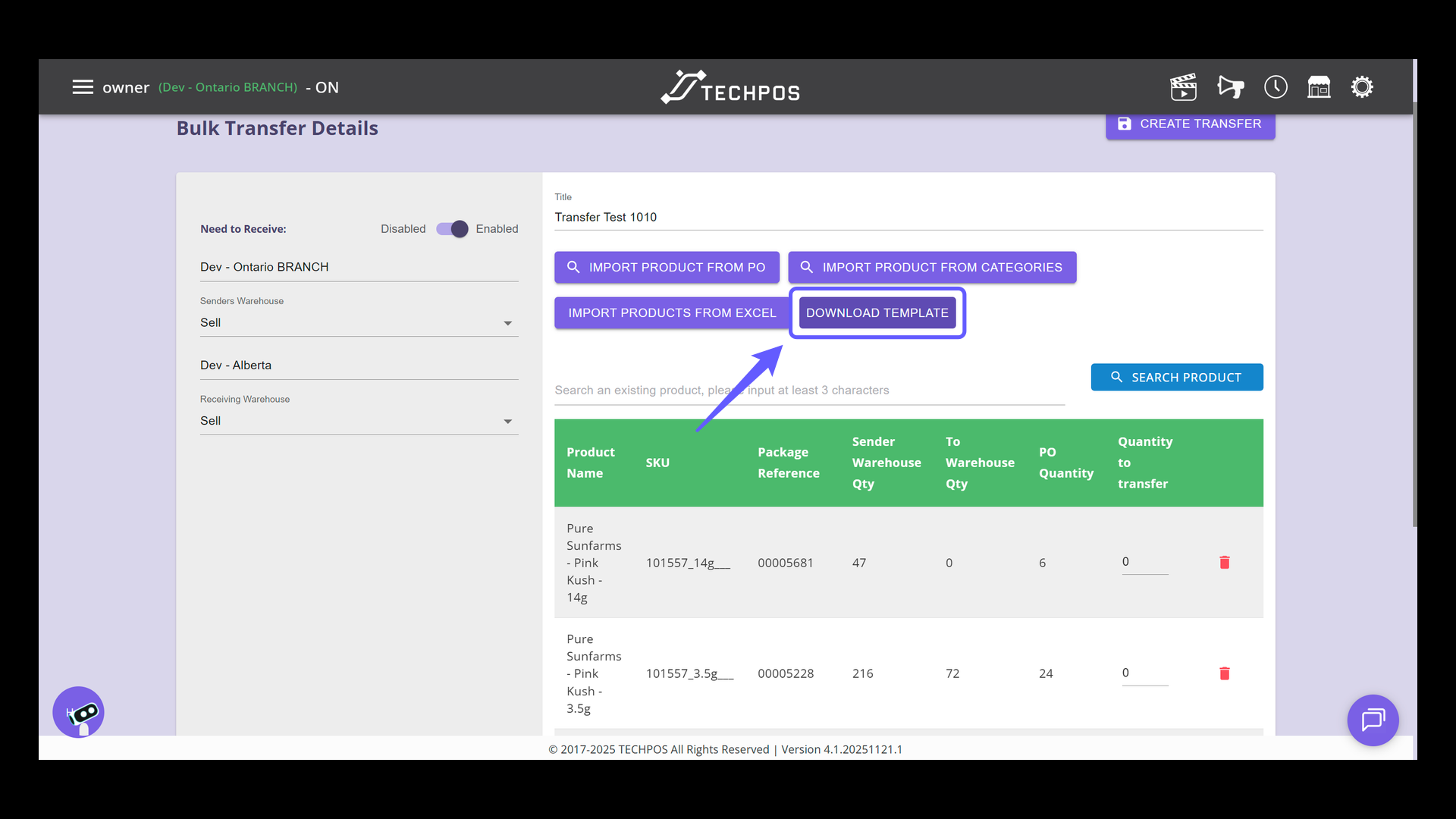
Click 'Download Template' to get the product import file. You must enter the SKU (mandatory), while Product Name and Package Reference are optional. After filling it out, click the 'Import Products from Excel' button.
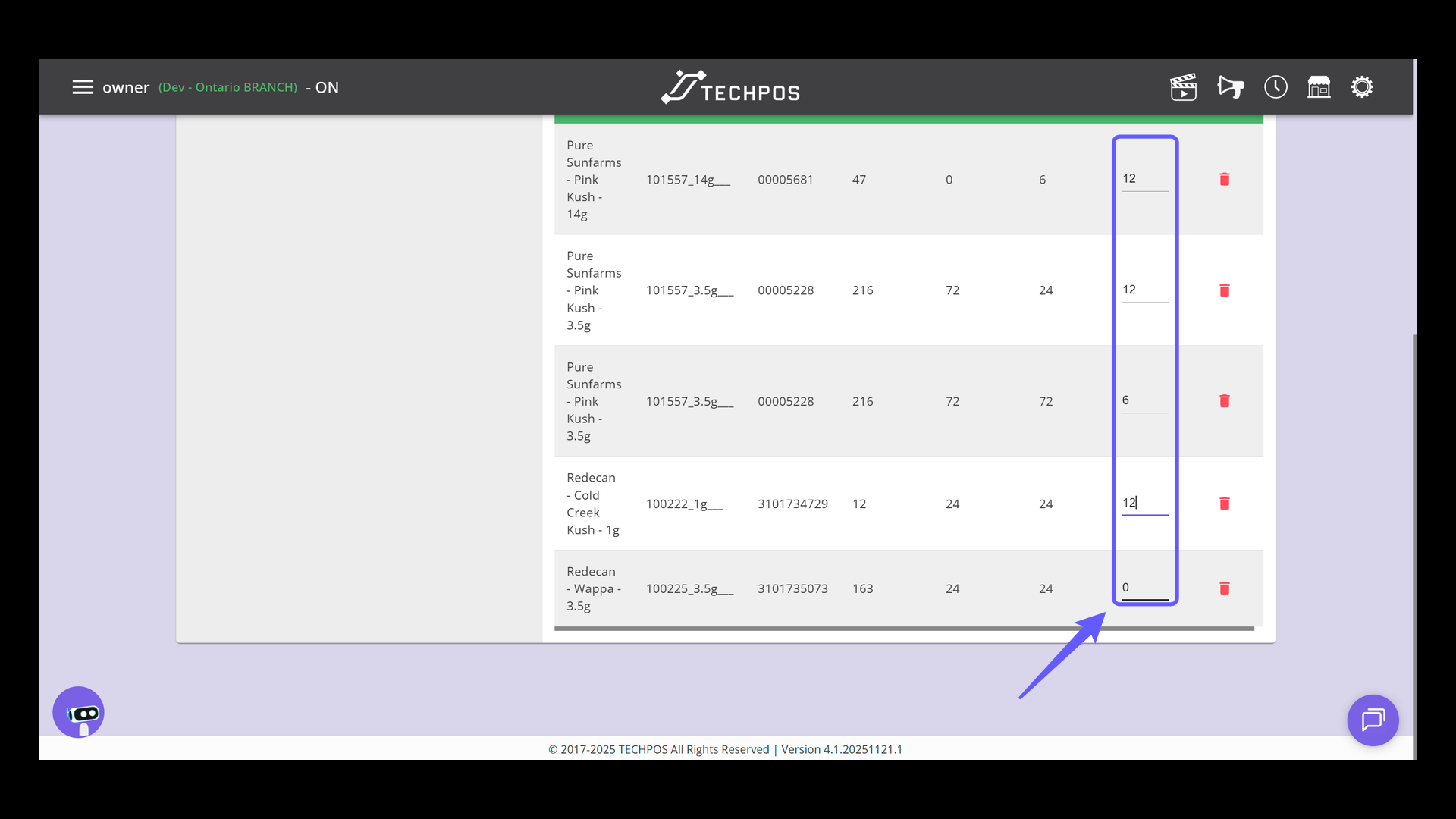
### 19. Enter Transfer Quantity
Input the desired quantity to be transferred in the provided field.
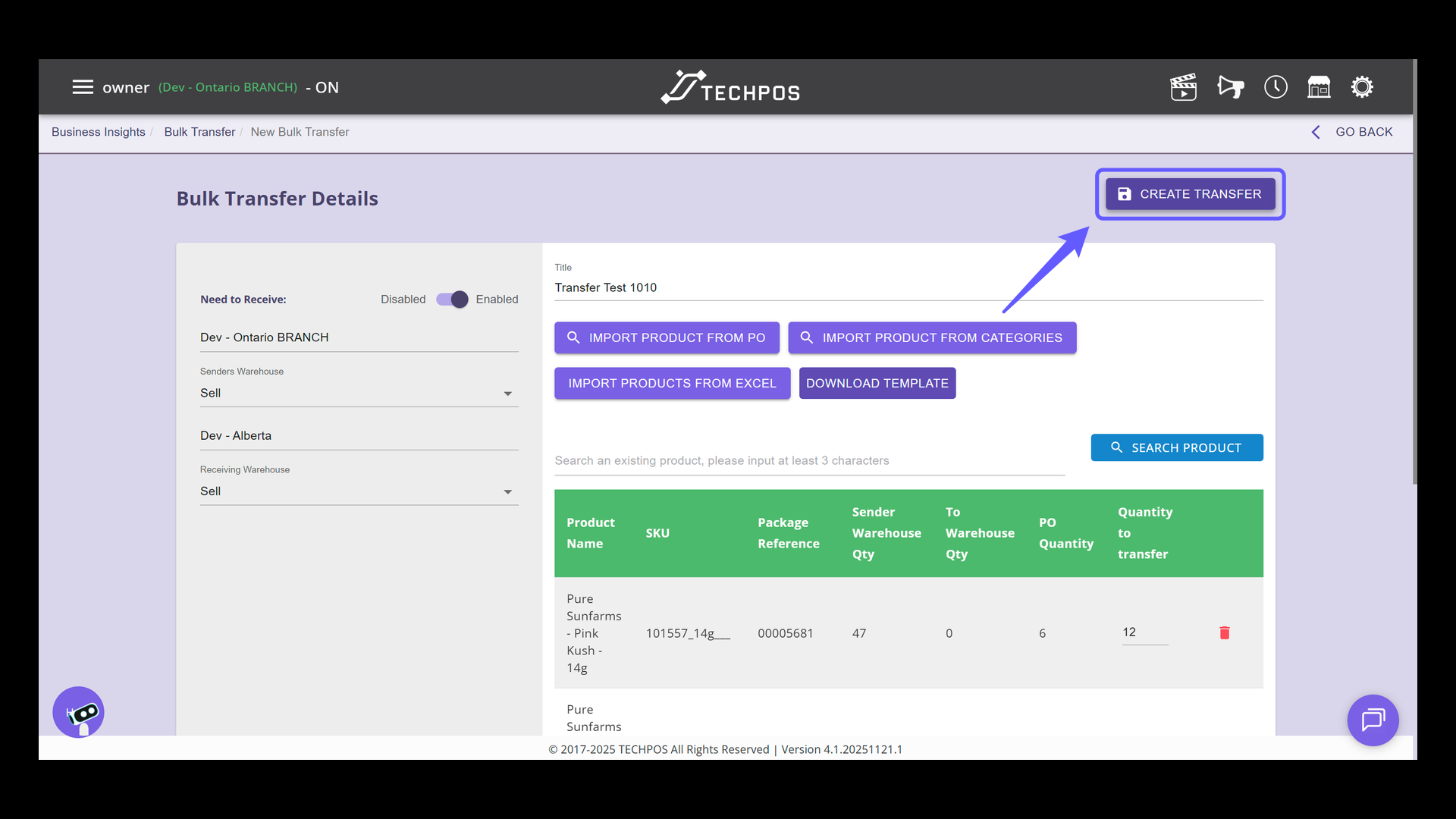
### 20. Initiate Transfer Process
Click 'Create Transfer' to proceed with initiating the transfer process for the selected products.
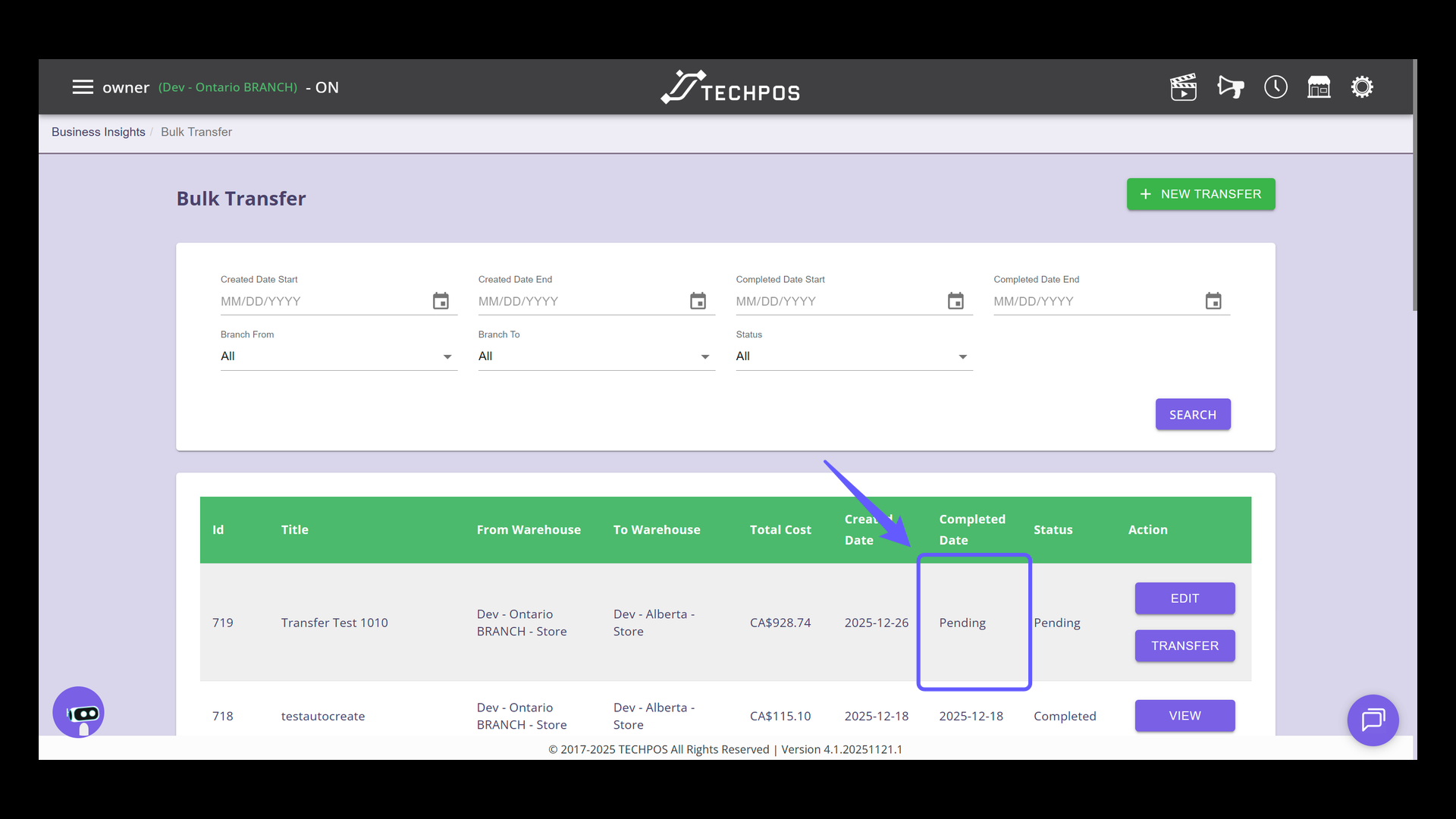
### 21. Check Transfer Status - Pending
Once the transfer is created, the status will switch to pending. This means you can still modify the transfer since it hasn't started yet. If changes are necessary, simply click the edit button.
### 22. Initiate Transfer
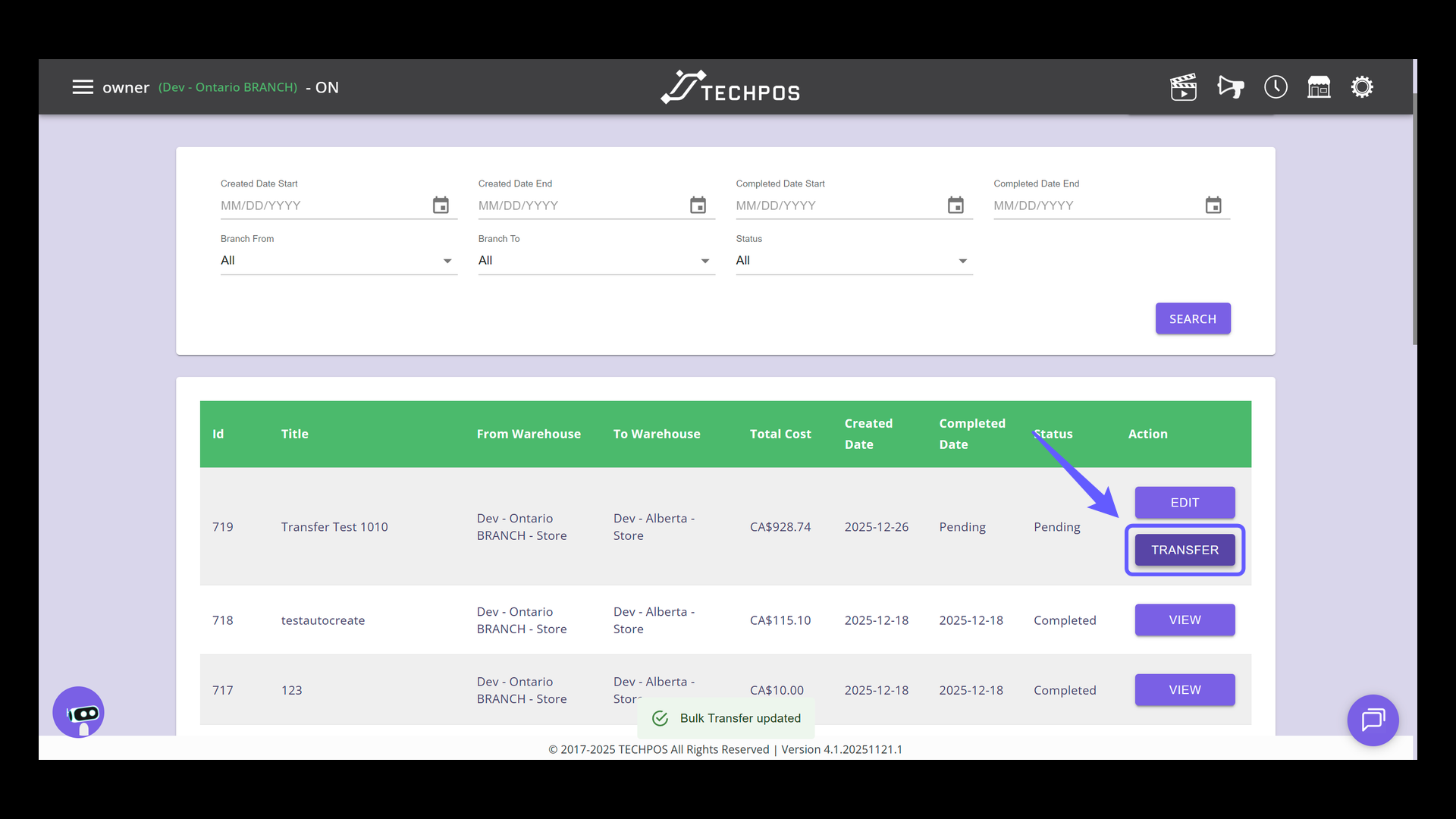
Click to initiate the transfer process for the selected item.
### 23. Confirm Bulk Transfer Action
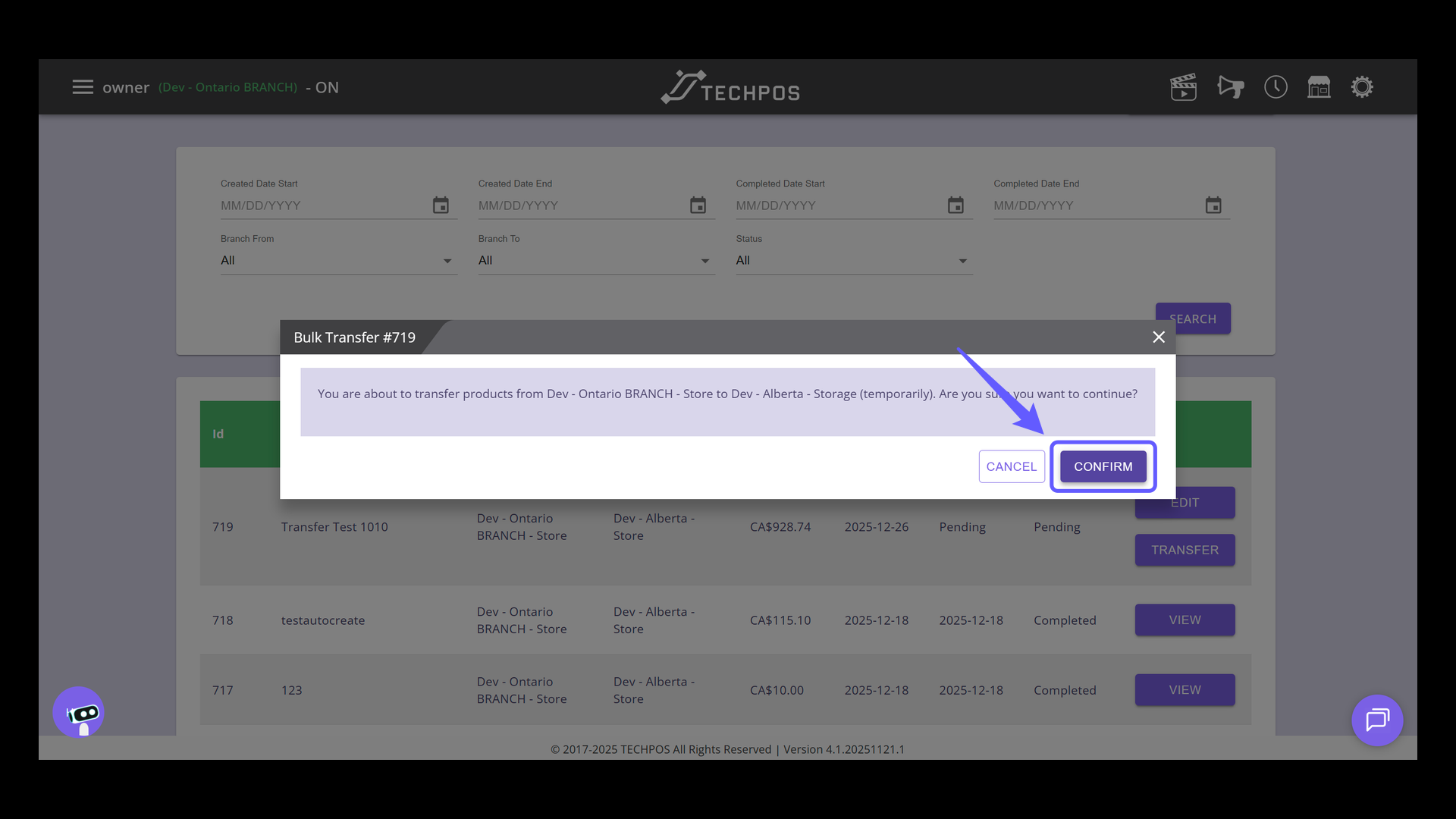
Click 'CONFIRM' to start the product transfer. The next steps will vary based on the "Need to Receive" setting. If it's disabled, clicking 'CONFIRM' will instantly mark the transfer as complete. If enabled, the process will continue with further steps.
### 24. Receive Pending Transfer
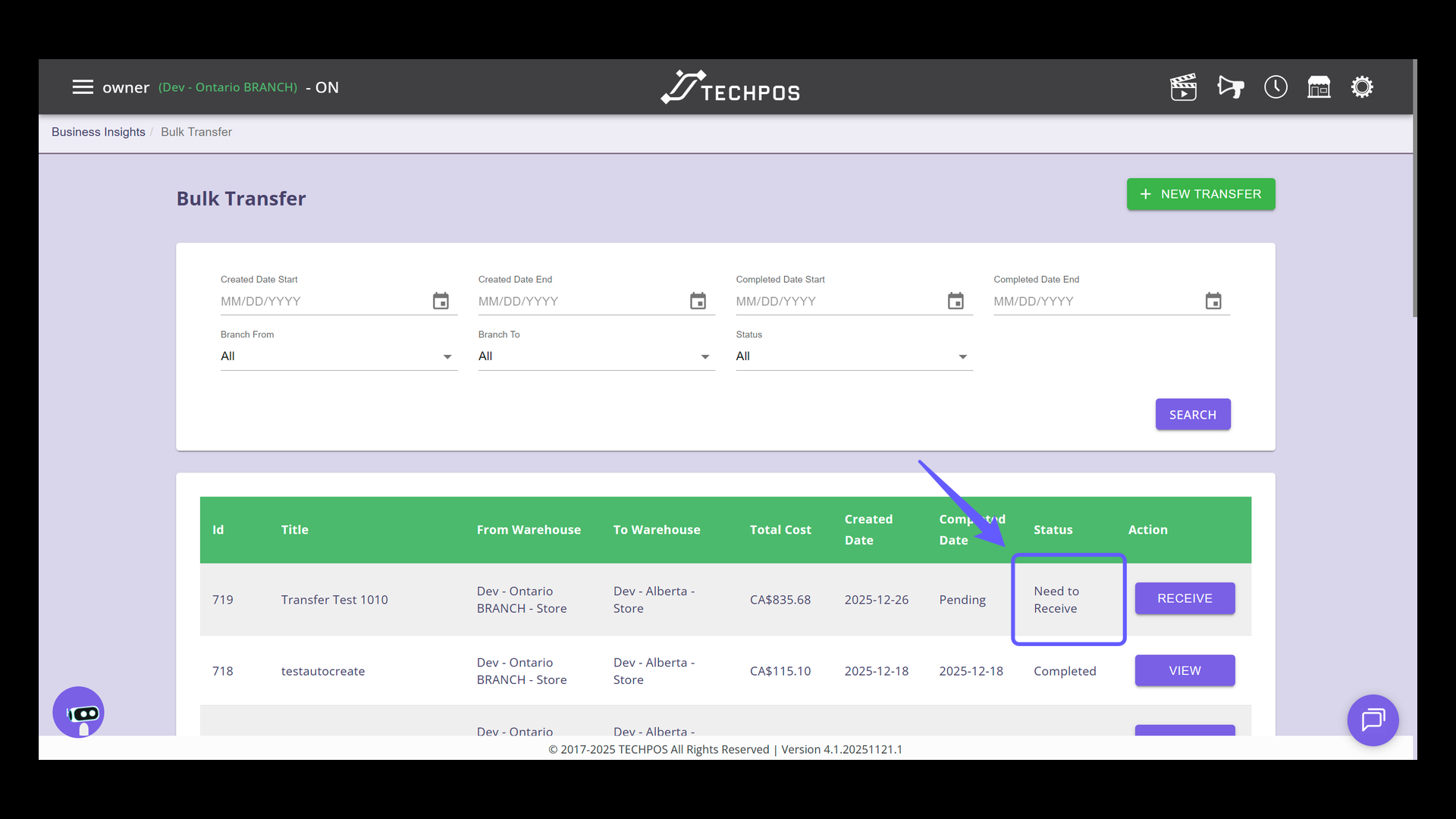
Since the "Need to Receive" setting was activated when the transfer was created, the status now changed to "Need to Receive," signifying that the products are now in transit.
### 25. Initiate Transfer Reception
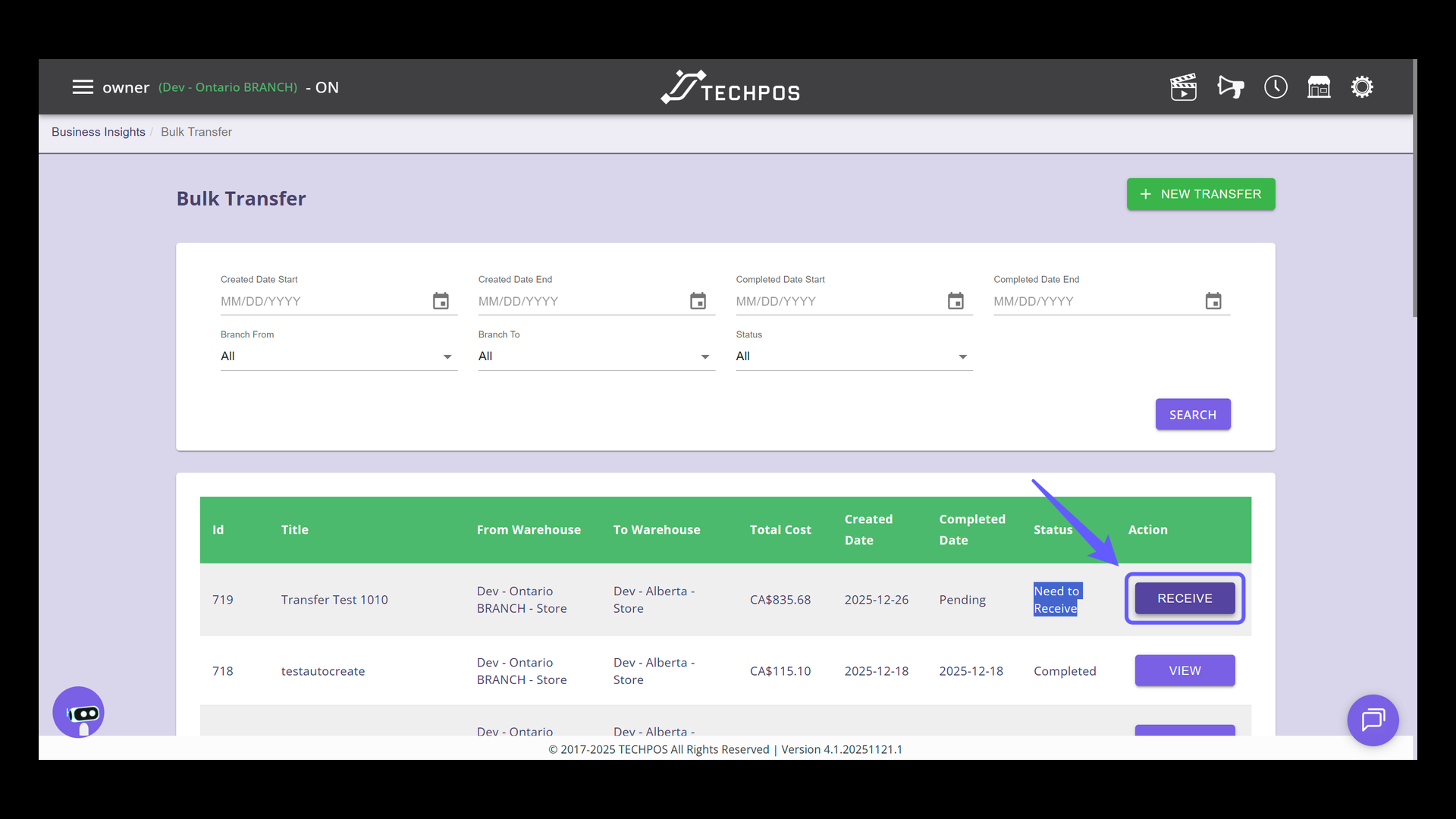
Upon receiving the transfer at the branch, promptly click the receive button.
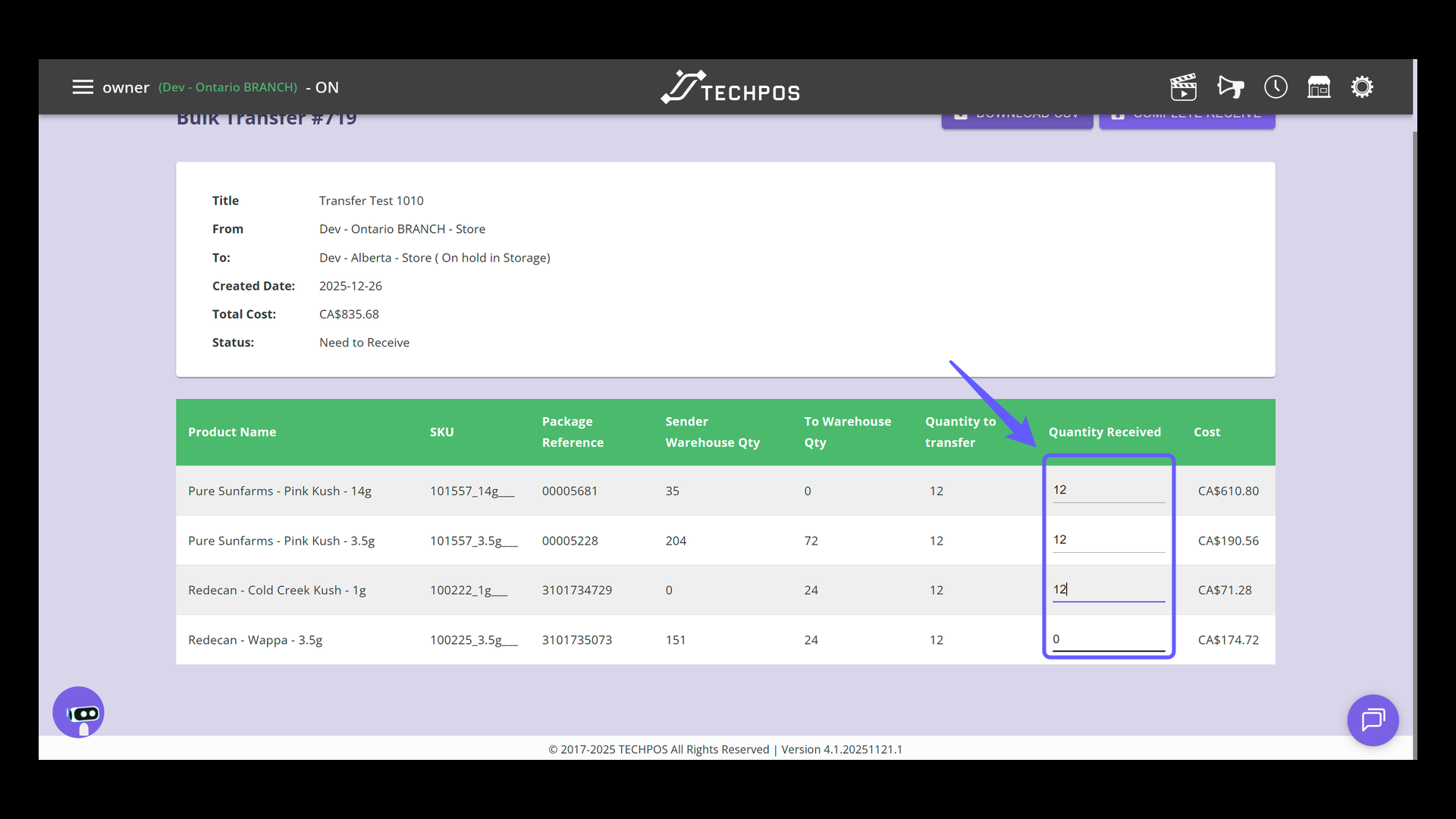
### 26. Record Quantity Received
Update the quantity received reflect the accurate stock movement.
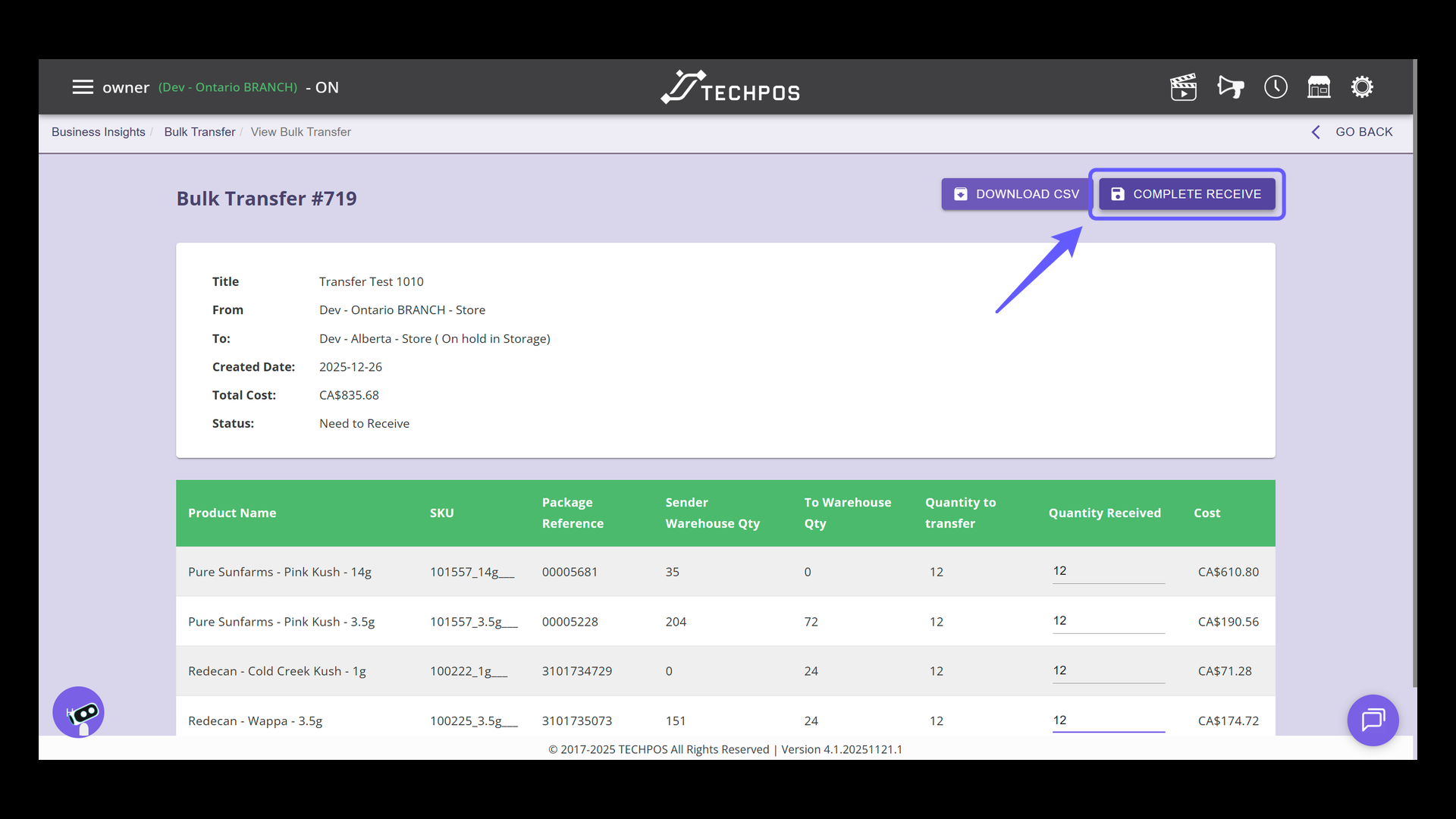
### 27. Complete the Receiving Process
Click 'Complete Receive' to finalize the transfer process.
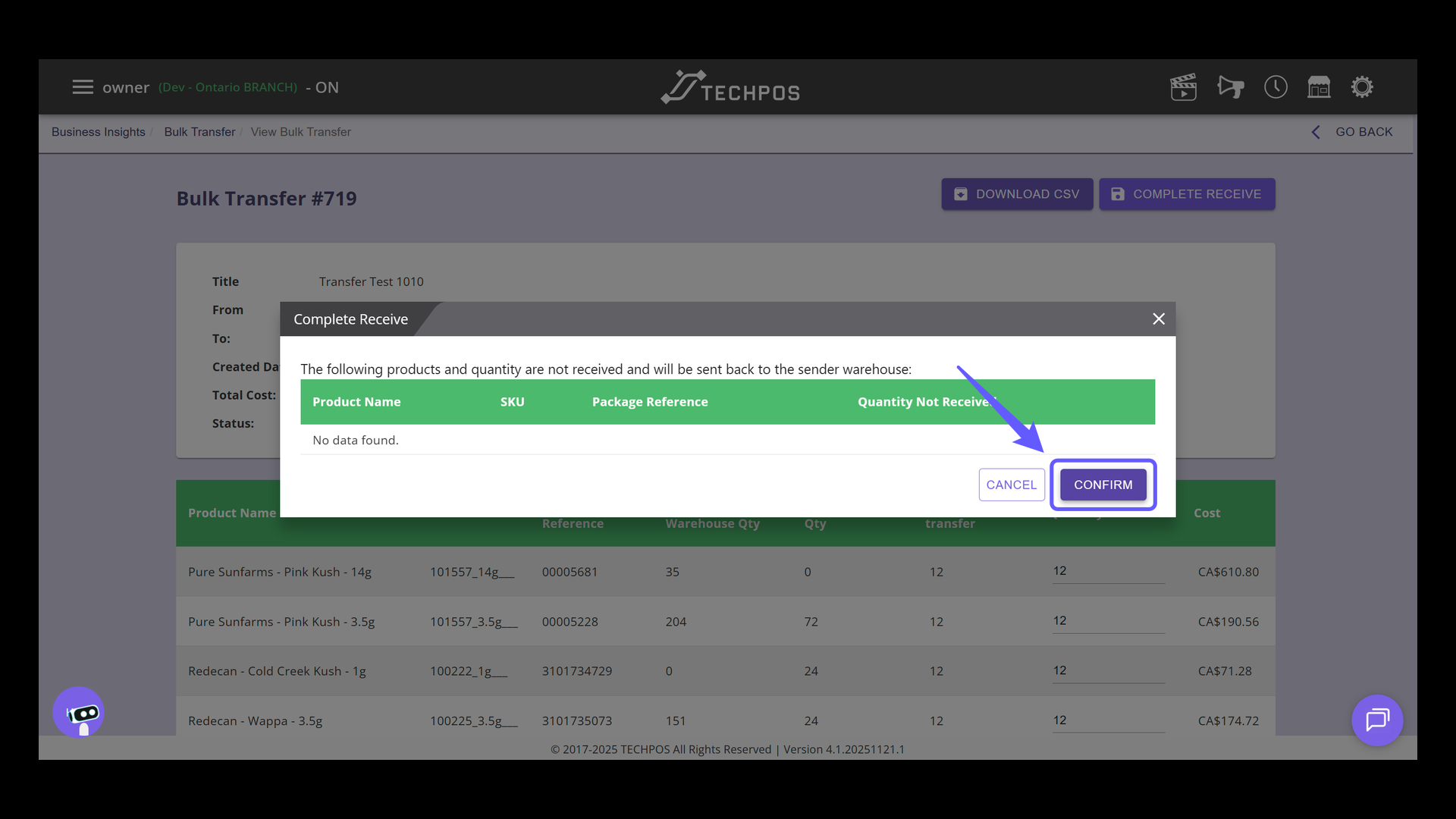
### 28. Confirm Completion
Press the 'CONFIRM' button to finalize the receive process.
### 29. Transfer Completed
Transfer now completed. Click the 'VIEW' button to access the details of the specific bulk transfer transaction.

- [Line of Products](https://knowledge.techpos.ca/en/knowledge/line-of-products?hsLang=en#main-content)
- [Express Checkout](https://knowledge.techpos.ca/en/knowledge/line-of-products?hsLang=en#express-checkout)
- [E-Commerce](https://knowledge.techpos.ca/en/knowledge/line-of-products?hsLang=en#e-commerce)
- [Digital Signage](https://knowledge.techpos.ca/en/knowledge/line-of-products?hsLang=en#digital-signage)
- [Cannabis Analytics](https://knowledge.techpos.ca/en/knowledge/line-of-products?hsLang=en#cannabis-analytics)
- [Auto Tag](https://knowledge.techpos.ca/en/knowledge/line-of-products?hsLang=en#auto-tag)
- [Getting Started](https://knowledge.techpos.ca/en/knowledge/getting-started?hsLang=en#main-content)
- [Hardware Setup](https://knowledge.techpos.ca/en/knowledge/getting-started?hsLang=en#hardware-setup)
- [Online Menu Setup](https://knowledge.techpos.ca/en/knowledge/getting-started?hsLang=en#online-menu-setup)
- [Integrations](https://knowledge.techpos.ca/en/knowledge/getting-started?hsLang=en#integrations)
- [Business Insights](https://knowledge.techpos.ca/en/knowledge/business-insights?hsLang=en)
- [Point of Sale](https://knowledge.techpos.ca/en/knowledge/point-of-sale?hsLang=en#main-content)
- [POS Sales Configuration Options](https://knowledge.techpos.ca/en/knowledge/point-of-sale?hsLang=en#pos-sales-configuration-options)
- [Opening & Closing The Cash Register](https://knowledge.techpos.ca/en/knowledge/point-of-sale?hsLang=en#opening-closing-the-cash-register)
- [Processing In-Store Transactions](https://knowledge.techpos.ca/en/knowledge/point-of-sale?hsLang=en#processing-in-store-transactions)
- [Managing Members](https://knowledge.techpos.ca/en/knowledge/point-of-sale?hsLang=en#managing-members)
- [Refunds](https://knowledge.techpos.ca/en/knowledge/point-of-sale?hsLang=en#refunds)
- [Store Credit](https://knowledge.techpos.ca/en/knowledge/point-of-sale?hsLang=en#store-credit)
- [Discounts](https://knowledge.techpos.ca/en/knowledge/point-of-sale?hsLang=en#discounts)
- [Payment](https://knowledge.techpos.ca/en/knowledge/point-of-sale?hsLang=en#payment)
- [Inventory](https://knowledge.techpos.ca/en/knowledge/inventory?hsLang=en#main-content)
- [Products](https://knowledge.techpos.ca/en/knowledge/inventory?hsLang=en#products)
- [Categories](https://knowledge.techpos.ca/en/knowledge/inventory?hsLang=en#categories)
- [Purchase Orders](https://knowledge.techpos.ca/en/knowledge/inventory?hsLang=en#purchase-orders)
- [Warehouse](https://knowledge.techpos.ca/en/knowledge/inventory?hsLang=en#warehouse)
- [Bulk Transfer](https://knowledge.techpos.ca/en/knowledge/inventory?hsLang=en#bulk-transfer)
- [Product Hub](https://knowledge.techpos.ca/en/knowledge/inventory?hsLang=en#product-hub)
- [Inventory Audit](https://knowledge.techpos.ca/en/knowledge/inventory?hsLang=en#inventory-audit)
- [Vendor](https://knowledge.techpos.ca/en/knowledge/vendor?hsLang=en)
- [Users](https://knowledge.techpos.ca/en/knowledge/users?hsLang=en#main-content)
- [Member](https://knowledge.techpos.ca/en/knowledge/users?hsLang=en#member)
- [Employee](https://knowledge.techpos.ca/en/knowledge/users?hsLang=en#employee)
- [User Role](https://knowledge.techpos.ca/en/knowledge/users?hsLang=en#user-role)
- [Member Group/Tiered Membership](https://knowledge.techpos.ca/en/knowledge/users?hsLang=en#member-group-tiered-membership)
- [Admin](https://knowledge.techpos.ca/en/knowledge/admin?hsLang=en#main-content)
- [Cash Register](https://knowledge.techpos.ca/en/knowledge/admin?hsLang=en#cash-register)
- [Safe Management](https://knowledge.techpos.ca/en/knowledge/admin?hsLang=en#safe-management)
- [Shifts](https://knowledge.techpos.ca/en/knowledge/admin?hsLang=en#shifts)
- [Schedules](https://knowledge.techpos.ca/en/knowledge/admin?hsLang=en#schedules)
- [Orders](https://knowledge.techpos.ca/en/knowledge/admin?hsLang=en#orders)
- [Marketing](https://knowledge.techpos.ca/en/knowledge/admin?hsLang=en#marketing)
- [Settings](https://knowledge.techpos.ca/en/knowledge/admin?hsLang=en#settings)
- [Reports](https://knowledge.techpos.ca/en/knowledge/reports?hsLang=en#main-content)
- [Sales Reports](https://knowledge.techpos.ca/en/knowledge/reports?hsLang=en#sales-reports)
- [Cash Management](https://knowledge.techpos.ca/en/knowledge/reports?hsLang=en#cash-management)
- [Employee](https://knowledge.techpos.ca/en/knowledge/reports?hsLang=en#employee)
- [Inventory](https://knowledge.techpos.ca/en/knowledge/reports?hsLang=en#inventory)
- [Consolidated Reports](https://knowledge.techpos.ca/en/knowledge/reports?hsLang=en#consolidated-reports)
- [Members](https://knowledge.techpos.ca/en/knowledge/reports?hsLang=en#members)
- [Compliance](https://knowledge.techpos.ca/en/knowledge/reports?hsLang=en#compliance)
- [Pricing](https://knowledge.techpos.ca/en/knowledge/pricing?hsLang=en#main-content)
- [Tax Setting](https://knowledge.techpos.ca/en/knowledge/pricing?hsLang=en#tax-setting)
- [Campaigns](https://knowledge.techpos.ca/en/knowledge/pricing?hsLang=en#campaigns)
- [Combo](https://knowledge.techpos.ca/en/knowledge/pricing?hsLang=en#combo)
- [Customized Discount](https://knowledge.techpos.ca/en/knowledge/pricing?hsLang=en#customized-discount)
- [Bulk Price Update](https://knowledge.techpos.ca/en/knowledge/pricing?hsLang=en#bulk-price-update)
- [Web Menu](https://knowledge.techpos.ca/en/knowledge/web-menu?hsLang=en#main-content)
- [Store Rules List](https://knowledge.techpos.ca/en/knowledge/web-menu?hsLang=en#store-rules-list)
- [Menu (Categories) List](https://knowledge.techpos.ca/en/knowledge/web-menu?hsLang=en#menu-categories-list)
- [Carousel List](https://knowledge.techpos.ca/en/knowledge/web-menu?hsLang=en#carousel-list)
- [UI Setting](https://knowledge.techpos.ca/en/knowledge/web-menu?hsLang=en#ui-setting)
- [Integrations](https://knowledge.techpos.ca/en/knowledge/integrations?hsLang=en#main-content)
- [E-Commerce](https://knowledge.techpos.ca/en/knowledge/integrations?hsLang=en#e-commerce)
- [Compliance Report](https://knowledge.techpos.ca/en/knowledge/compliance-report?hsLang=en)
- [FAQs](https://knowledge.techpos.ca/en/knowledge/faqs?hsLang=en)
- [New Features](https://knowledge.techpos.ca/en/knowledge/new-features?hsLang=en#main-content)
- [July 2025](https://knowledge.techpos.ca/en/knowledge/new-features?hsLang=en#july-2025)
- [June 2025](https://knowledge.techpos.ca/en/knowledge/new-features?hsLang=en#june-2025)
- [May 2025](https://knowledge.techpos.ca/en/knowledge/new-features?hsLang=en#may-2025)
- [February 2026](https://knowledge.techpos.ca/en/knowledge/new-features?hsLang=en#february-2026)
- [PAT](https://knowledge.techpos.ca/en/knowledge/pat?hsLang=en#main-content)
- [Product Auto Tags](https://knowledge.techpos.ca/en/knowledge/pat?hsLang=en#product-auto-tags)
[](http://techpos.ca)
Knowledge Base
Copyright © 2026, TechPOS International Corp.