
⚠️ Important: Offline Mode is currently available only on Windows registers
How do I know if Offline Mode is available?
If you see the Online / Offline switch at the top of the POS screen, Offline Mode is available on your register.

The switch is only displayed when Offline Mode is enabled for the store and the register is properly configured. If you do not see the switch, please contact your administrator or support team for assistance.
What can I do while Offline?
When the register is offline, you can continue using the POS to create and complete sales.
The following areas remain available:
- POS – Continue creating orders using the offline POS.
- Device – Access device-related settings.
- New Features
Other features that require an internet connection will be temporarily unavailable and will appear disabled in the menu.
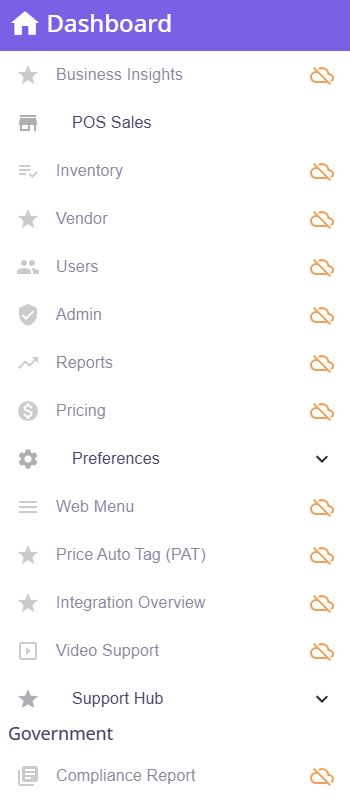
The same locking applies to the header icons and the items inside the settings dropdown, so there is no way to reach an online-only screen by a side route.
A parent menu group stays open only if at least one of its children is allowed offline — for example, Manage remains expandable so you can still reach Device.
When you switch back to Online, all pages unlock immediately and the POS link returns to the standard online POS screen.
Offline Mode Banner
When the register is offline, an Offline Mode banner is displayed to let you know that the register is currently operating without an internet connection.
The banner provides information about what you can still do while offline and can be collapsed or expanded if it is taking up space on the screen.

Offline Mode is remembered
The register remembers the selected mode. If the register is in Offline Mode, refreshing the page will not automatically switch it back to Online Mode.
Features unavailable while offline
Some features cannot be used until the register is back online, including:
- Members
- Refunds
- Advanced campaign features such as Mix and Match
- Debit/Credit
- Combo
If you need to perform an action that is unavailable offline, wait until the internet connection has been restored.
Load Data, Upload Data, and the sync job
These options are available under Data Sync in the settings dropdown (the gear icon in the top bar).
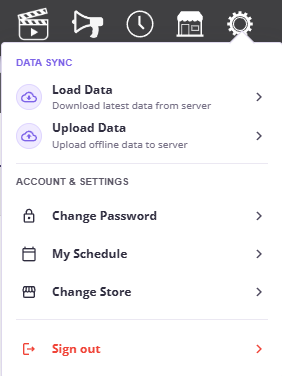
Load Data
Downloads the latest information from the server to your register. Products, prices, employees, settings, and so on. Run this before you expect to go offline, or after a large data change online, so the register has current data to sell from.
While it runs, the app shows a Loading… overlay, then confirms with “Latest data fetched successfully.”
Upload Data
Upload Data sends transactions created while offline back to the server— orders, payments, cash movements.
Normally, you do not need to use this option manually because synchronization happens automatically.
Both buttons remain usable in Offline mode, since they talk to the local service.
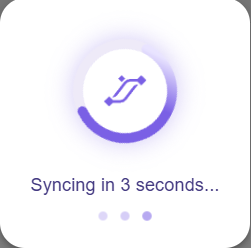
If the server reports that a sync is already in progress, the app waits and retries automatically — up to 3 attempts, counting down “Syncing in 5 seconds…” between tries. No action is needed from the cashier.
Automatic sync job
You do not have to press these buttons for routine operation. The offline Windows service runs its own scheduled sync job:
- Starts 10 seconds after the service starts.
- Then repeats every 1 minute.
- Skips the run if a sync is already in progress, so runs never overlap.
The two directions are not on the same schedule, and the difference matters:

⚠️ Important: Make sure your register has the latest information before going offline.
Some updates made online, such as campaigns, discounts, prices, products, and settings, can take up to one hour to reach your register automatically.
If you are planning to go offline, we recommend pressing Load Data first. This will immediately download the latest information to your register, so you are working with the most up-to-date data while offline.
Example: If you change a product price or create a new campaign and then take the register offline shortly after, the register may not have received that update yet. Pressing Load Data before going offline helps prevent this.
🟢 Going back online is safe and does not cause you to lose data.
Any orders or changes made while the register is offline are saved and will be uploaded automatically once the internet connection is restored.
For the best results:
- Before going offline: Press Load Data to get the latest information.
- After coming back online: Press Upload Data to send any offline changes back to the system.
- If you are not in a hurry: The register will also sync automatically when the connection is restored.
The Online / Offline switch and automatic connectivity detection
The switch shows the current mode and lets you force it.
Switching manually
- Switch OFF → Offline. Takes effect immediately. Use this during a known outage so the register stops waiting on failed requests.
- Switch ON → Online. Triggers a connectivity check. The register only returns online if the check actually succeeds; you cannot force it online while the connection is genuinely down.
⚠️ Important: Complete or save the current order before going offline.
If an order is still in progress when the register goes offline, that unfinished order will be lost and will need to be entered again. Orders that are not completed do not carry over when switching between Online and Offline Mode.
This can happen whether you manually switch to Offline Mode or the register automatically goes offline because the internet connection is lost.
To avoid losing an order:
- Complete the current order before going offline.
- If you are not ready to complete it, park the order first.
- If your internet connection is unstable, switch to Offline Mode between orders, not while a sale is in progress.
Completed orders are never at risk. Once an order is finalized it is stored and will sync.
Automatic detection
The app checks connectivity on its own and switches modes without anyone touching the switch.
While online, it re-checks every 10 seconds, and also immediately when:
- The operating system reports the network going up or down.
- You switch back to the POS browser tab or window.
Each check calls the server with a 5-second timeout. If the check fails, or the OS reports no network at all, the register drops to Offline mode on its own.
While offline, the register automatically checks for the connection every 30 seconds. The remaining time is displayed on the screen, and you can select Try now to check for the connection immediately instead of waiting for the next automatic attempt.
When the connection is successfully restored, the register automatically switches back to Online mode and displays a “Connection restored.” message.