
January 20, 2026 UPDATE:
To use the new printer service application, please reach out to our Support Team to enable the settings and provide further assistance.
Phase 1: Printer Service App Installation
Step 1: Download the Printer Service Installer on the link: https://techposprod.blob.core.windows.net/printer-service/prod/Setup.exe
Step 2: Run the downloaded installer as Admin and continue to next steps. Ensure to check create a desktop shortcut.

Step 3: Open the Printer Service Application as Admin.

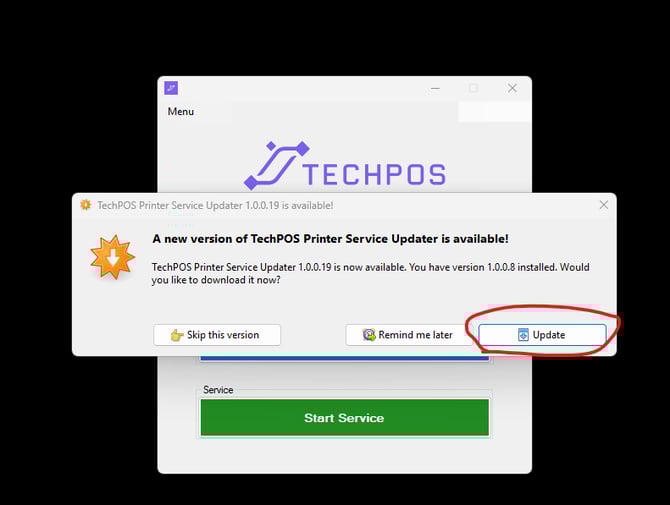
Step 4: A window mentioning an update will appear (the version downloaded from the link is 1.0.0.8, the application will suggest updating to latest version, click on "update".
Step 5: Double confirm the application version on “menu”, and ensure you have the latest one. 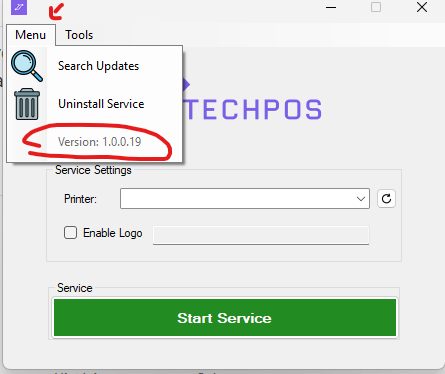
Step 6: Once the version has been verified, select the installed thermal printer from the Printer menu.
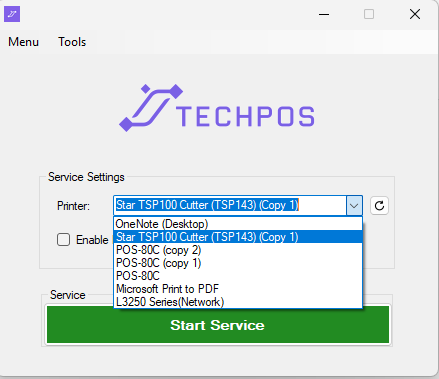
You can check if the printer is connected on the Control Panel Printers page, printing a test page.
Step 7: If the store already has a logo enabled for the receipt, the link to be pasted in the logo field must be only for logos imported into the Azure portal.
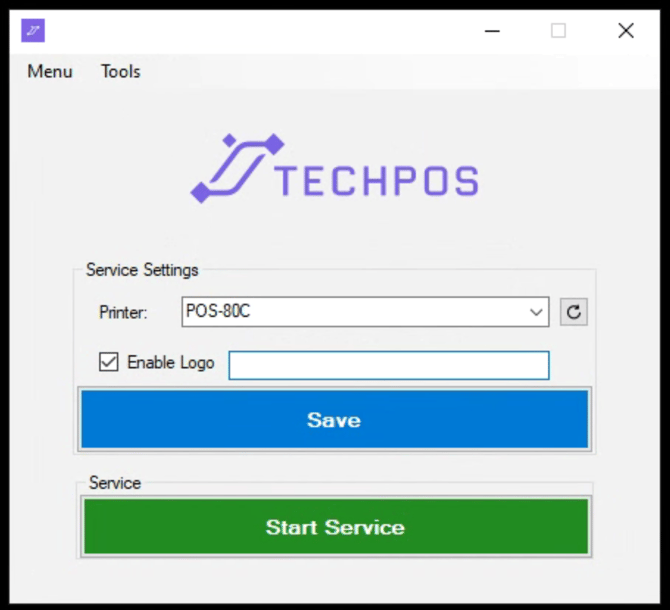
Step 8: Hit the “Start Service” button to start the printer service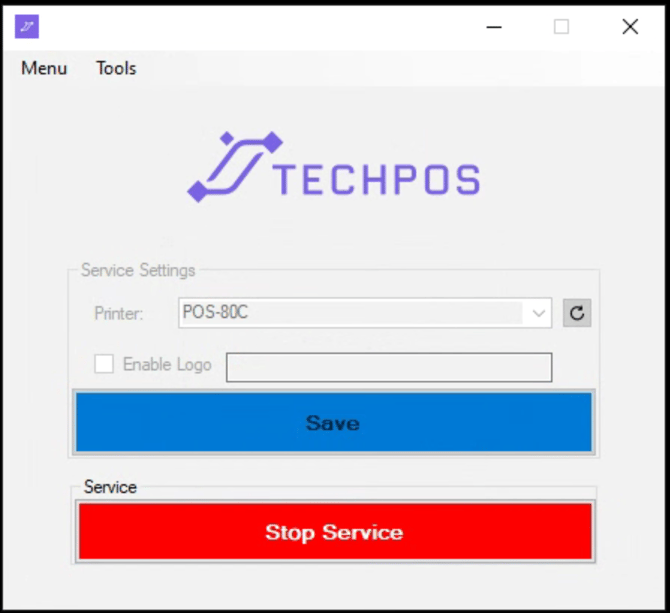
WARNING: If the selected printer is not connected to the system, it will throw an error: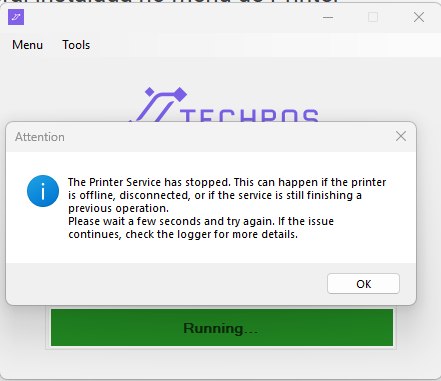
You can confirm the error on the logger (Tools > Show Logger). If you get the following error — Printer and port are null or not saved yet, but confirmed the printer prints test print on control panel, follow the steps below: 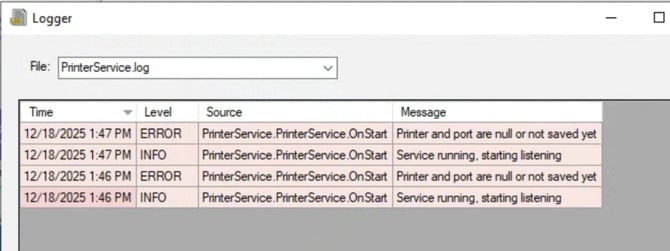
Granting PC Permissions to Install Printers
Follow the steps below to allow the PC to properly install printers by repairing the Windows Management Instrumentation (WMI) repository.
Prerequisites
- You must be logged in using an Administrator account
- Ensure no printer installation processes are currently running
Step-by-Step Instructions
- Open PowerShell as Administrator
- Click the Start menu
- Search for PowerShell
- Right-click Windows PowerShell
- Select Run as administrator
- Repair the WMI Repository
-
In the PowerShell window, run the following command:
winmgmt /salvagerepository -
Press Enter and wait for the command to complete
-
- Reset the WMI Repository
-
After the first command completes, run:
winmgmt /resetrepository -
Press Enter and wait for the process to finish
-
- Restart the Computer
- Reboot the PC to ensure the changes take effect
- Install the Printer
- Once the system is back online, proceed with installing the printer as usual
Step 8: Once printer service is stared and running, double-confirm that the printer and cash drawer are functioning and communicating with the printer service. Click Tools > Troubleshoot > Run Test.
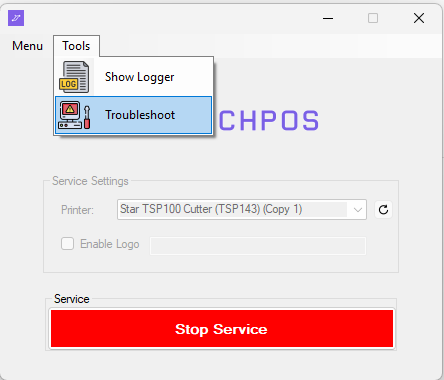
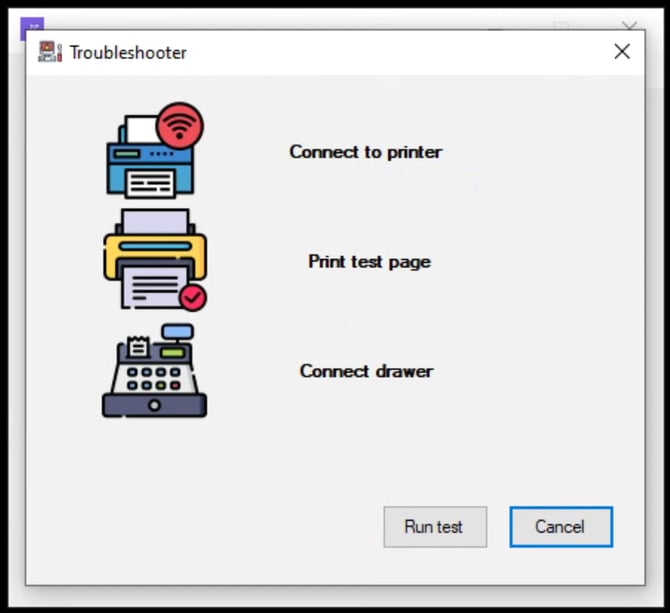
If all connections are correct, the printer will print a small receipt saying "Printer is connected" and the cash drawer will open. 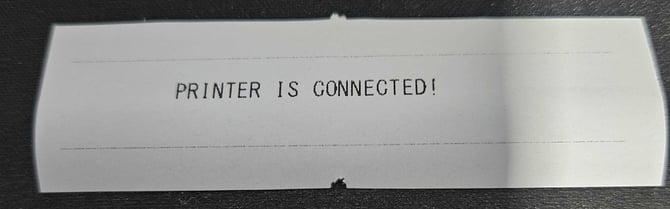
Phase 2: Update Chrome Settings - Allow Local Network
On POS page, before you perform any action after the printer service is installed, first do a hard refresh. After that, any initial action that results in opening a cash drawer and printing a receipt will trigger a permission pop-up at the top of the page, requesting permission to access the network. It is necessary to click "ALLOW". and after that, it will print and open the drawer as expected.
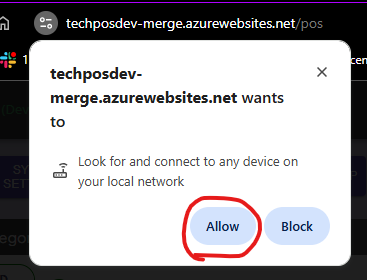
If the popup does not show up, follow the Chrome Settings below:
- Go to app.techpos.ca or customer URL.
- Click on View Site Information
- Click on Site Settings
- Allow Local Network Access
