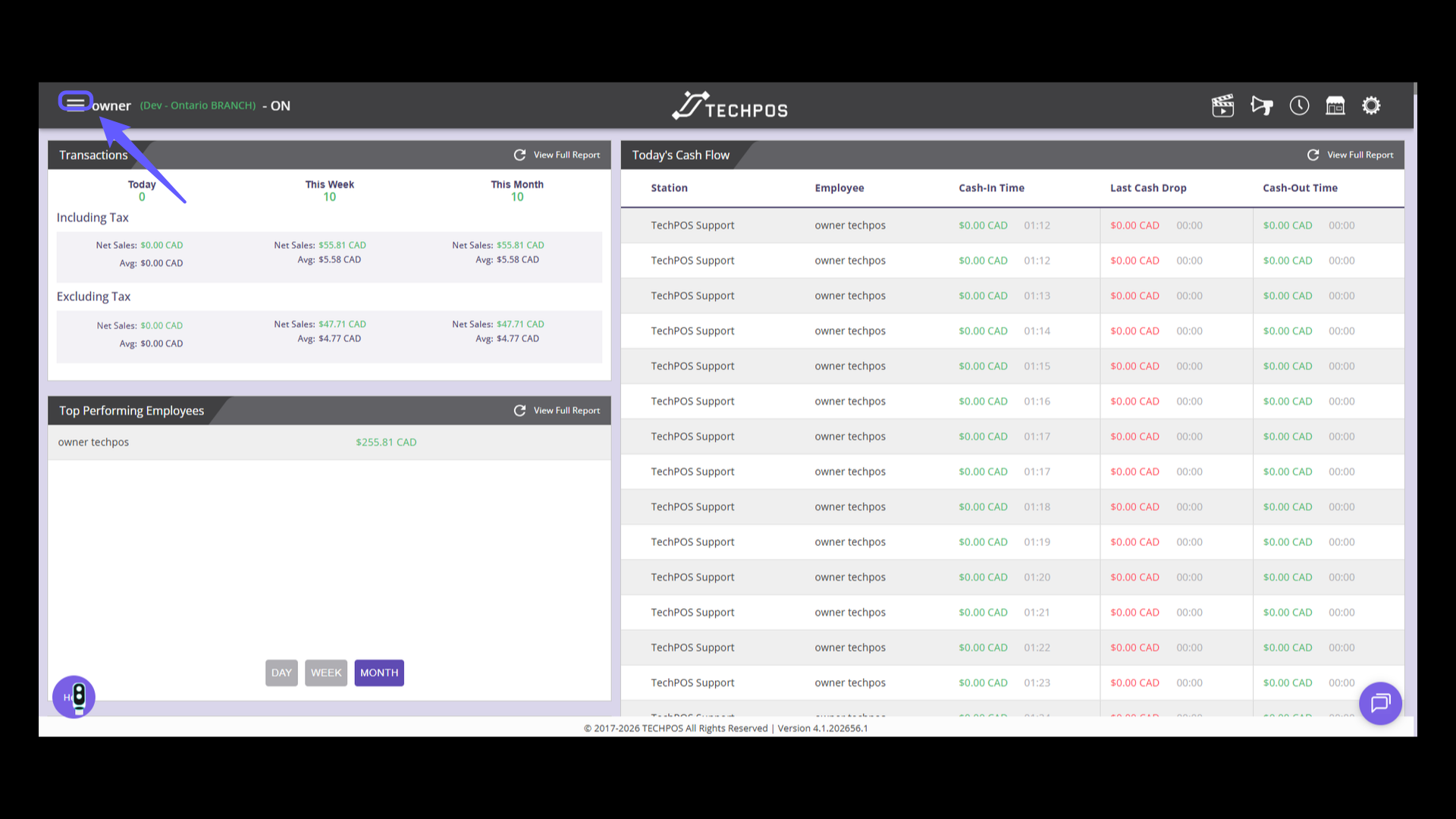
1. Access Menu
Click the menu icon to expand the sidebar and access additional options.
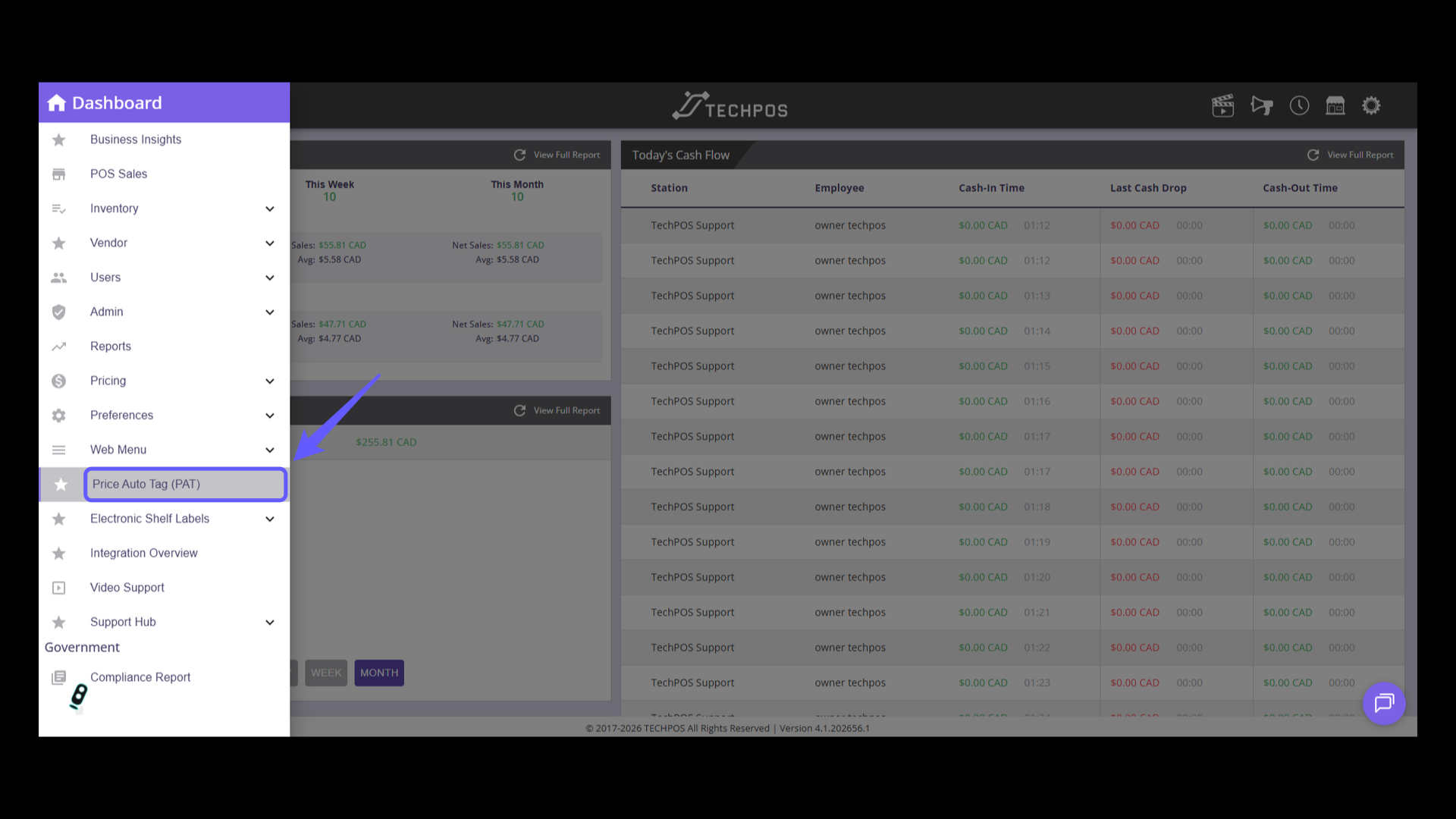
2. Select Price Auto Tag
Select 'Price Auto Tag (PAT)' from the dashboard menu.
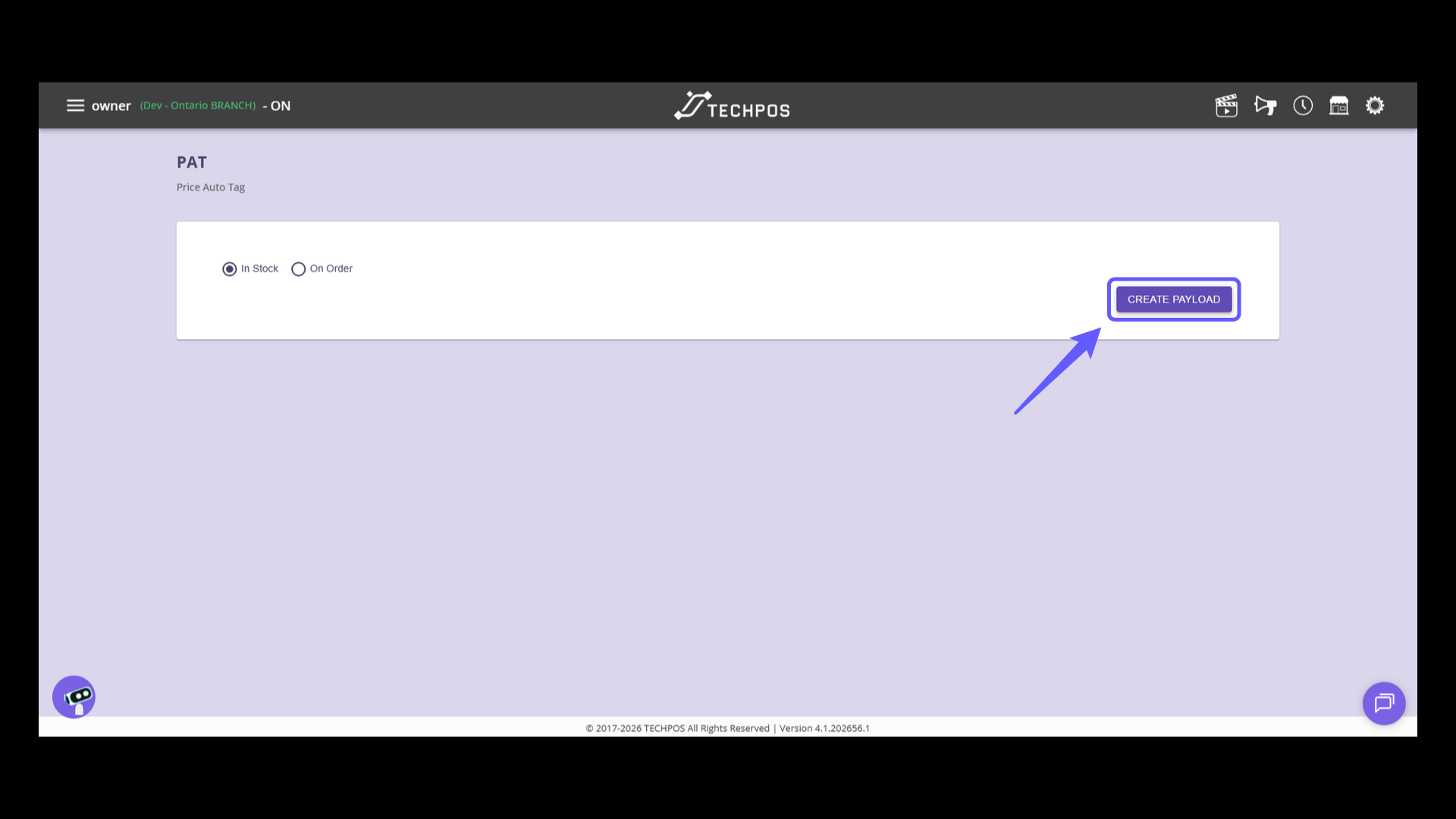
3. Creating a Payload
Choose products from your entire inventory or those "On Order," and then click the 'CREATE PAYLOAD' button to start the process.
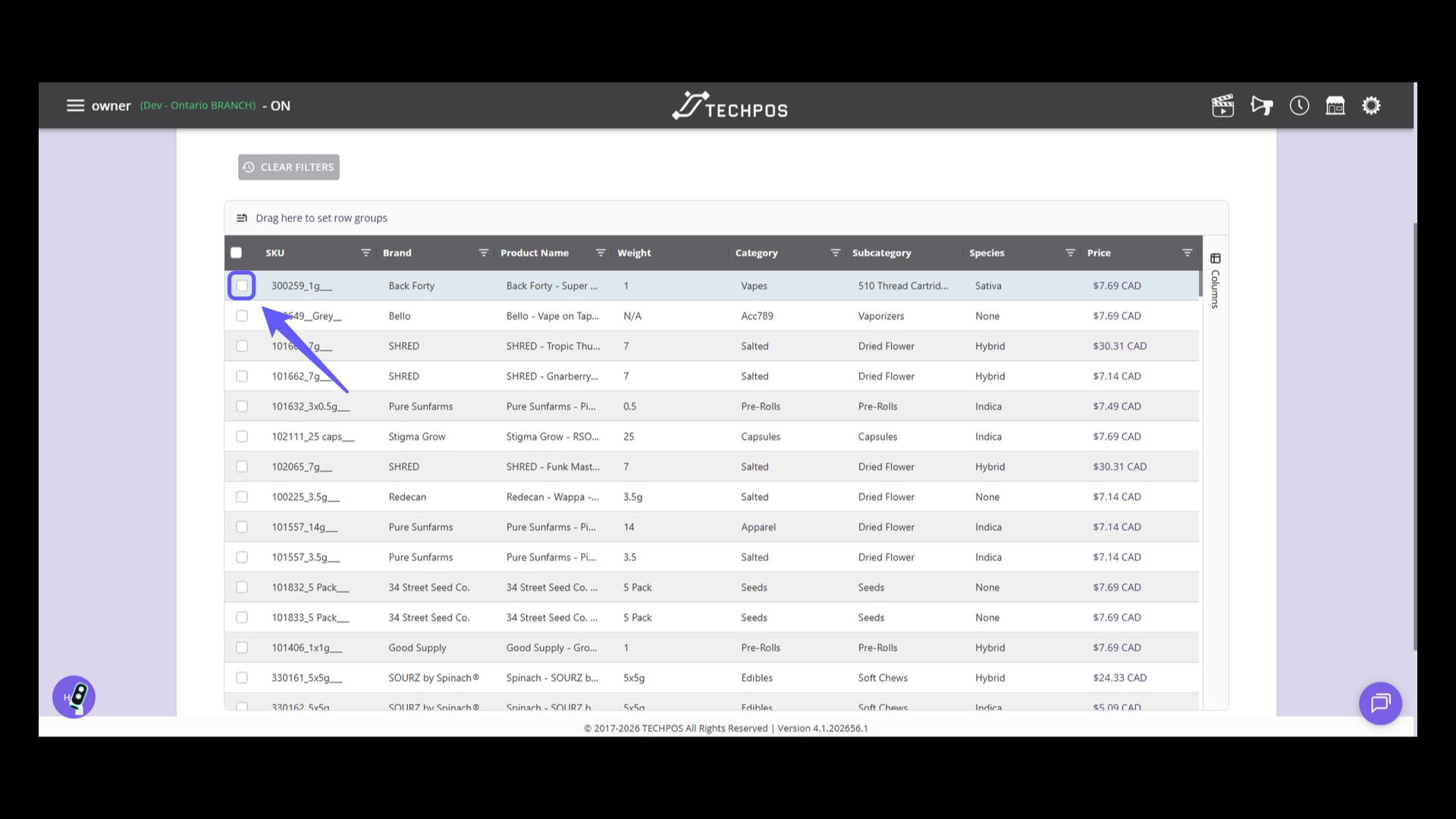
4. Identify and Select SKU
Filter products at the top of the columns by SKU, brand, product name, and more. Choose the products you wish to print.
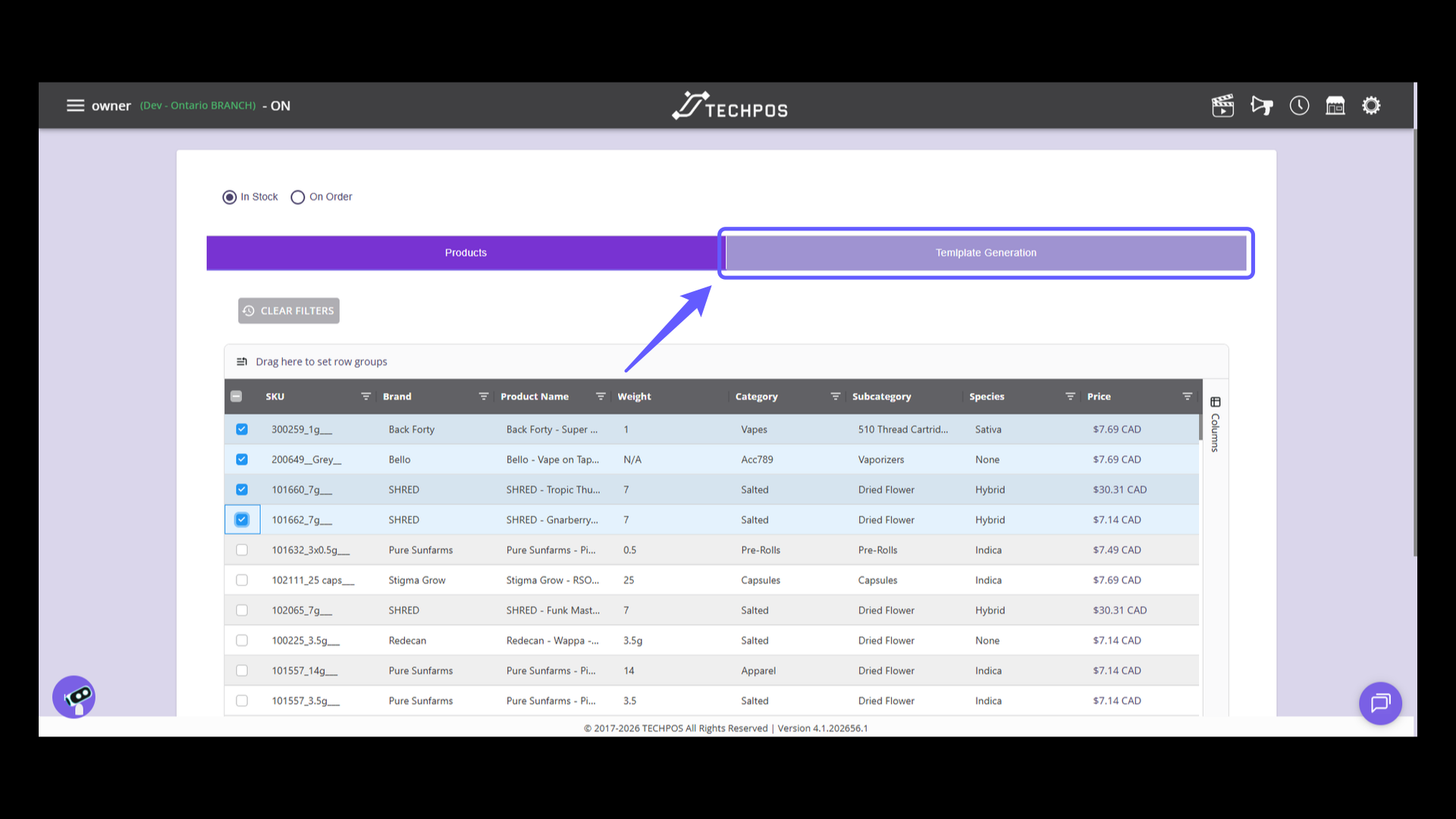
5. Access Template Generation
After you've chosen all your desired products, go ahead and click on "Template Generation".
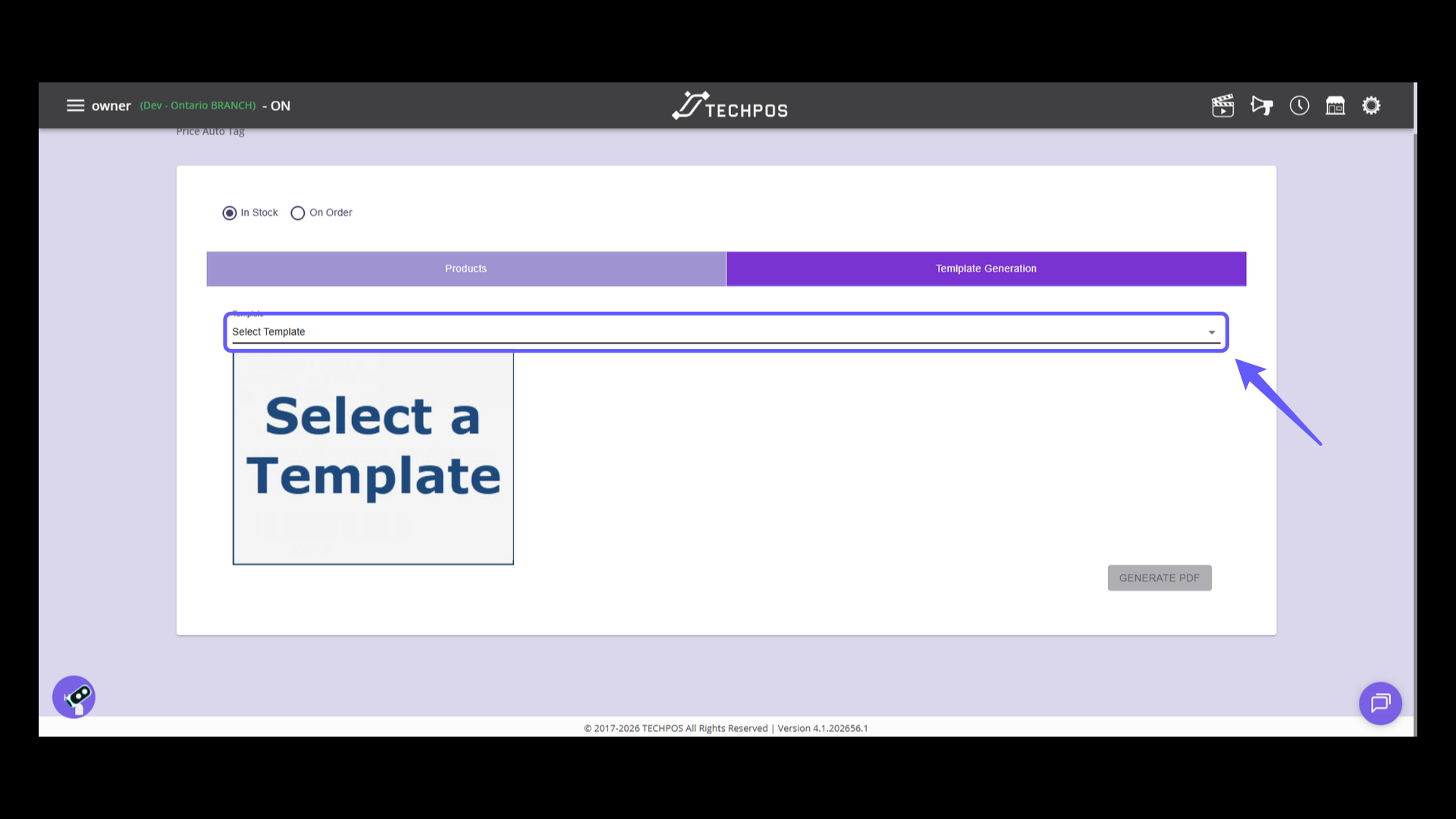
6. Select a Template Prompt
Click the dropdown menu to choose a template.
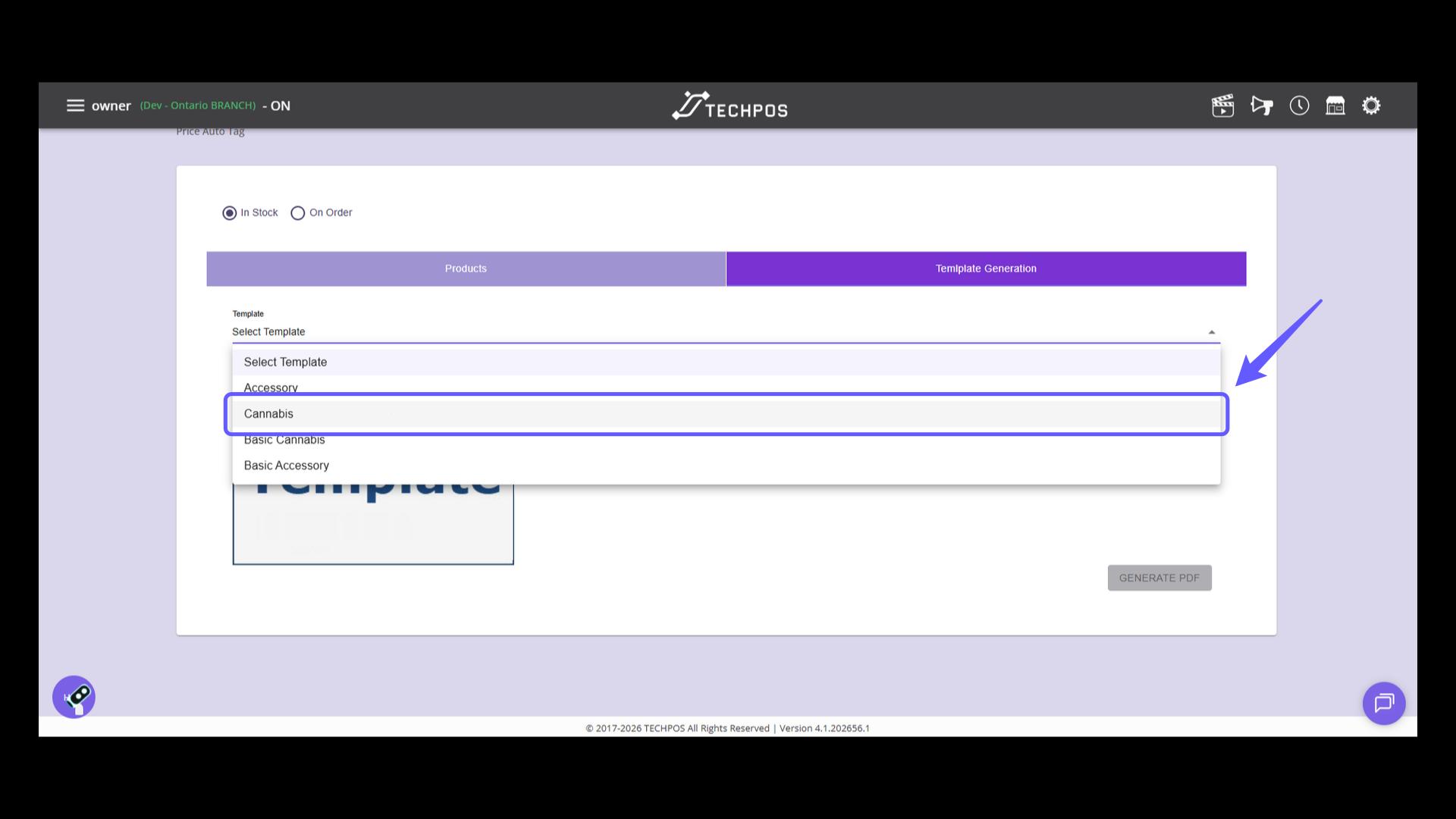
7. Select the desired template
Select the template option from the dropdown list of templates.
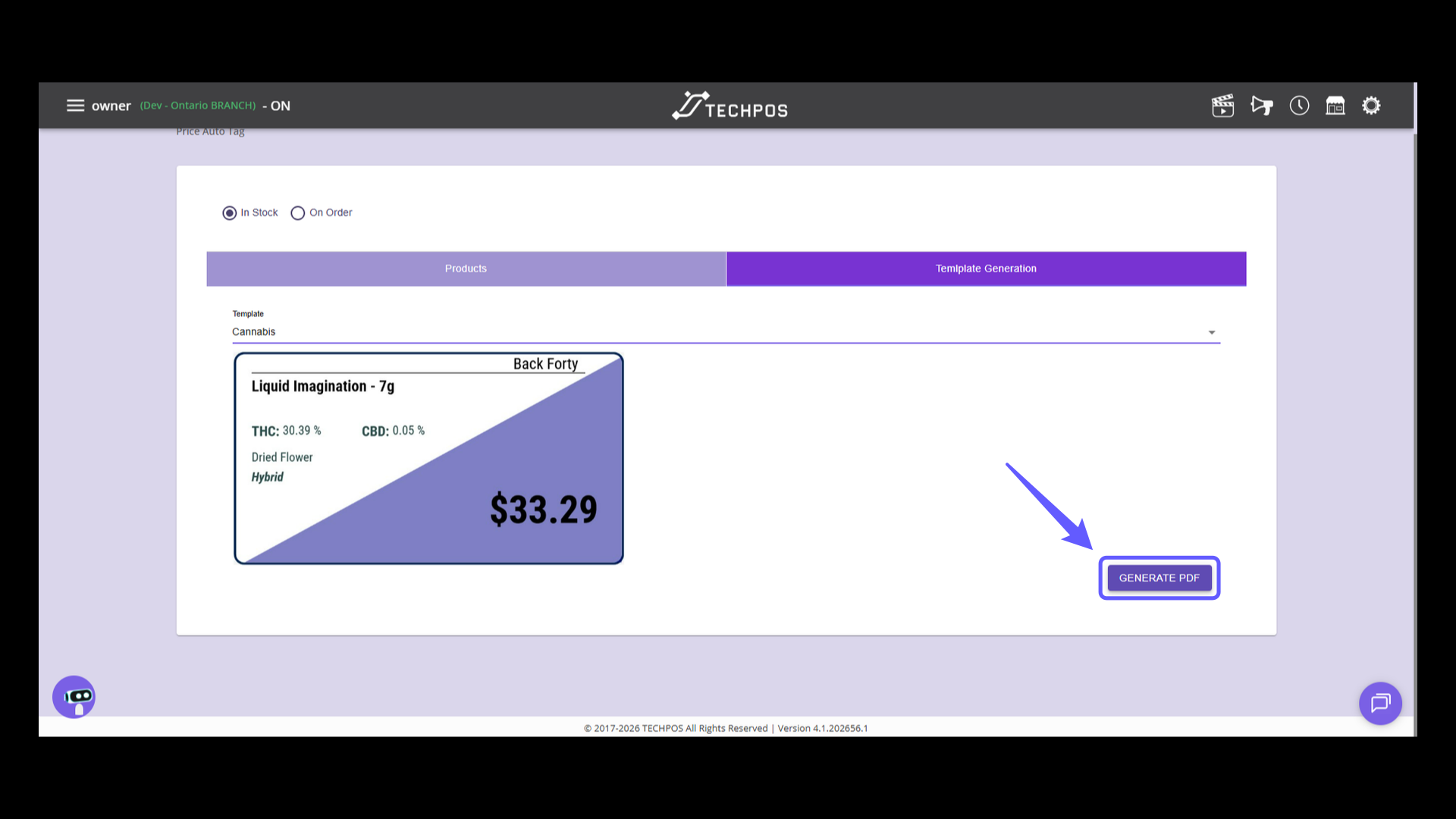
8. Generate a PDF
Click 'Generate PDF' to create and download a PDF document of your selected content. Once downloaded, you can easily print the generated tags directly from the PDF file.