Notification Update: User Log Report Email Automation - May 2026
We have enhanced the User Log Report to support monthly email automation.
Users can now schedule the User Log Report to be automatically emailed on a monthly basis, helping teams review user activity and system changes more consistently.
Navigation Steps:
- Go to Reports
- Select User Log Report
- Click Email Automation
- Enter the recipient email address
- Save the automation settings
Once enabled, the User Log Report will be sent automatically every month based on the configured
Navigation: Menu > Reports > Employee > User Log Report
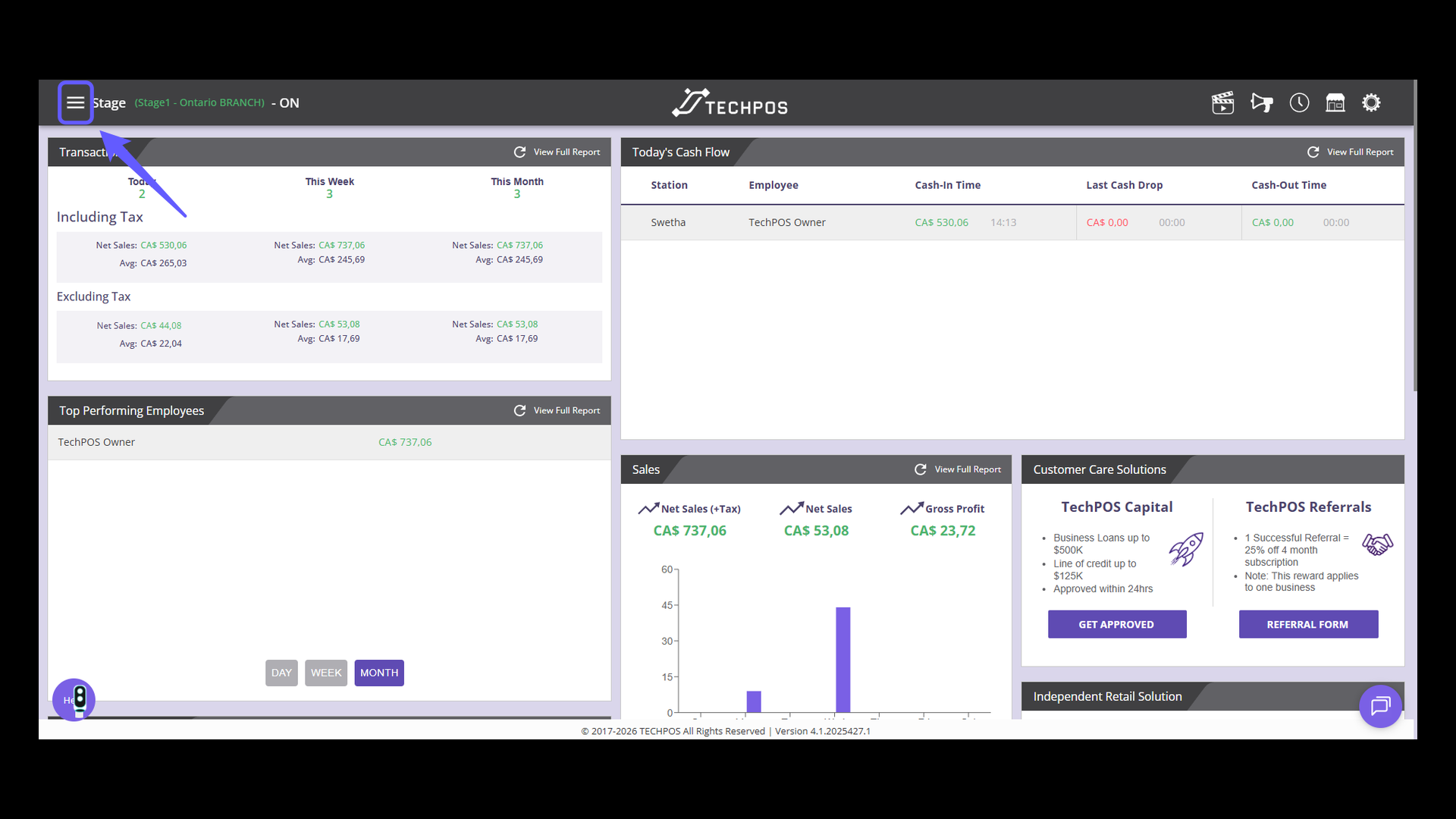
1. Open Navigation Menu
Tap the icon to reveal the main navigation menu for accessing different sections.
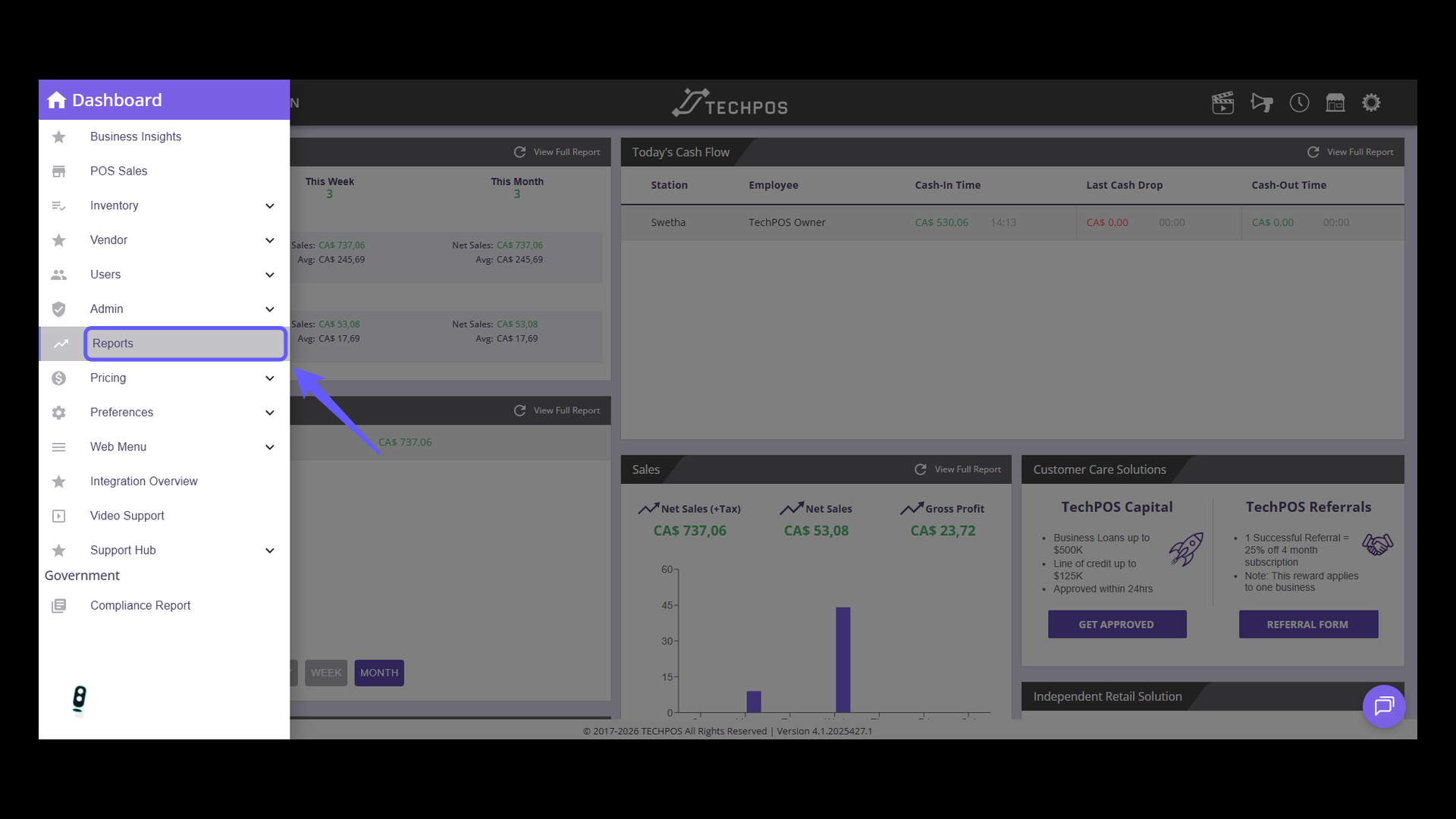
2. Access Reports Section
Select 'Reports' from the dashboard menu to view detailed TechPOS Reports.
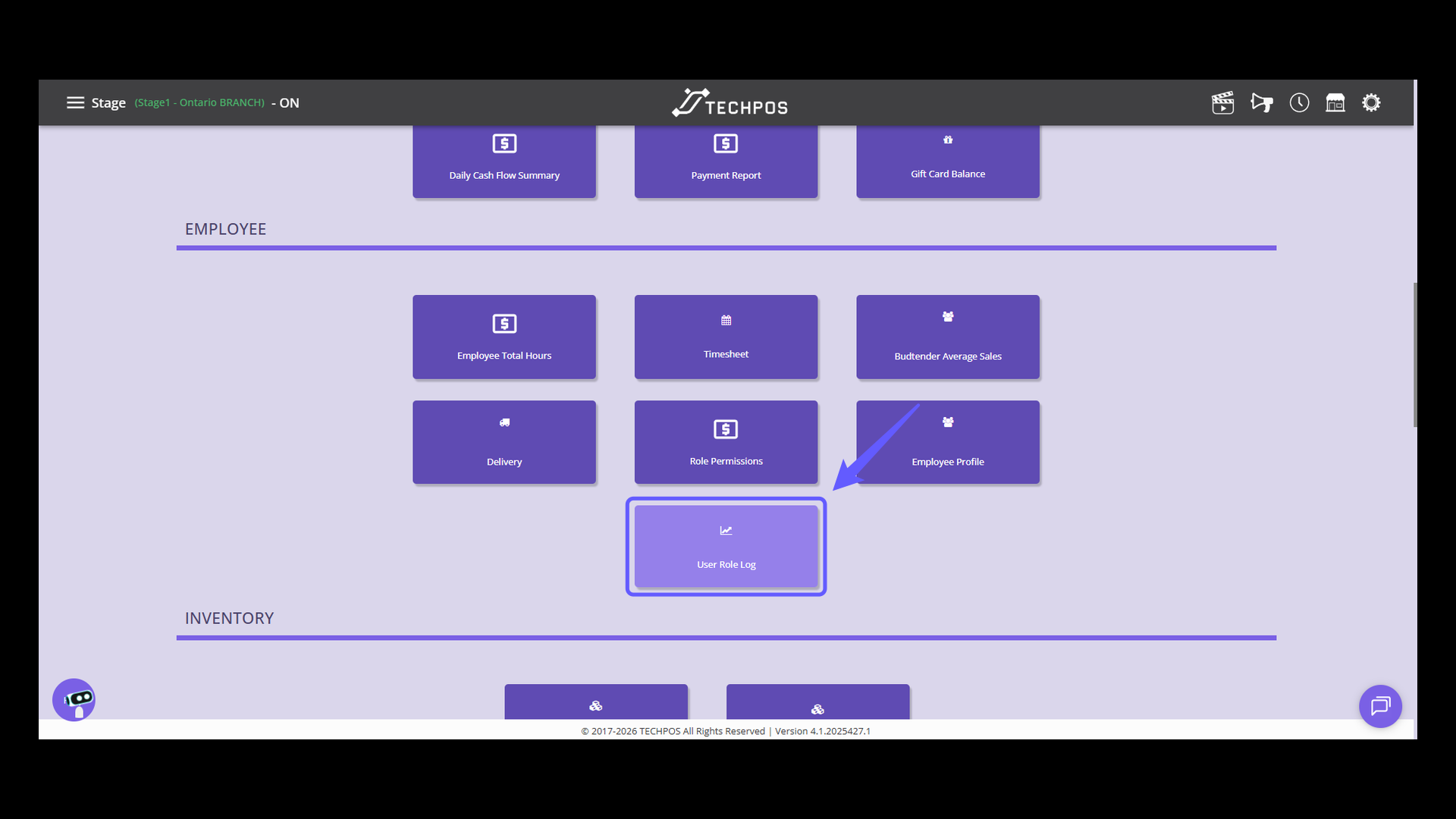
3. Access User Role Log Report
In the Employee section, click on 'User Role Log' to review user role changes.
4. Access User Role Log Report
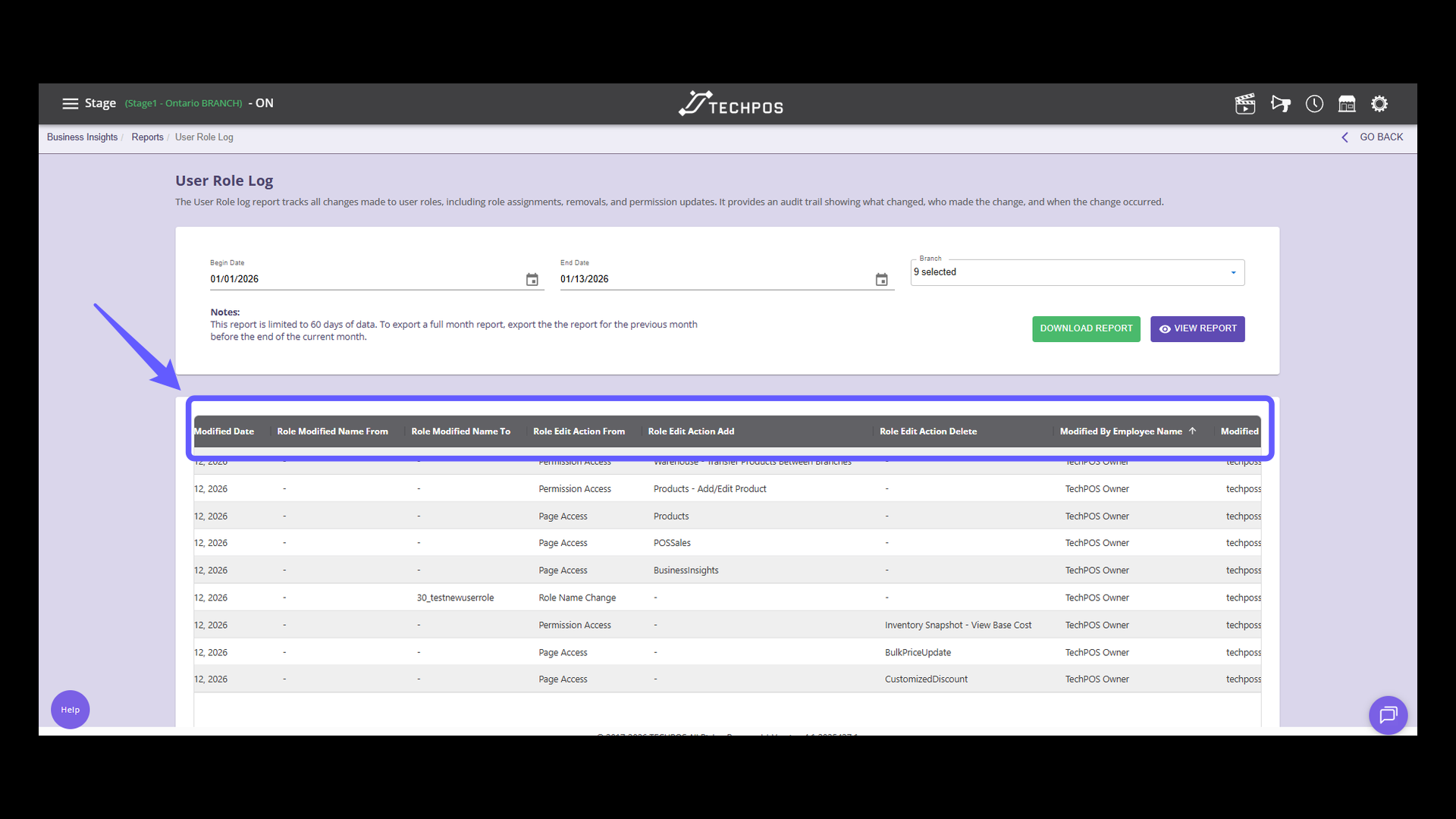
Explore the User Role log report to monitor all modifications made to user roles, such as assignments, removals, and permission updates. This report offers an audit trail that details what was changed, who made the change, and when it happened. Choose your preferred date range to filter the report, then click 'View Report' to open and examine the user role log details.
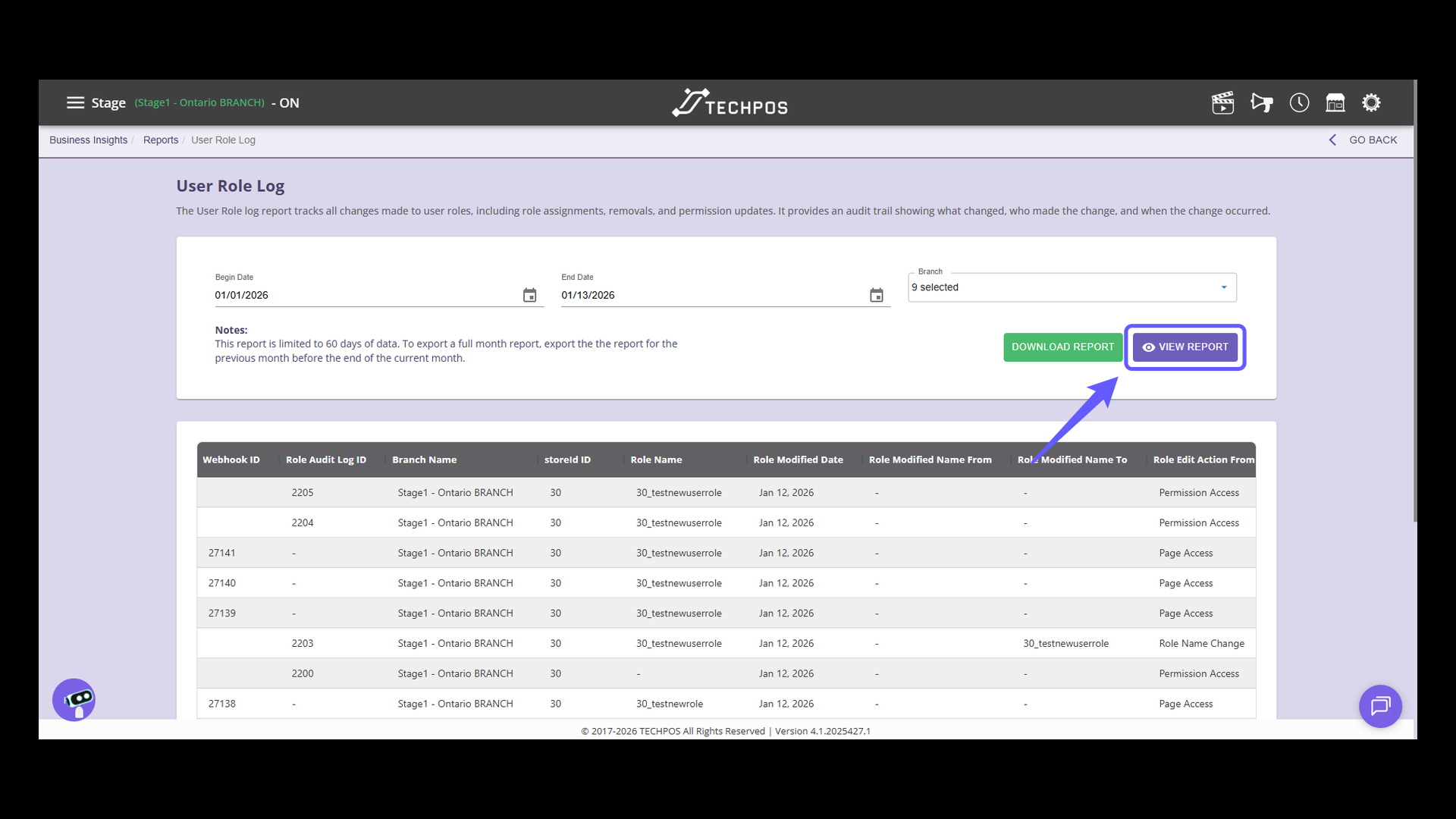
5. Identify Role Edit Action From Column
Find the column header marked 'Role Edit Action From' in the table showcasing different role change details.
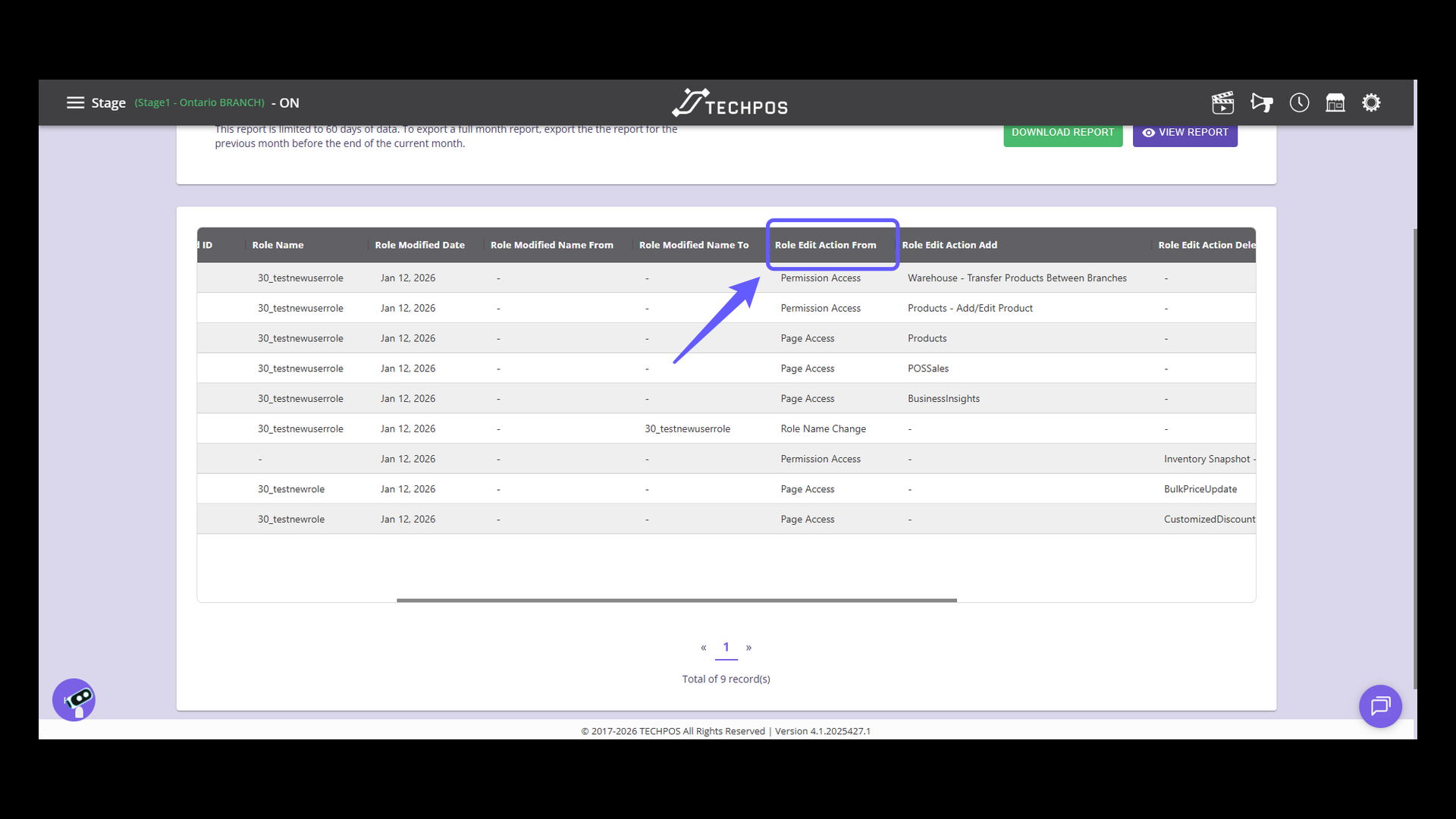
6. Identify Role Edit Action
Check the "Role Edit Action Add" column to see any updates or modifications made to user roles.
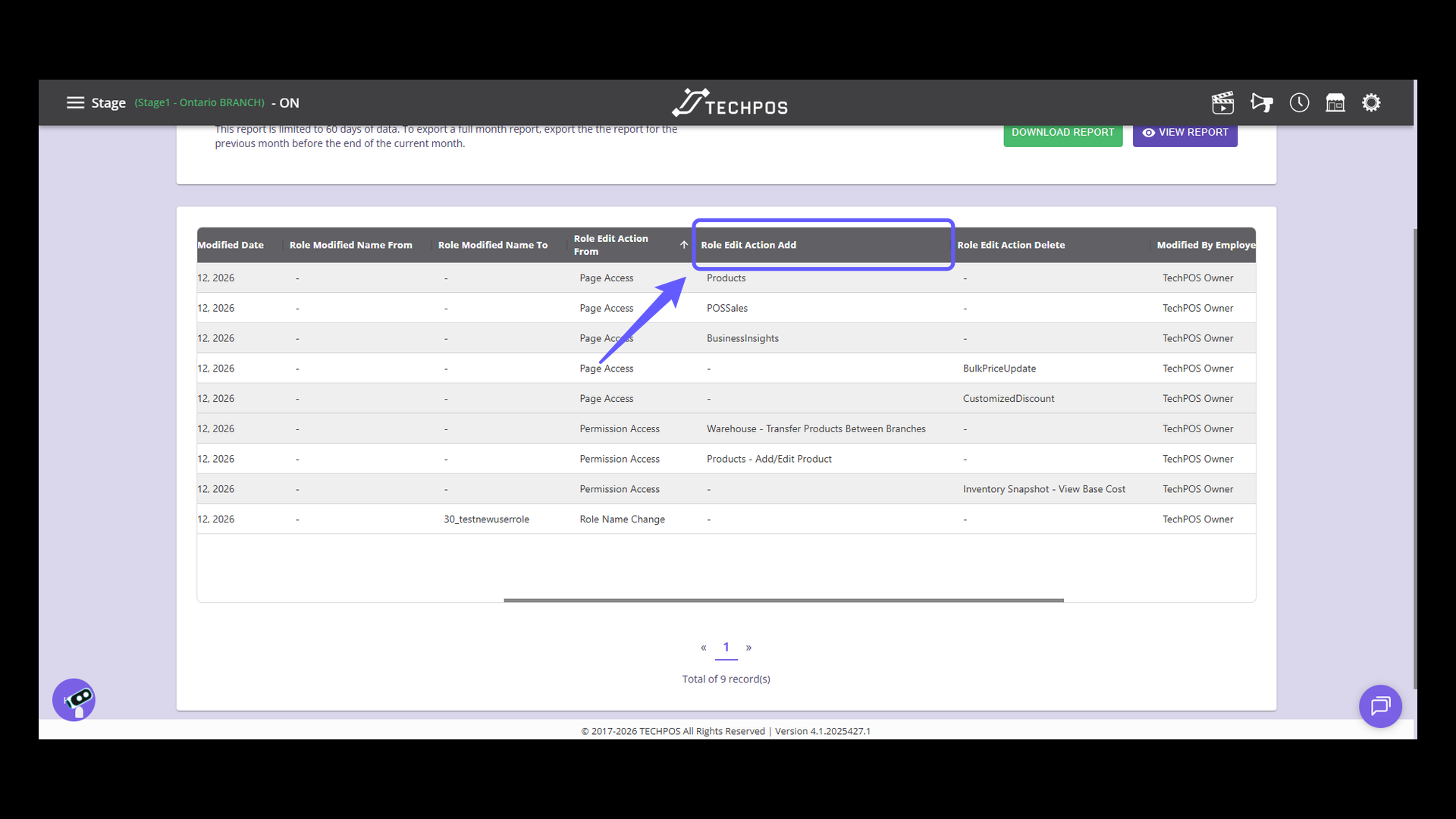
7. Locate Employee Modification Column
Use the 'Modified By Employee Name' column to pinpoint who initiated any changes.
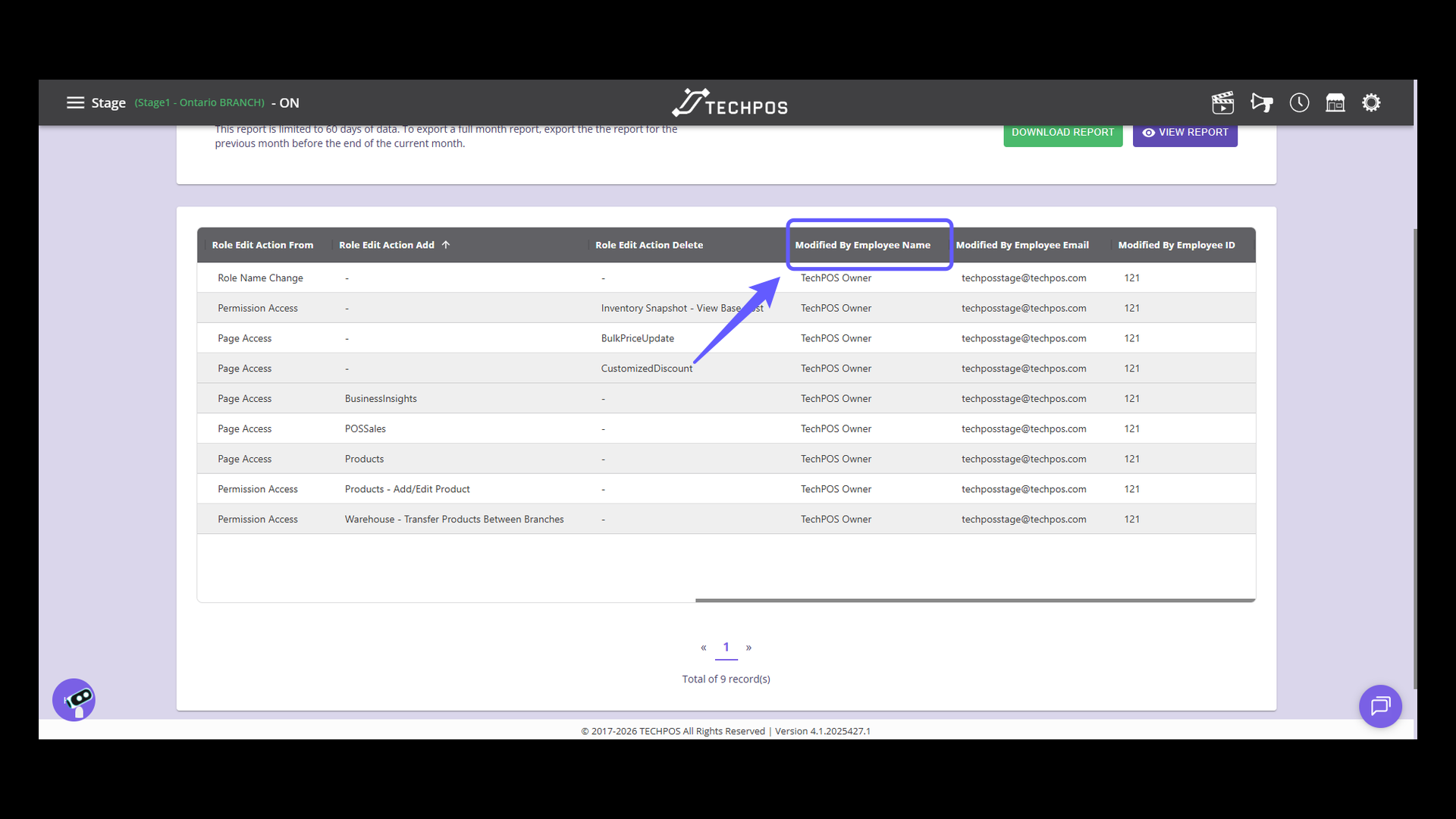
8. Other report information
This report accesses the main features and additional details, including the branch where changes took place, modification dates, changes from one role to another, and actions such as add or delete. Keep track of everything done to your roles with this report. For any further questions, please contact the TechPOS support team.