![Logo-2021-WHITE.png]](https://knowledge.techpos.ca/hs-fs/hubfs/Logo-2021-WHITE.png?height=40&name=Logo-2021-WHITE.png)
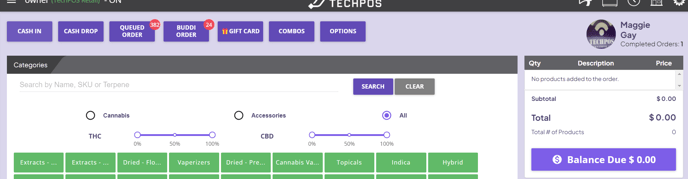
Step 1: Click on the check in icon on the top right options on the POS:

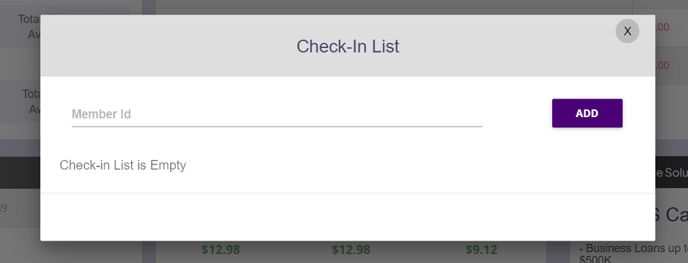
Step 2: Once the check in icon is selected, a dialog will pop up and you can check in members before they go to POS. Members can be searched by member ID.
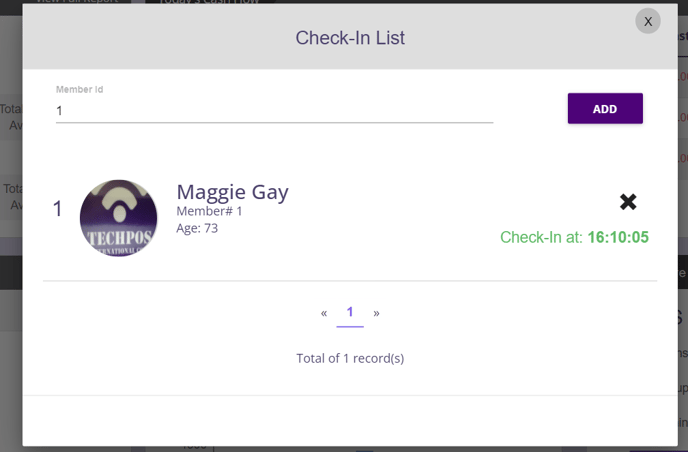
Step 3: Later on, when customers are ready for checkout, click on the check in icon again then select Start Order button
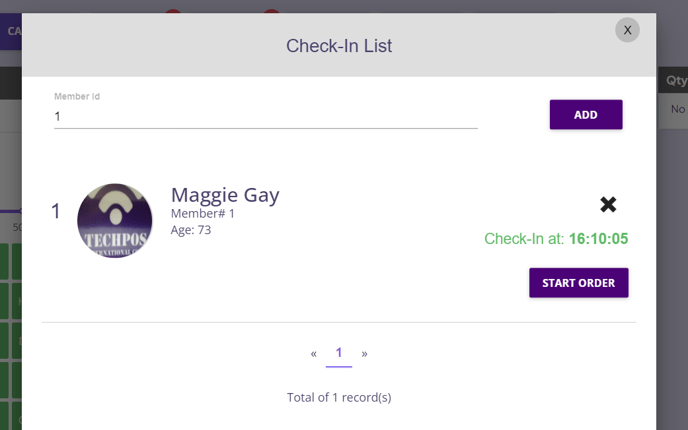
Step 4: Once you click on this Start Order button, a POS order will be created with the link to this member.