![Logo-2021-WHITE.png]](https://knowledge.techpos.ca/hs-fs/hubfs/Logo-2021-WHITE.png?height=40&name=Logo-2021-WHITE.png)
1. Creating Customized Discounts - No Rewards Points Requirement
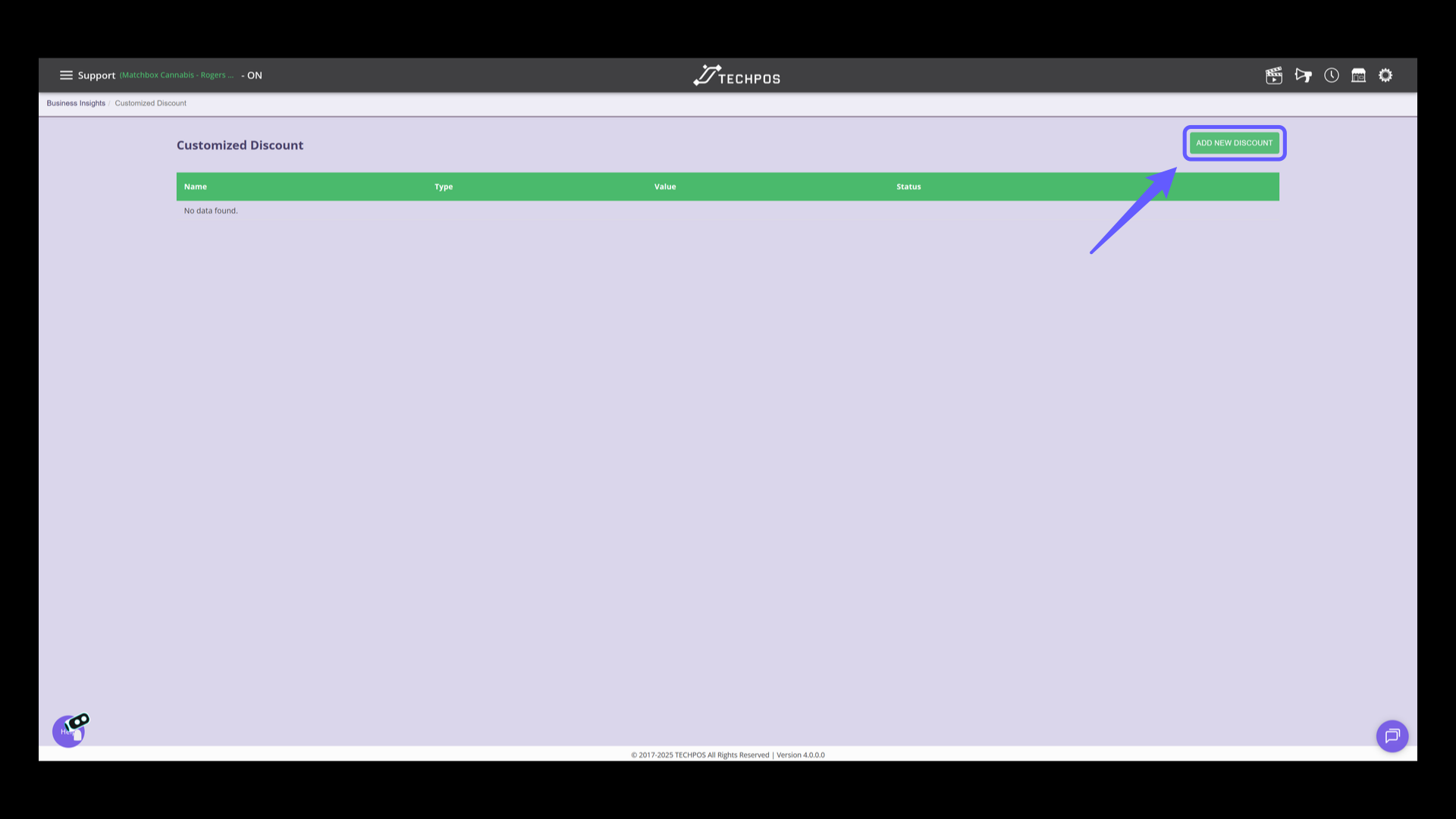
Set up a customized discount without the need for rewards points, but with member group requirements: Navigate to Menu > Pricing > Customized Discount > Add New Discount.
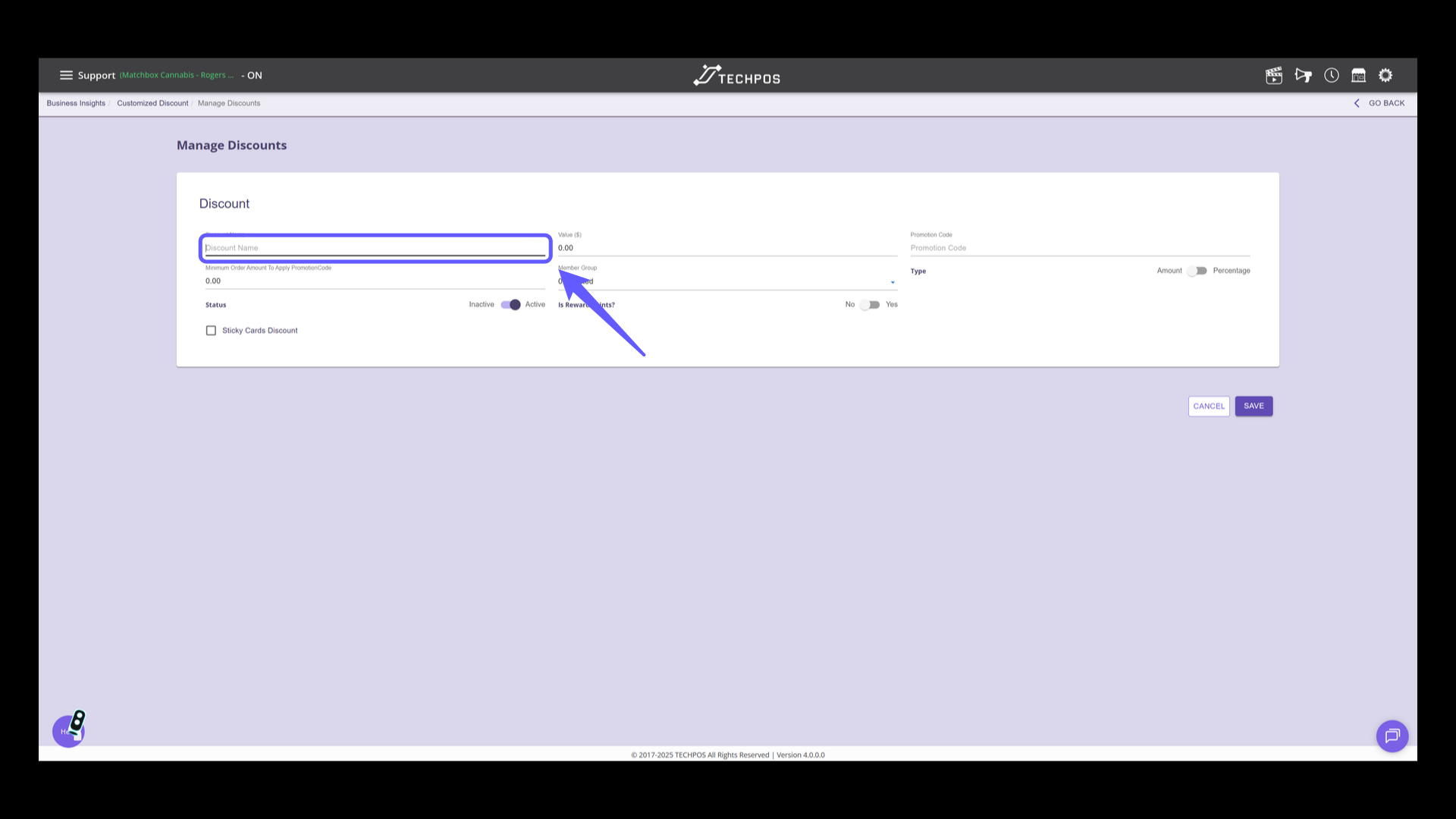
2. Enter Discount Name
Enter the name for the discount in the provided field.
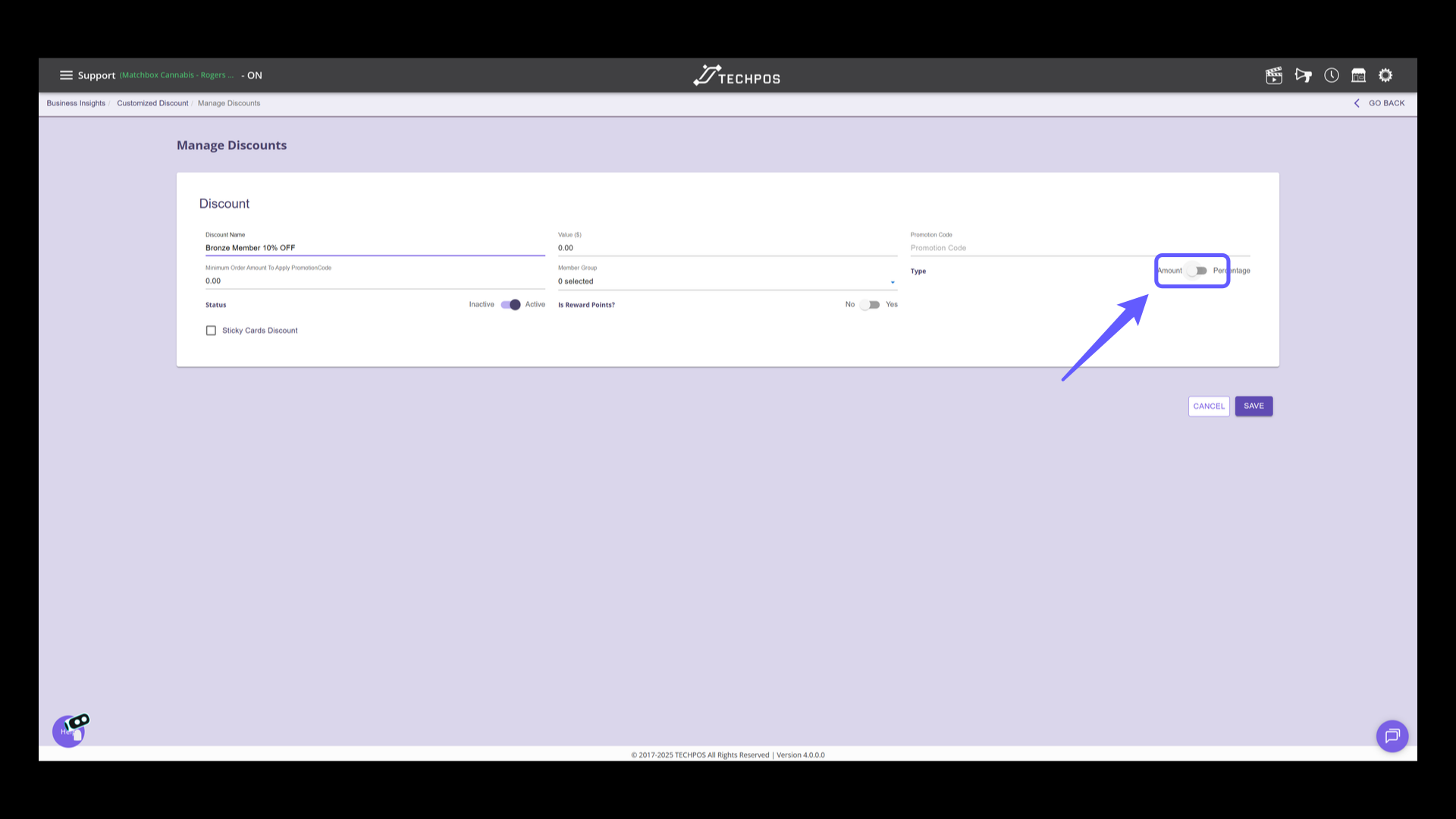
3. Toggle Discount Type
Switch the toggle to select either amount or percentage for the discount type.
4. Enter Discount Value
Enter the discount value to apply.
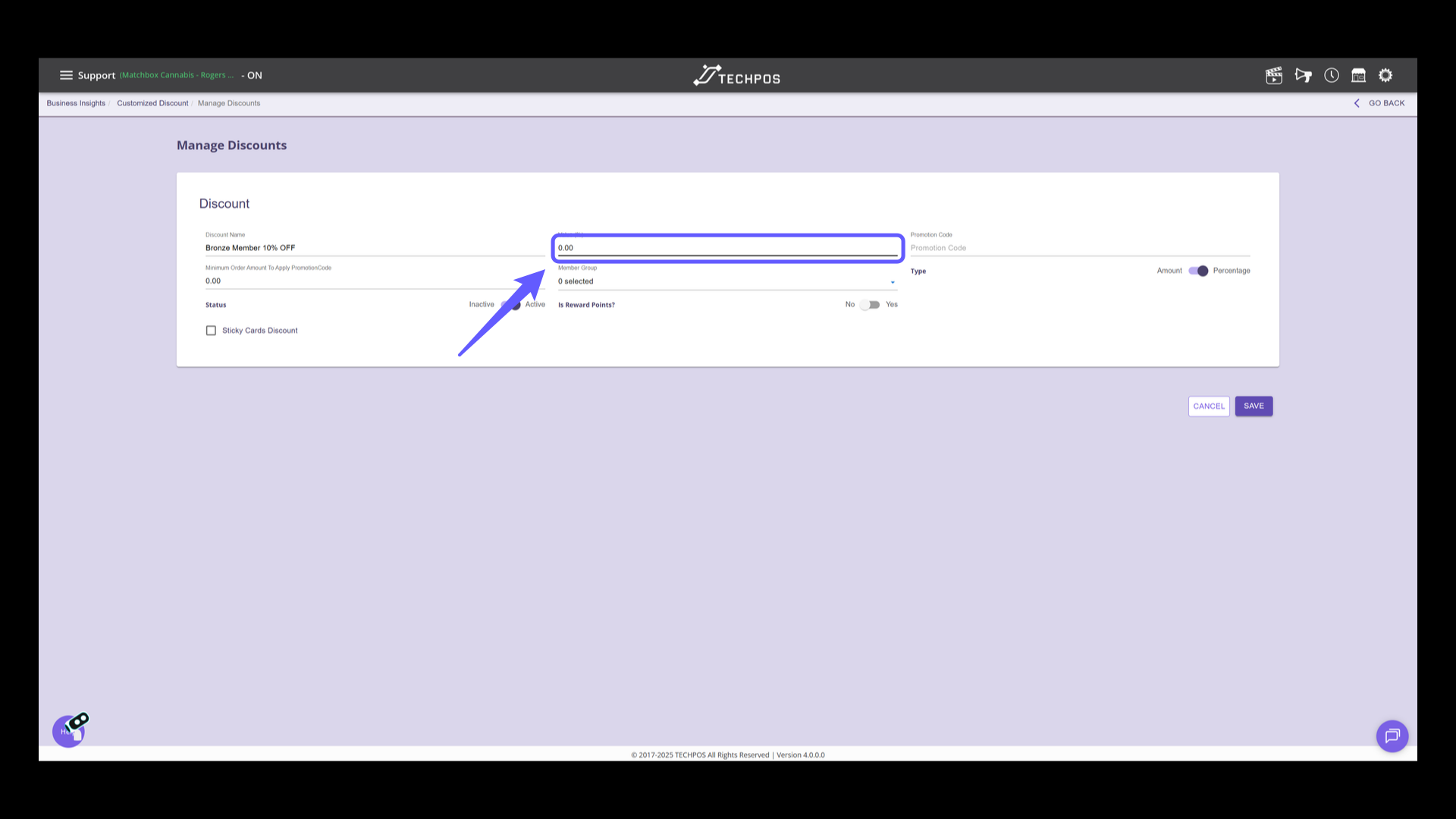
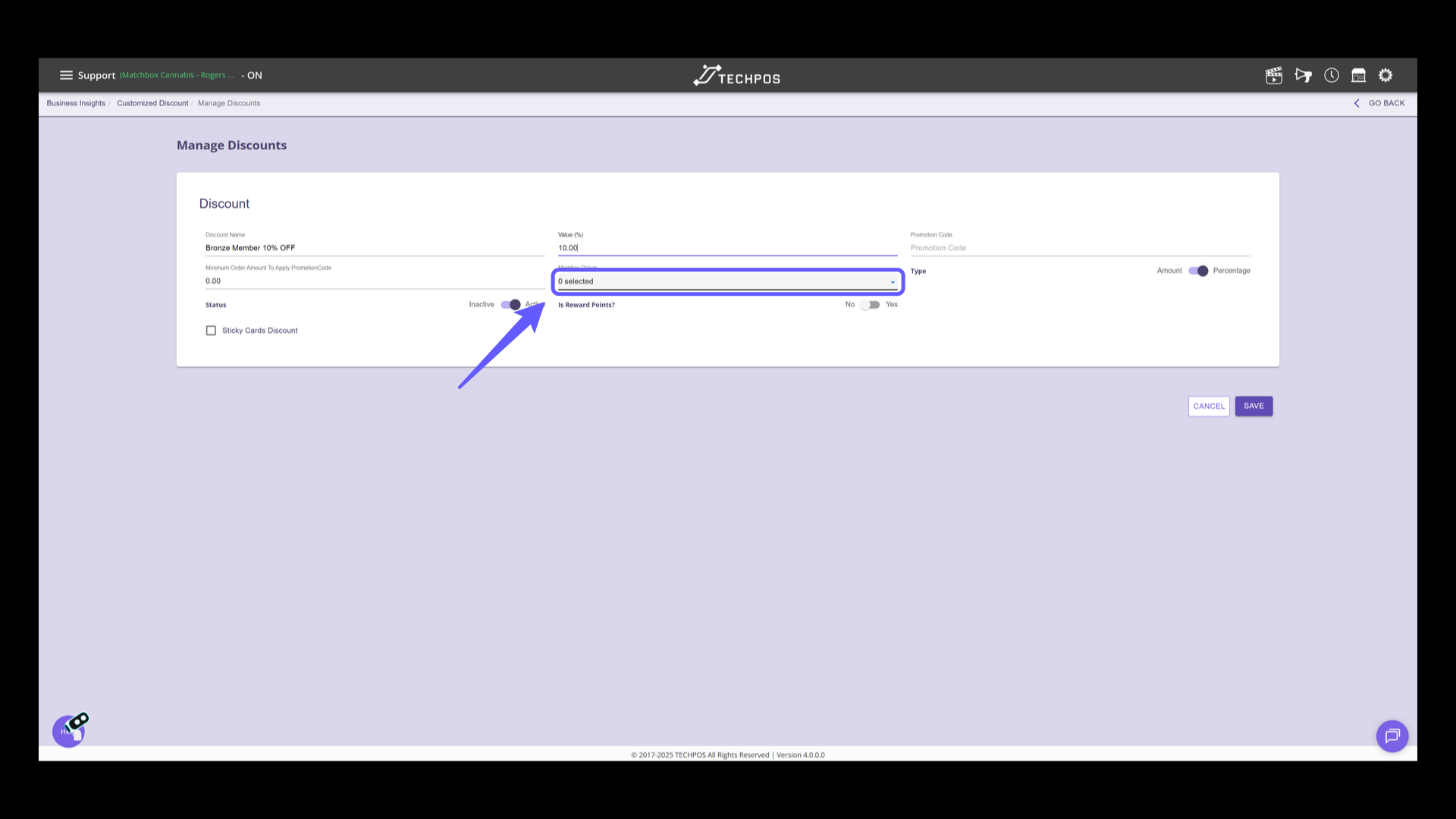
5. Select Member Group
Select the desired member group from the dropdown menu to apply the discount. By choosing a specific group, the discount will appear at the POS only if the member belongs to the chosen group.
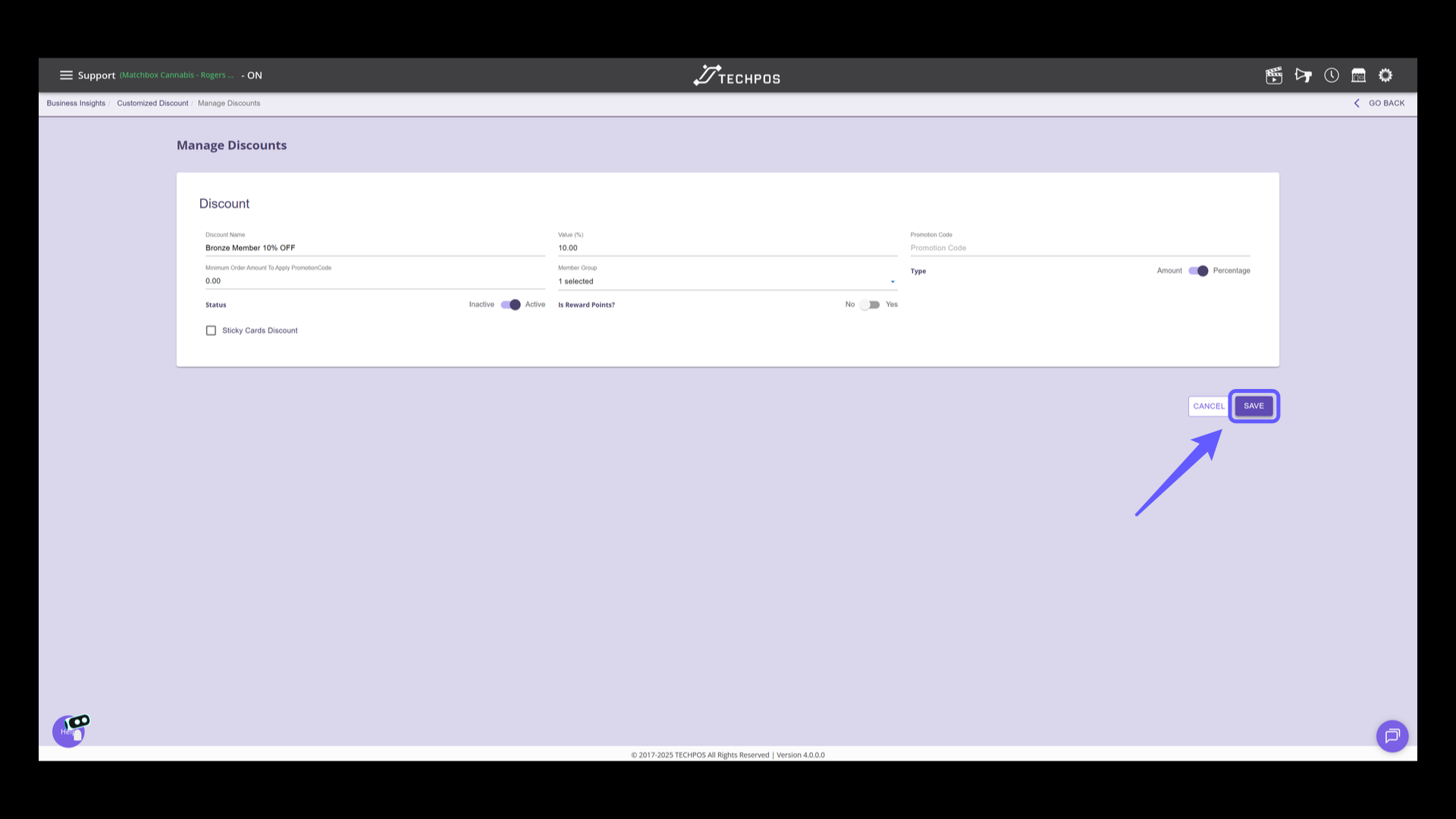
6. Save the Discount
Click the 'SAVE' button to apply the current discount settings. Now, let's jump into the POS to review how it will look like.
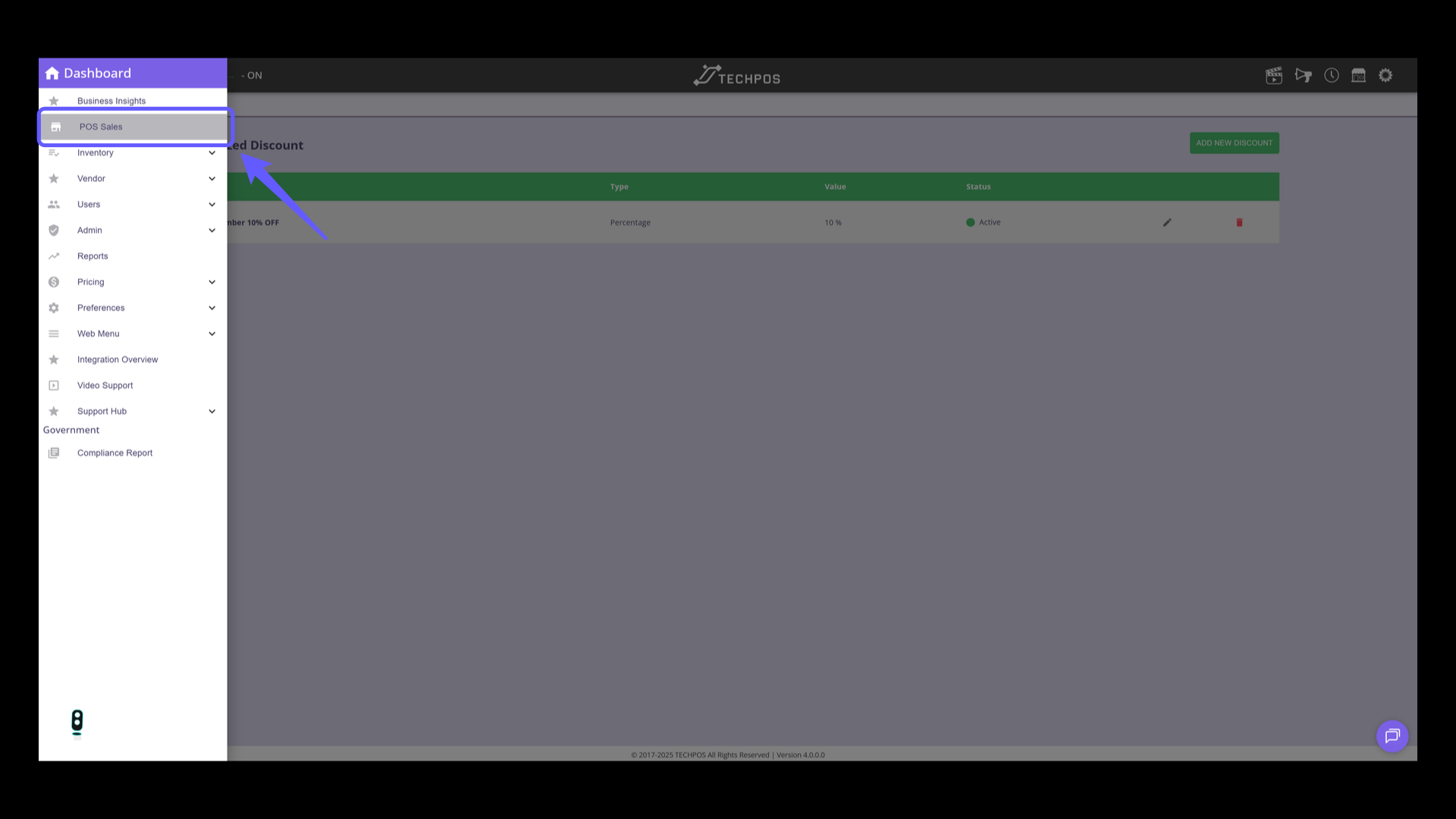
7. Navigate to POS Sales
Select 'POS Sales' from the menu.
8. Transaction Without a Member Attached
Now, overserve how the discount created is hidden when no members are added. Add an item to the cart.
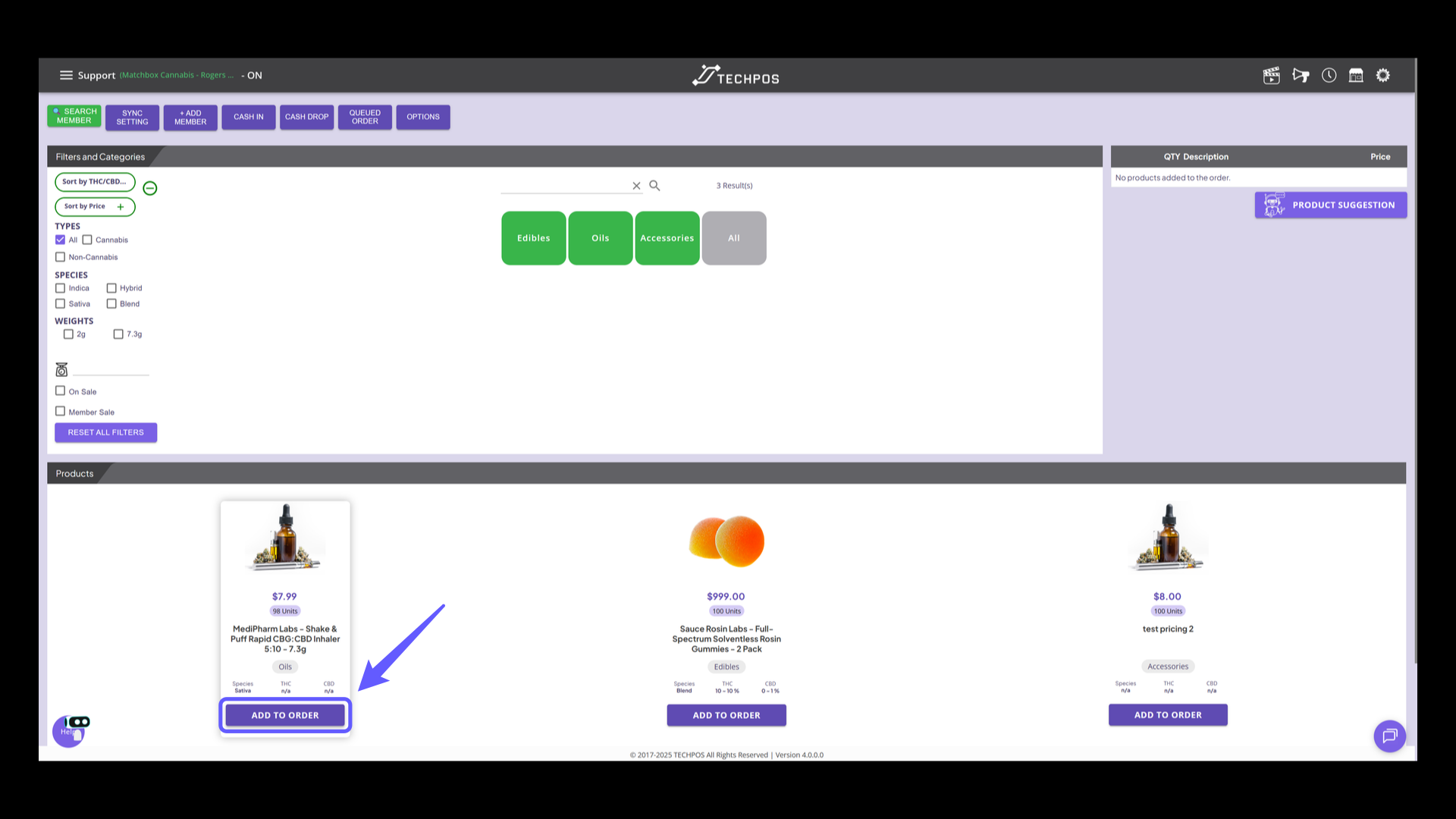
9. Proceed to Checkout
Click on Balance Due button.
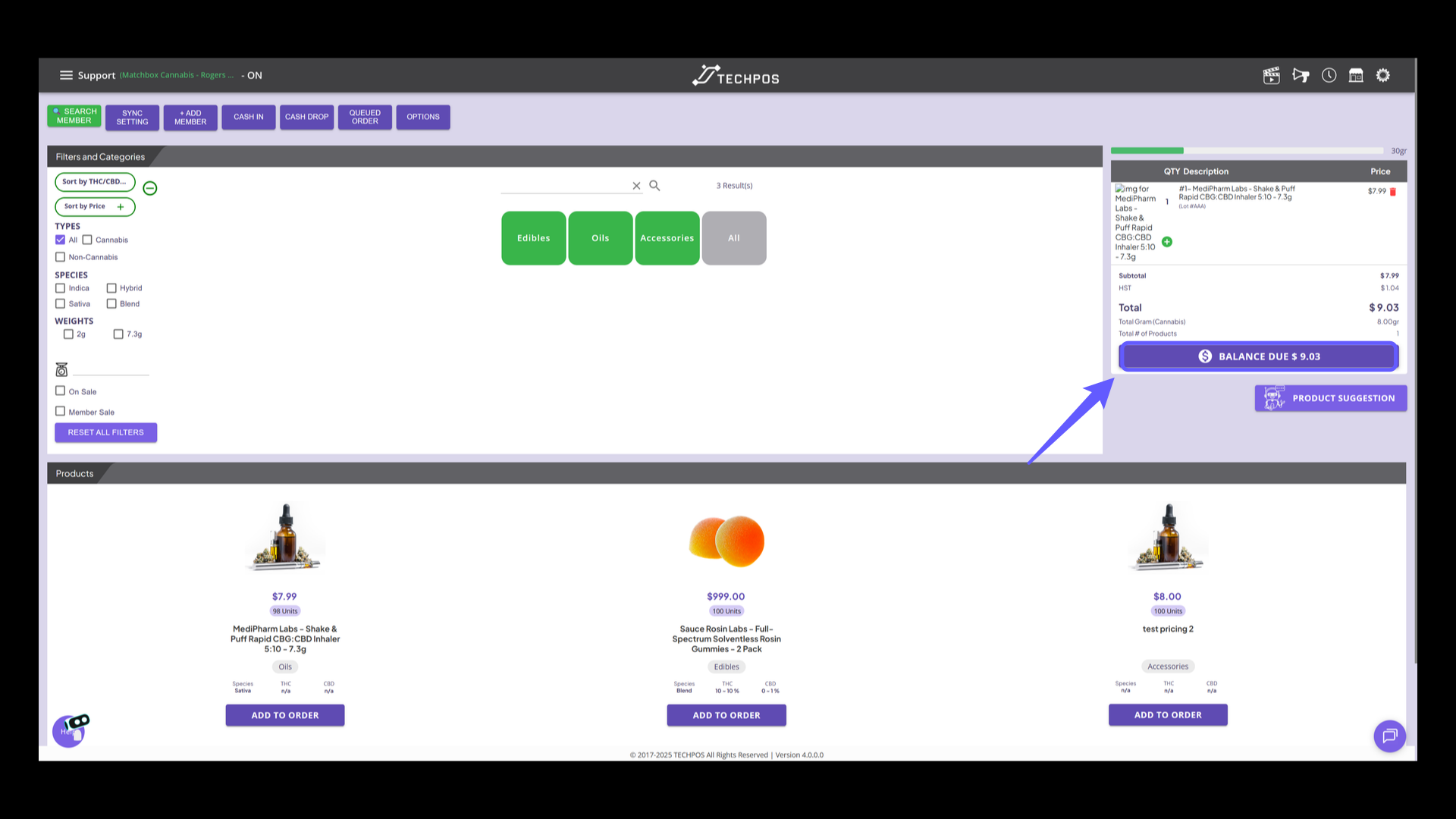
10. Apply Discount
Click on Apply Discount button.
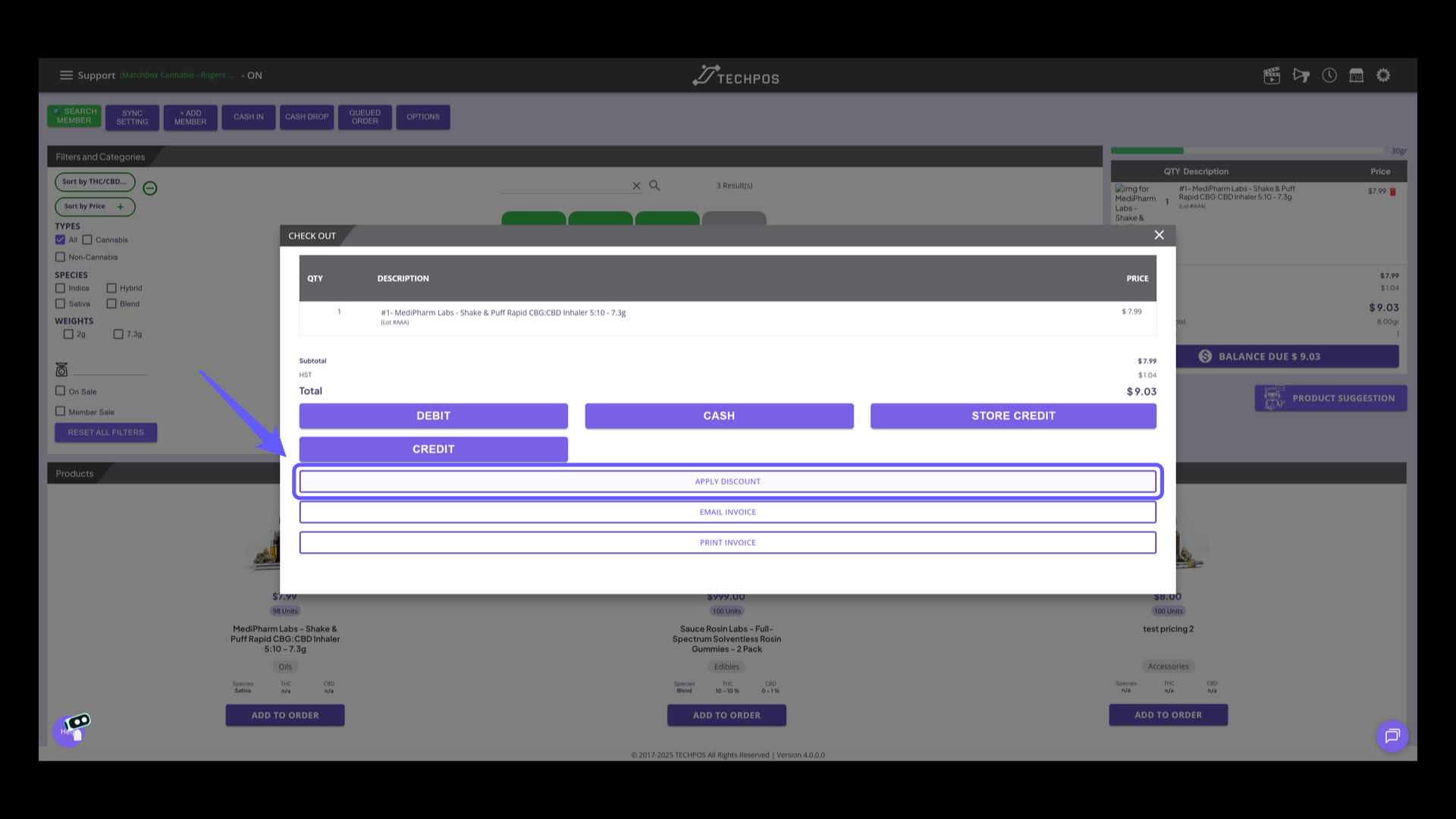
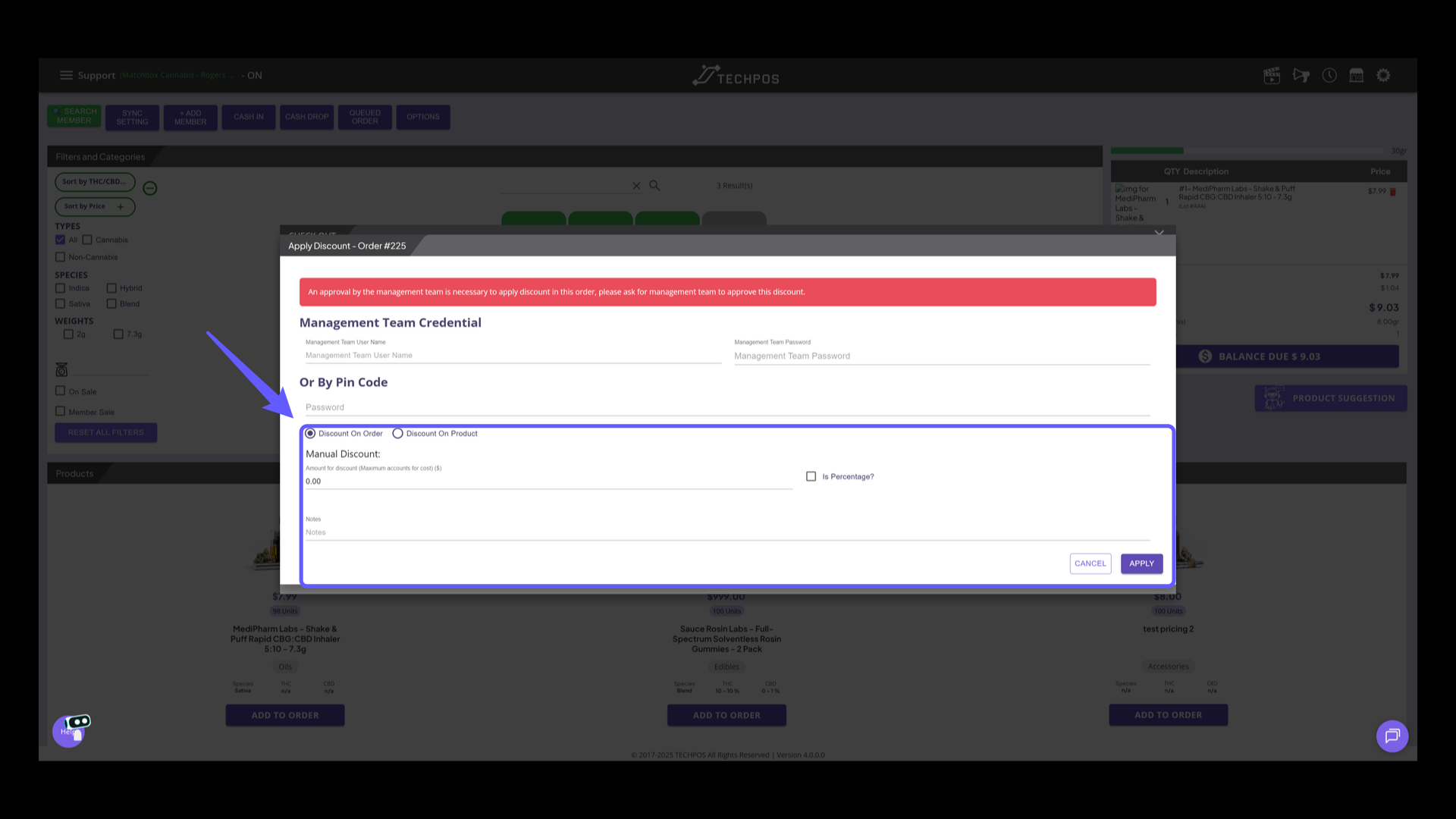
11. Discount Window Options
Observe that the Customized Discount isn't appearing on the list. This occurs because no members from the group are linked to the order.
12. Transaction With a Member Attached
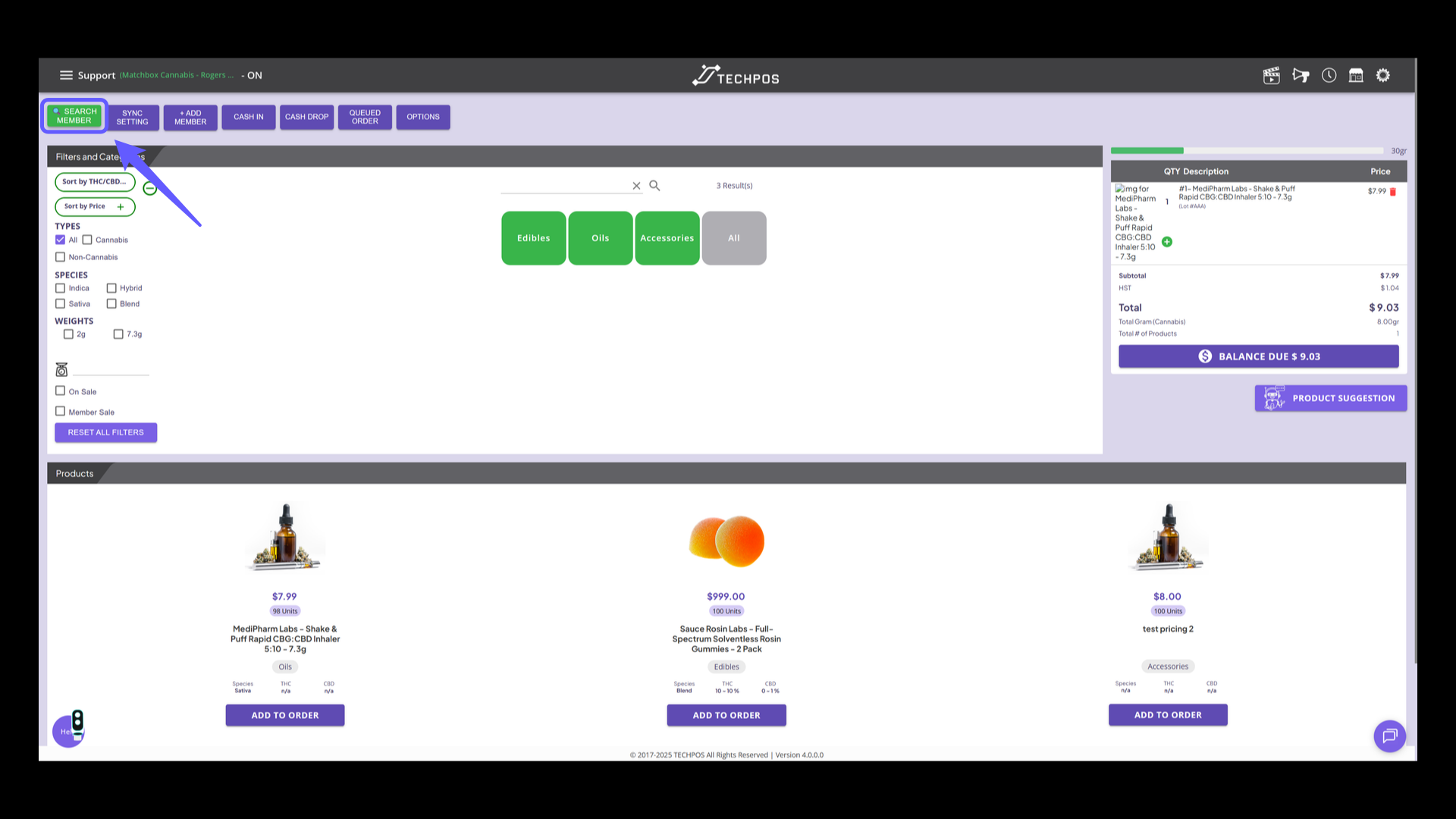
Let's take a look at how it appears when a group member is linked to the order. Click on the 'Search Member' button to find a specific member in the system.
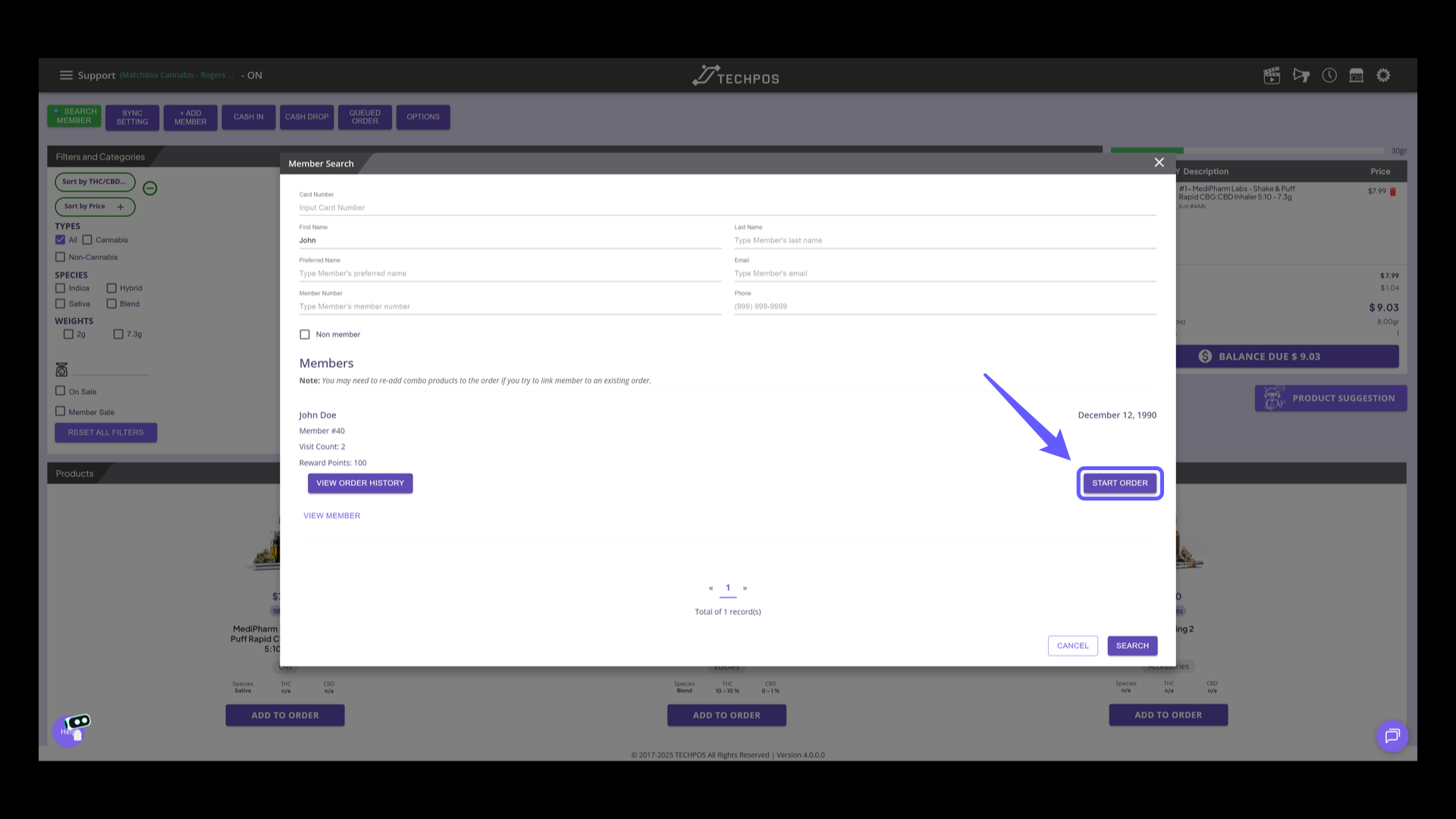
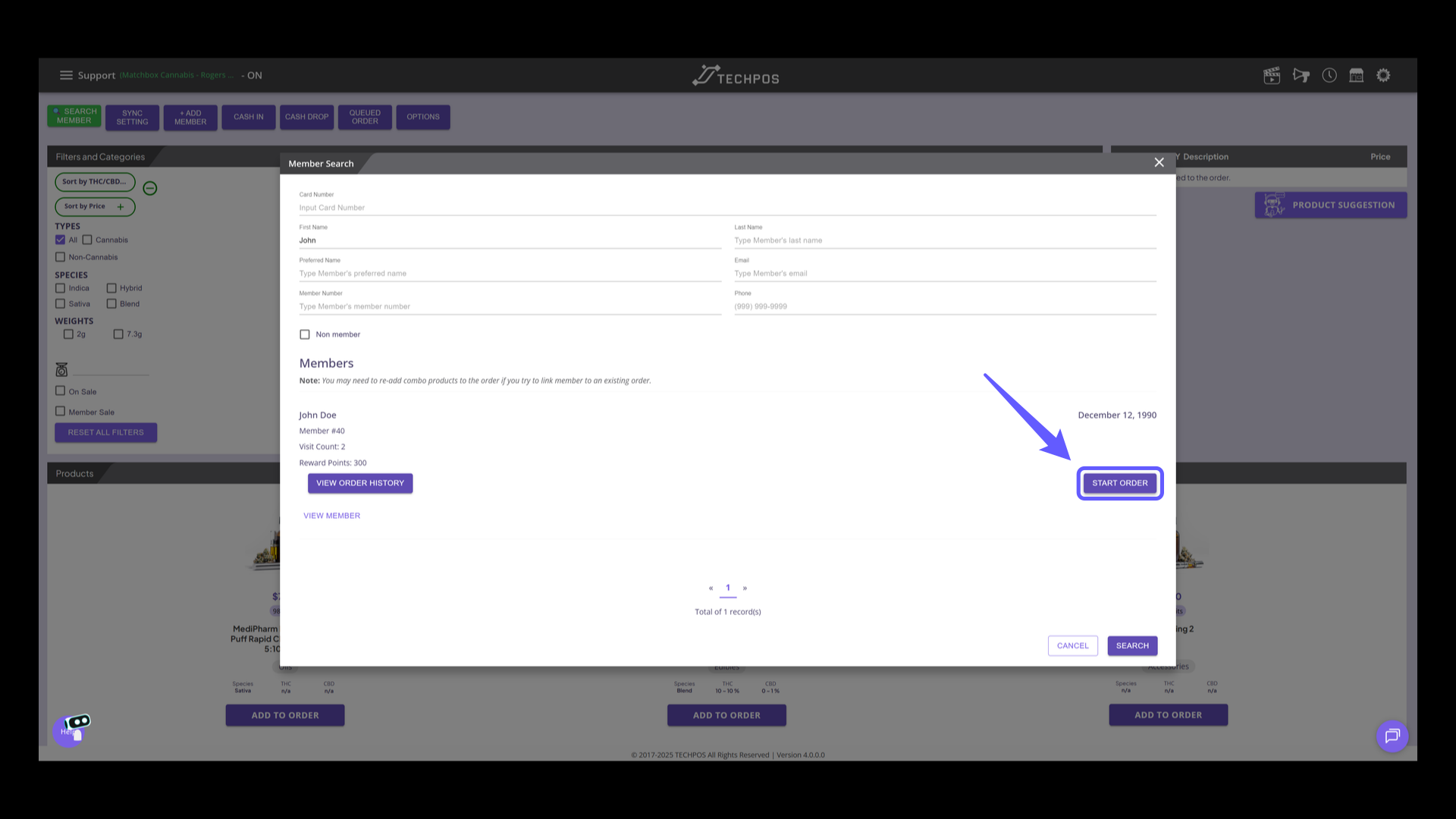
13. Attach Member to Order
Press 'START ORDER' to start transaction for the selected member.
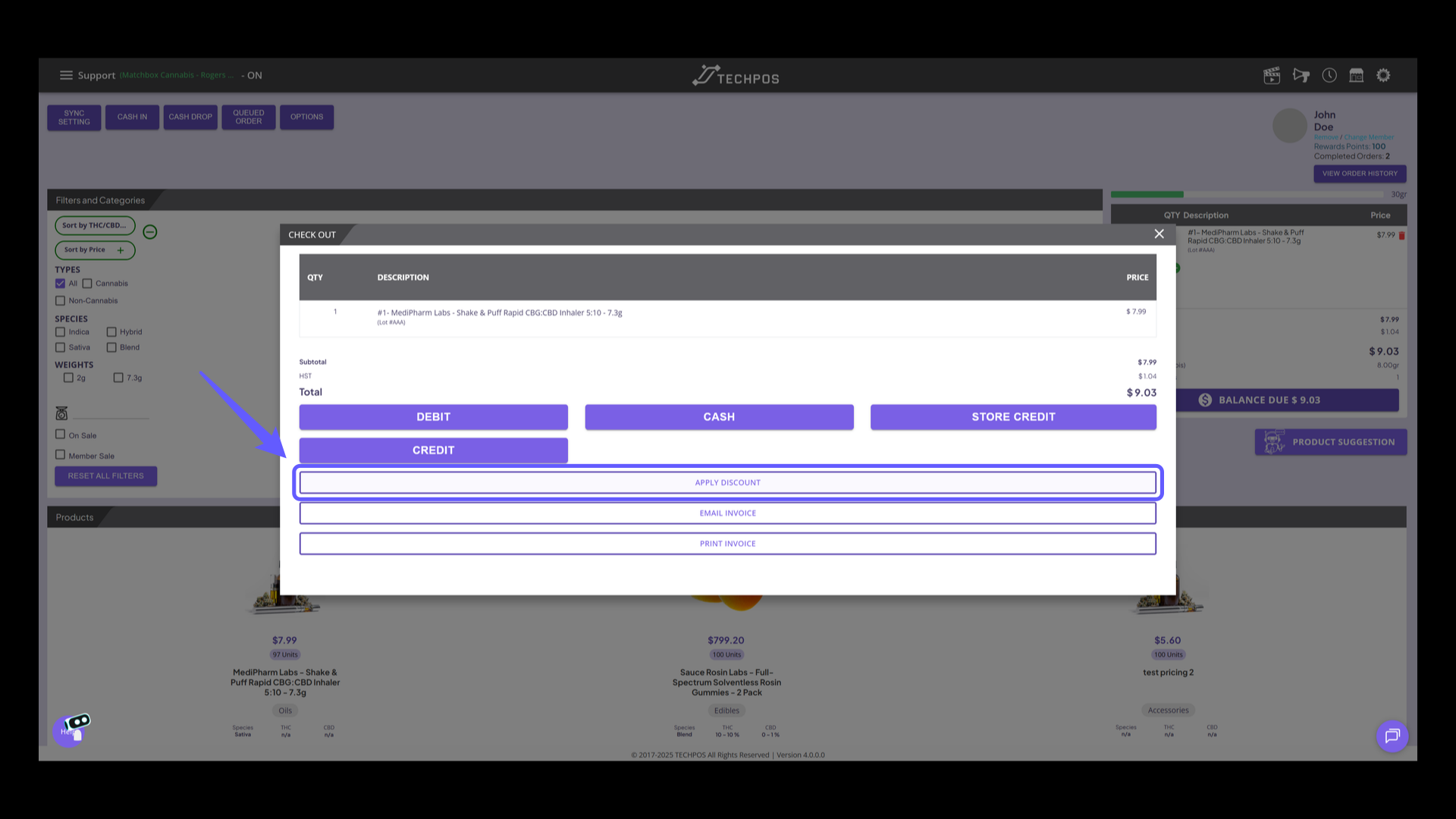
14. Discount Options
Go to the discount options.
15. Customized Discount Section
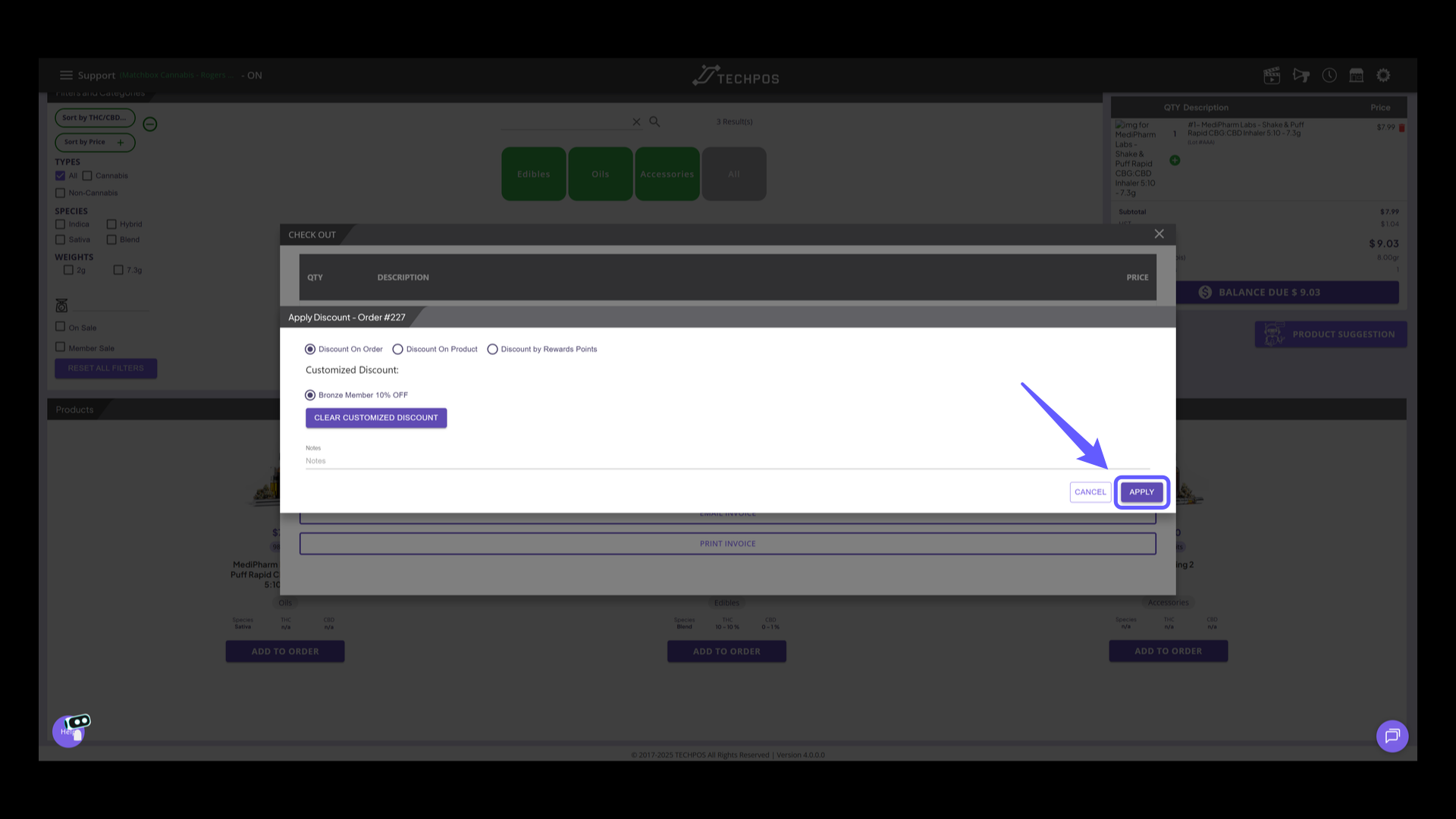
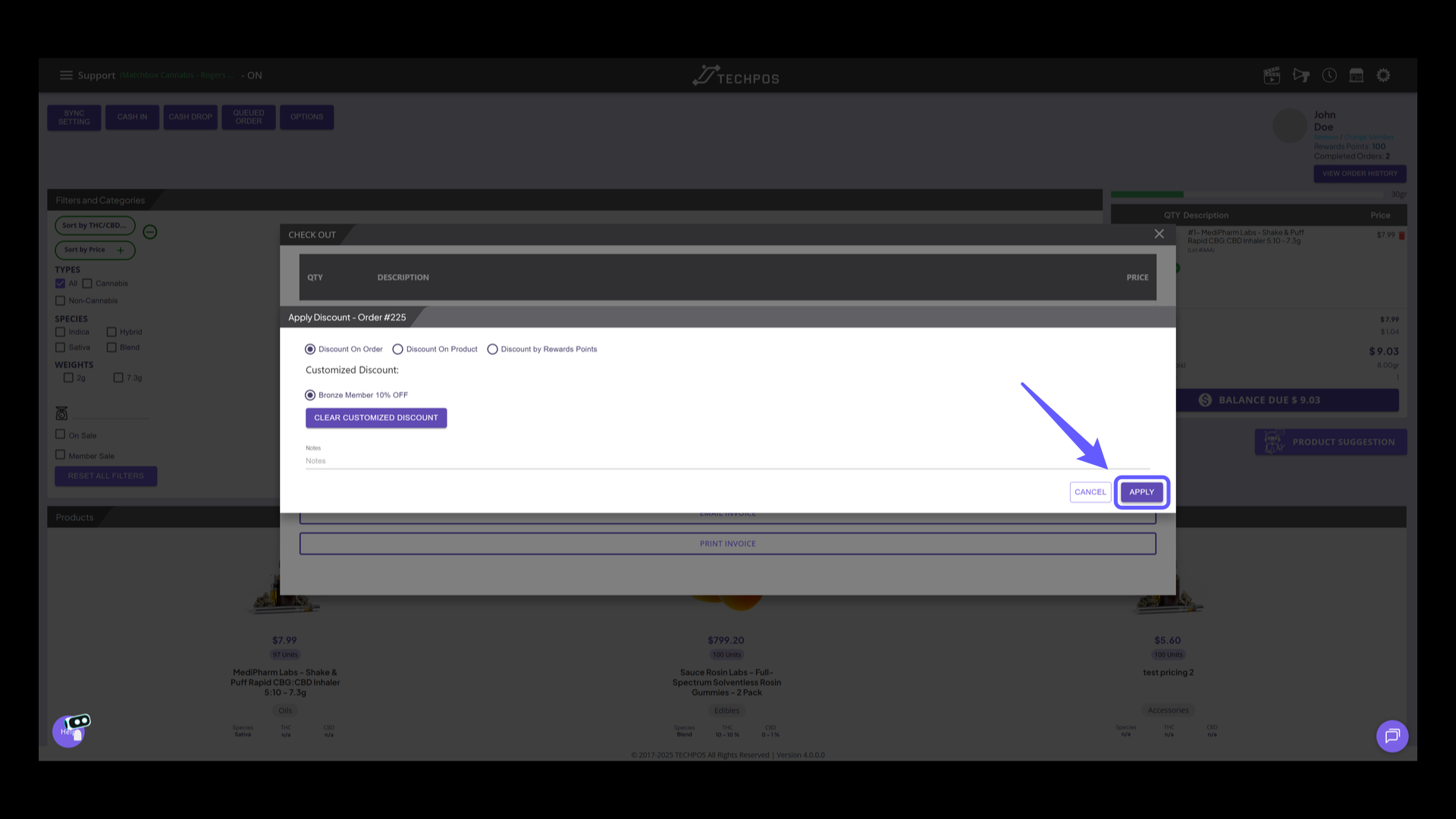
With the group member added to the cart, the customized discount available for that member is displayed.
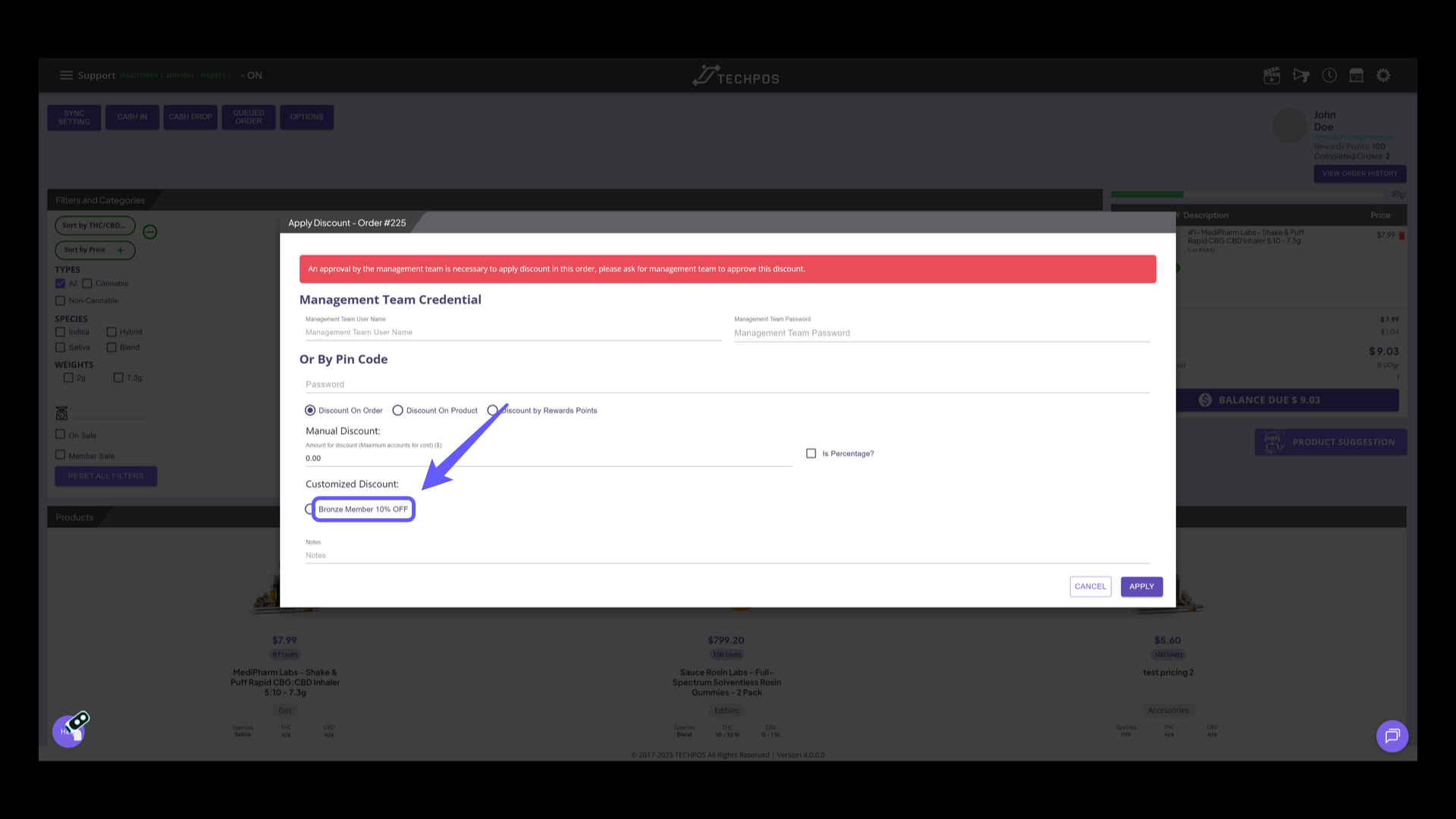
16. Apply Customized Discount
Click 'APPLY' to confirm the discount and proceed with the order.
17. Creating Customized Discounts - With Rewards Points Requirement
Now, let's jump into the process of creating customized discounts with rewards points requirements and deduction. Navigate to Menu > Pricing > Customized Discount.
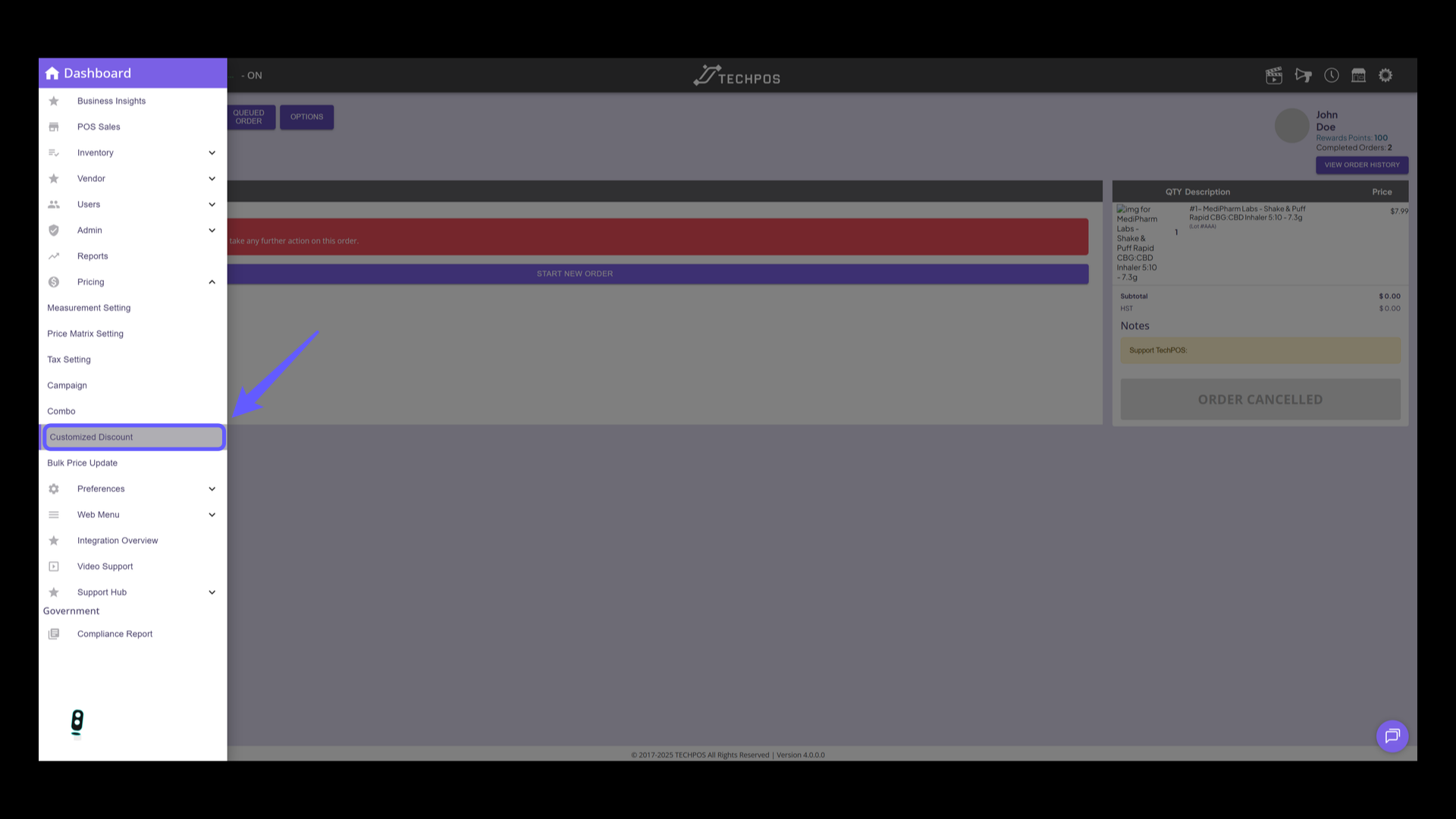
18. Edit or Create Discount
Click the pencil icon to modify discount details, or create a new discount.
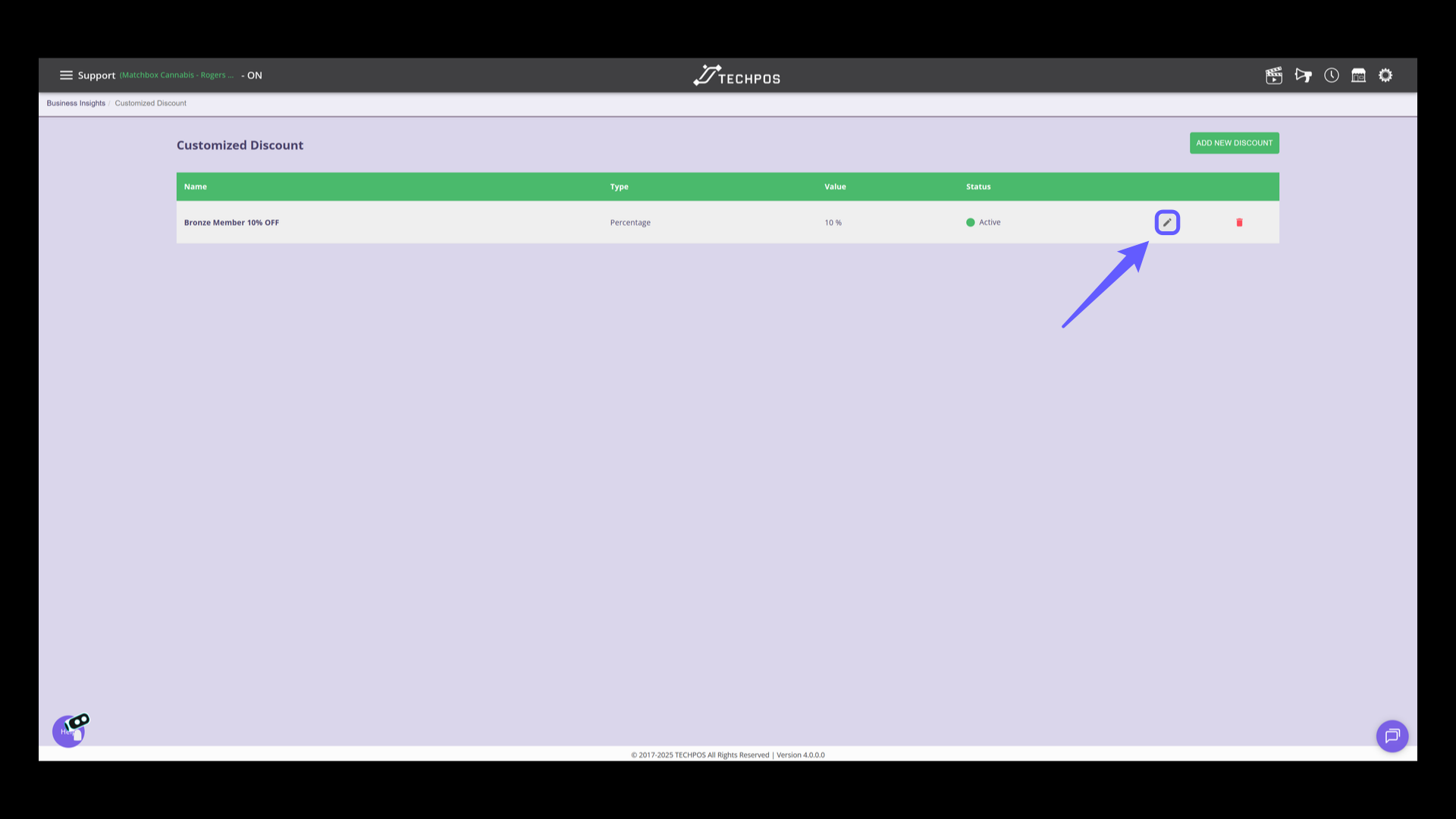
19. Toggle Reward Points
Select 'Yes' to activate reward points.
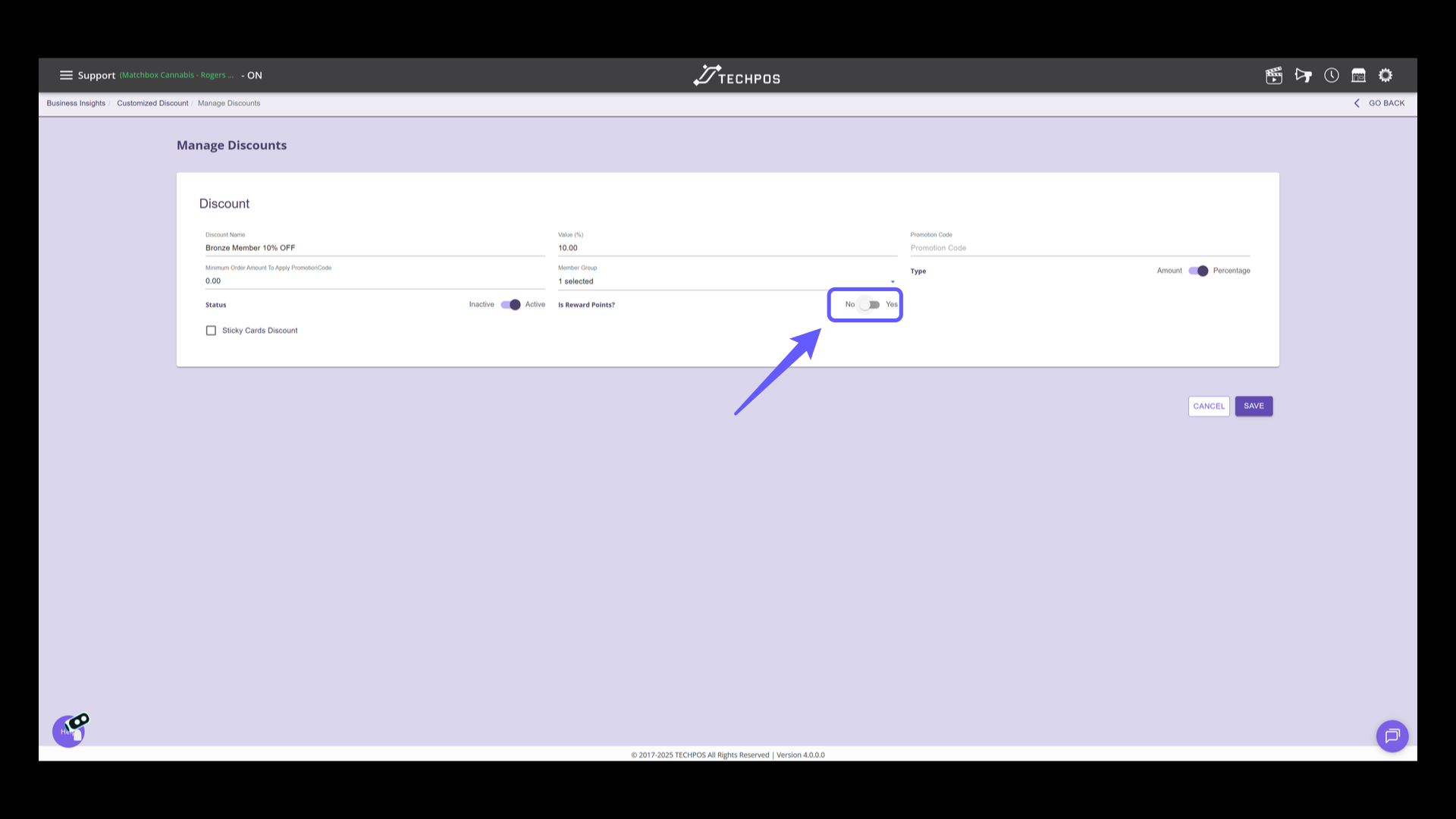
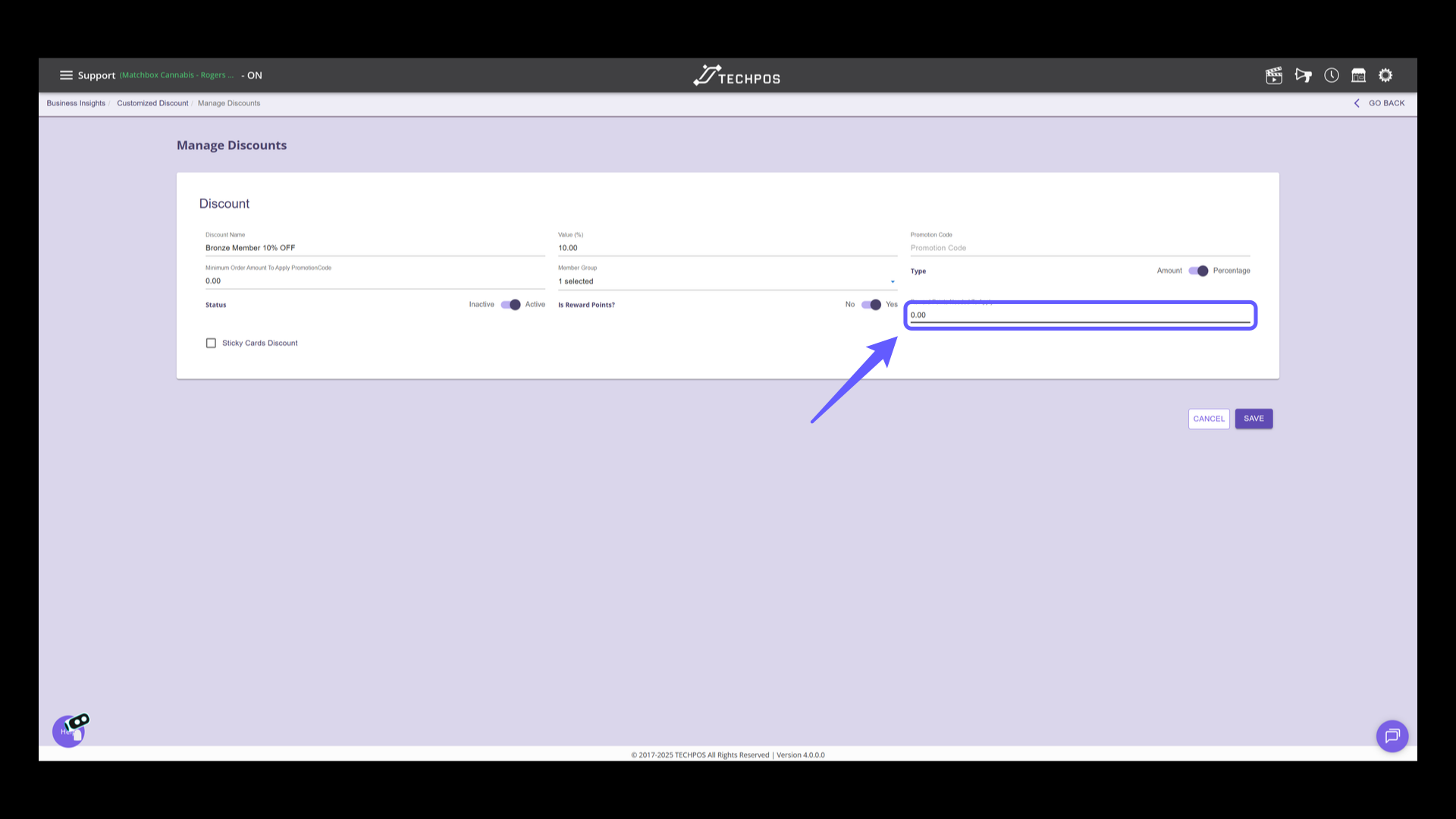
20. Enter Rewards Points Threshold
Provide the number of rewards points required to obtain the discount. This amount will also be the total points deducted at the time of redemption.
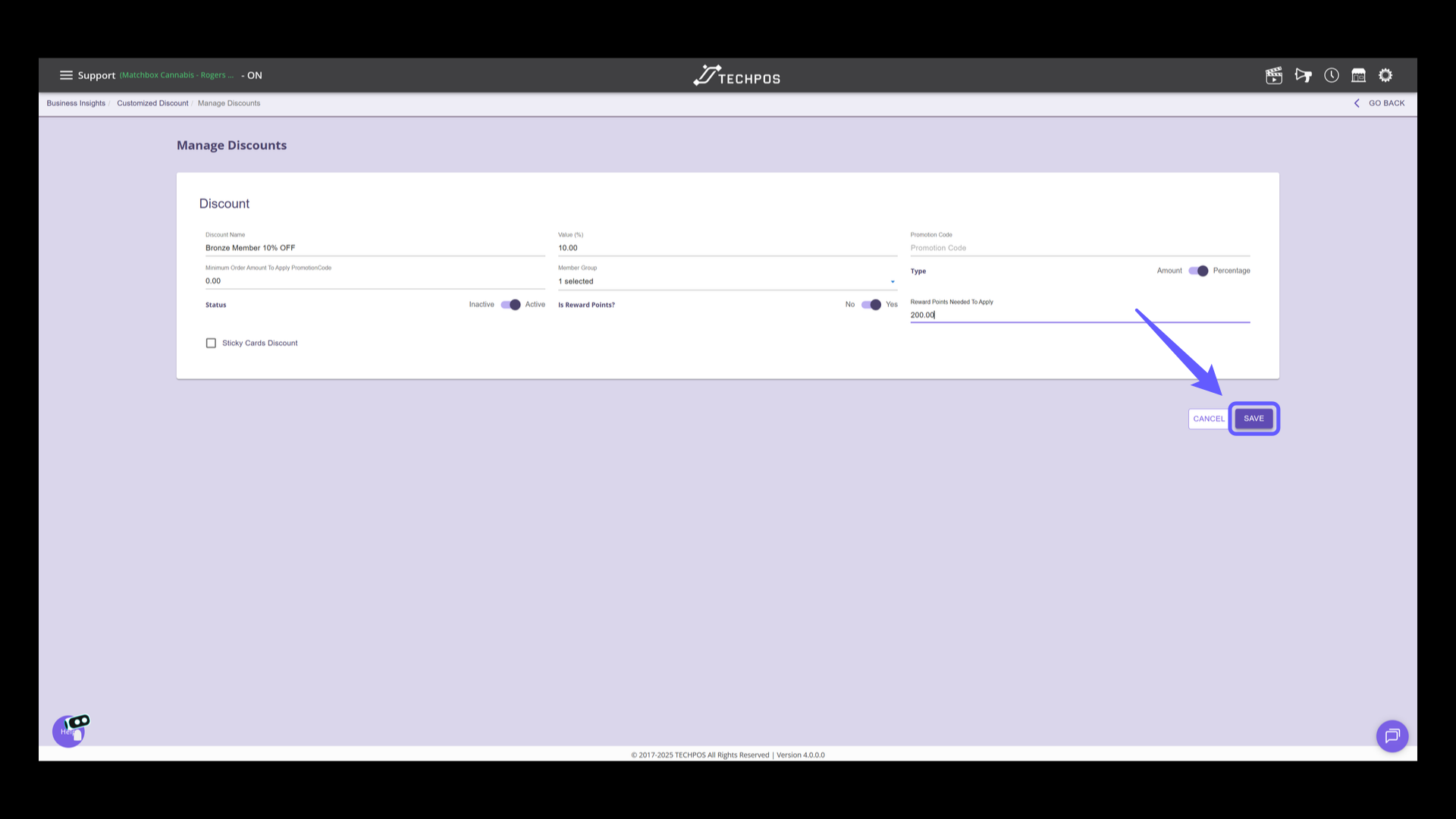
21. Save Discount Configuration
Click the 'SAVE' button to confirm your discount settings and apply changes.
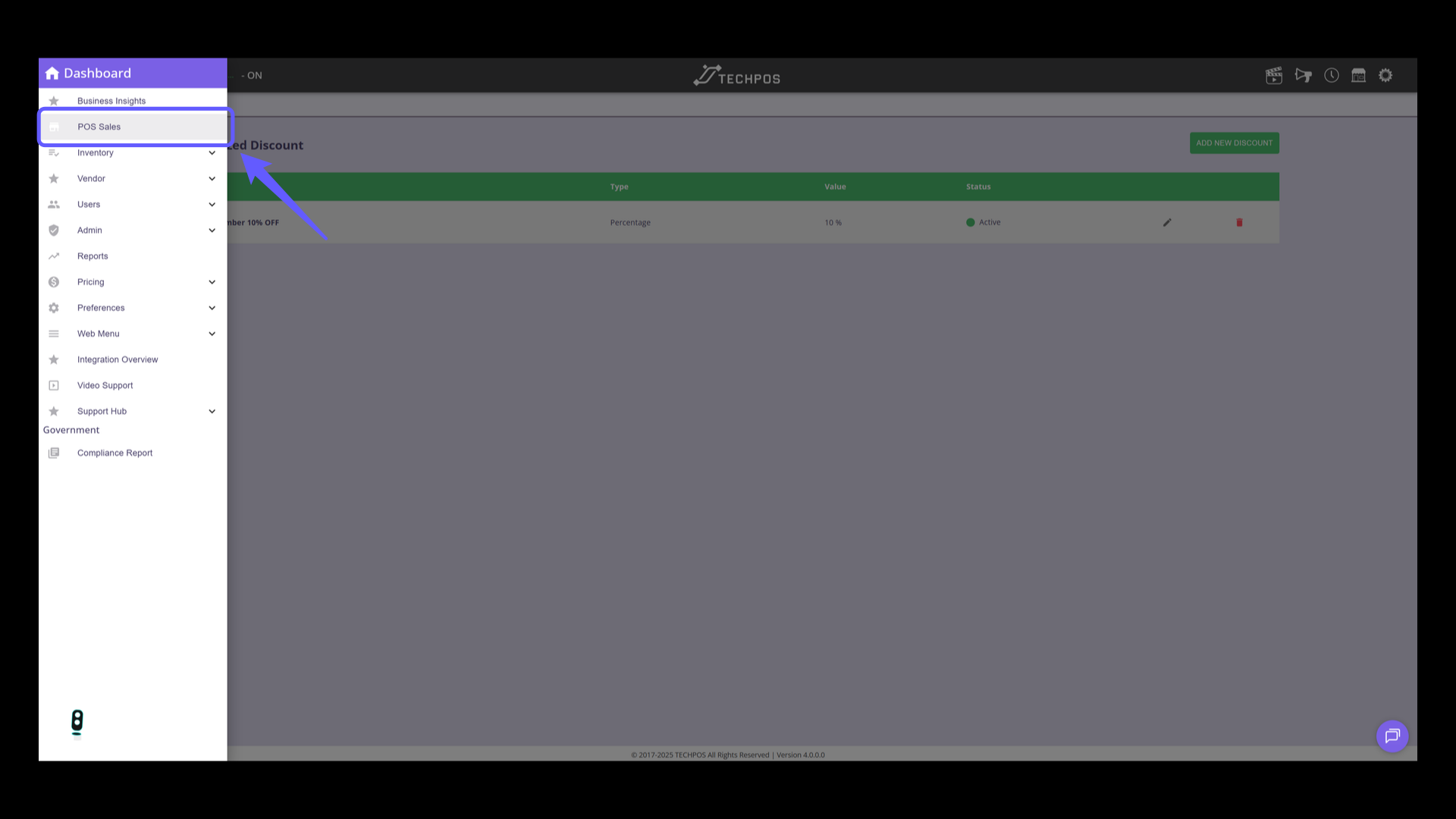
22. Transaction Without a Rewards Points Deduction
We will now guide you through the process of redeeming a customized points discount, including the applicable rewards points threshold and deduction. Please select 'POS Sales'.
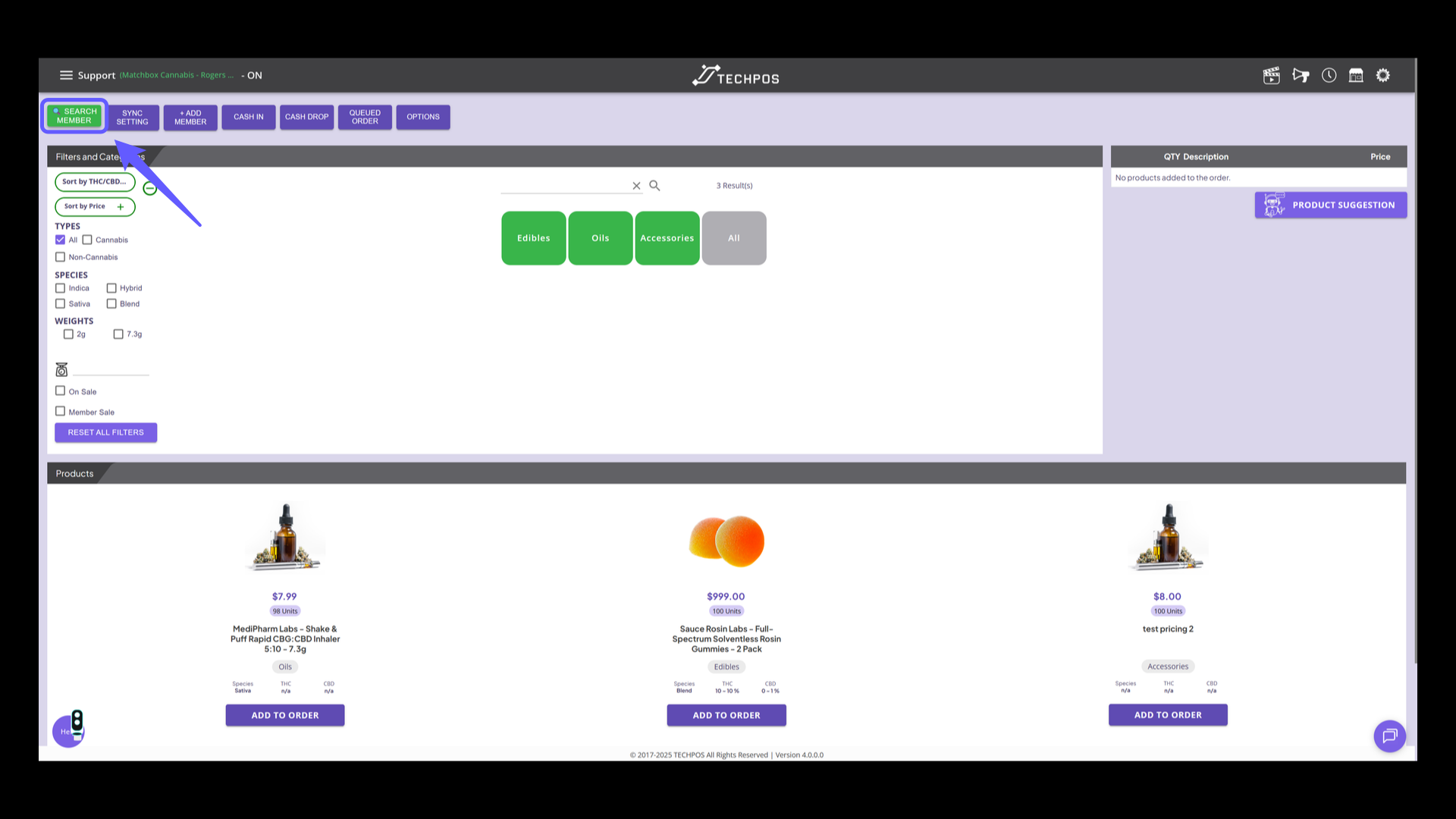
23. Initiate Member Search
Click the 'SEARCH MEMBER' button to begin the process of locating a member within the system.
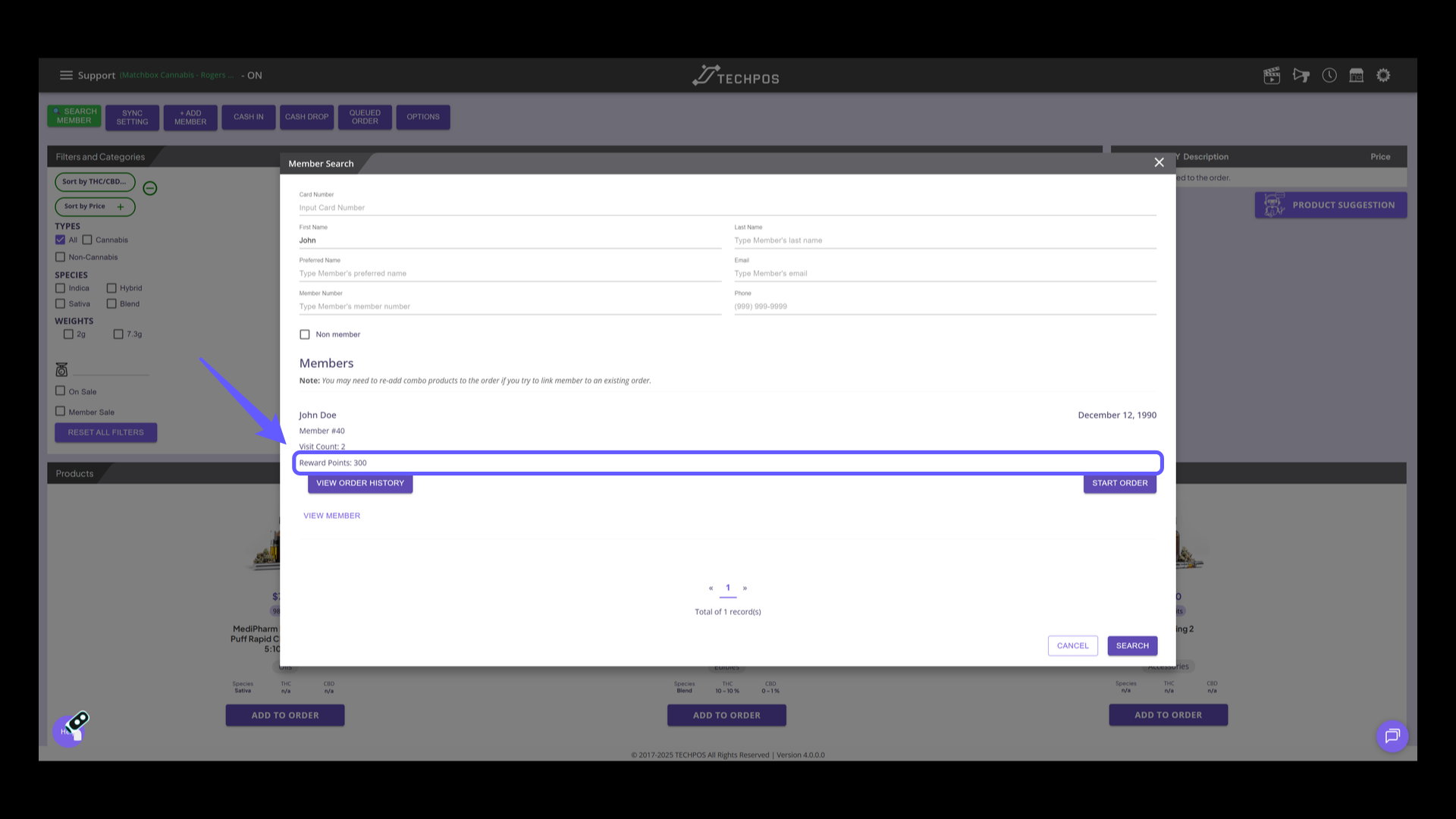
24. Review Reward Points
From this section, current rewards points of the member is displayed.
25. Initiate Purchase Process
Click 'START ORDER' to begin the purchase process for the selected member.
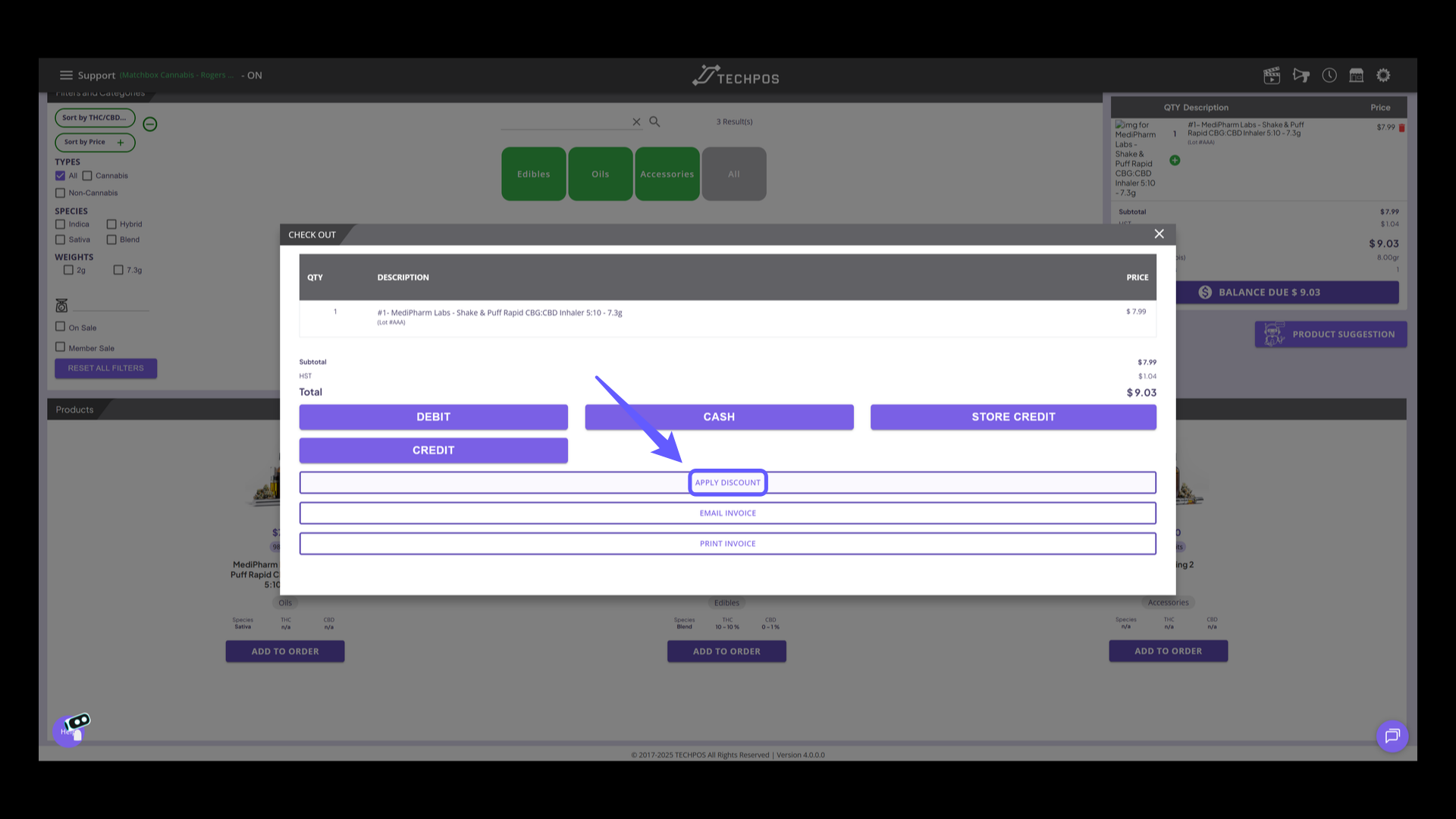
26. Add Products and Navigate to Discount Section
Add Products and Navigate to Discount Section. Click 'APPLY DISCOUNT'.
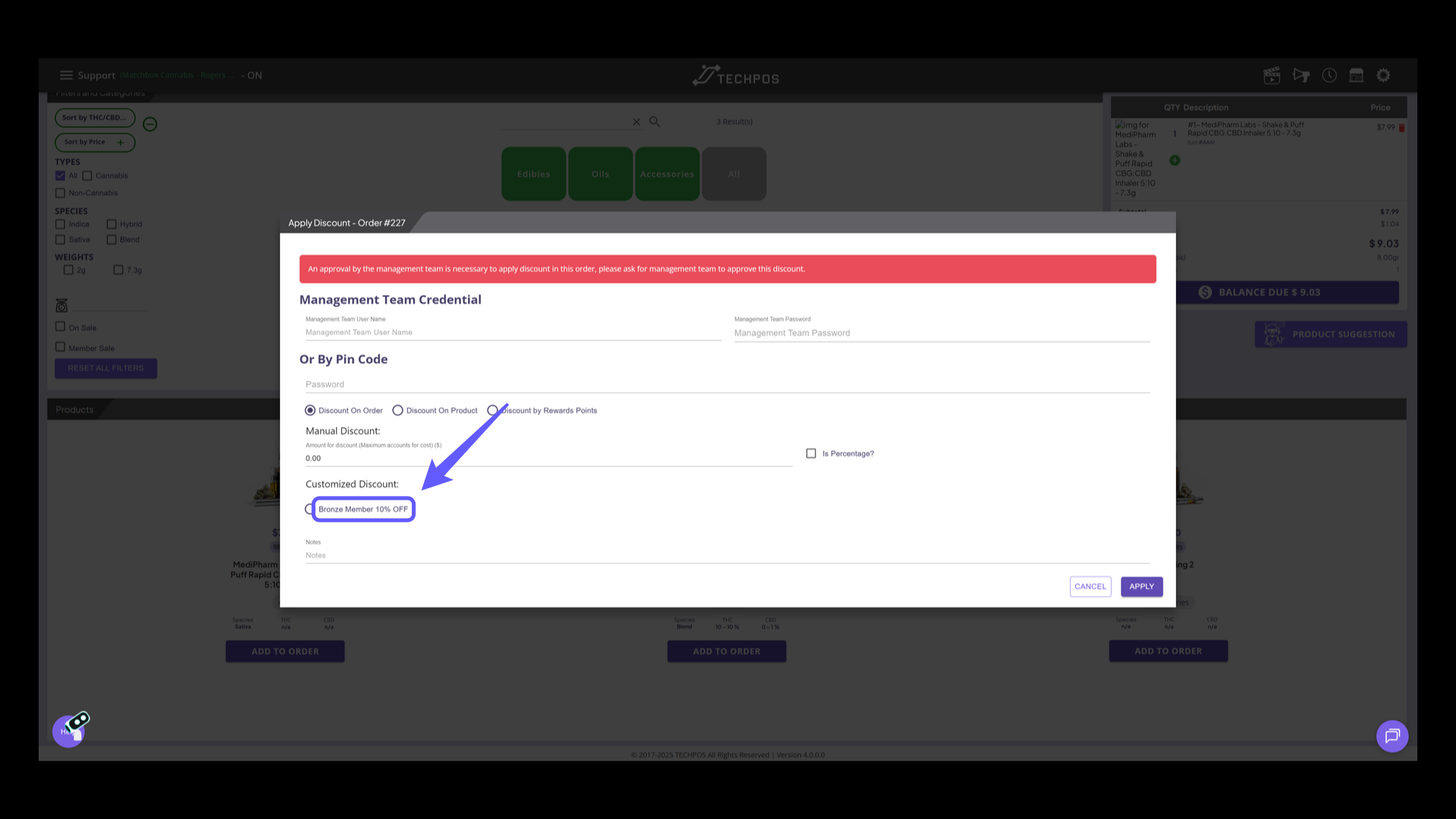
27. Customized Discount Options
From the Customized Discount List, see the applicable discount options for that member. For example: select the 'Bronze Member 10% OFF' option to apply a customized discount.
28. Apply Discount
Select the "Apply" button. After discount is applied, the points used will be deducted.