![Logo-2021-WHITE.png]](https://knowledge.techpos.ca/hs-fs/hubfs/Logo-2021-WHITE.png?height=40&name=Logo-2021-WHITE.png)
Check the status of the printer:
- Go to Control Panel > Hardware and Sound > Devices and Printers
- Select the printer > Right Click > Printer Properties > Print Test Page.
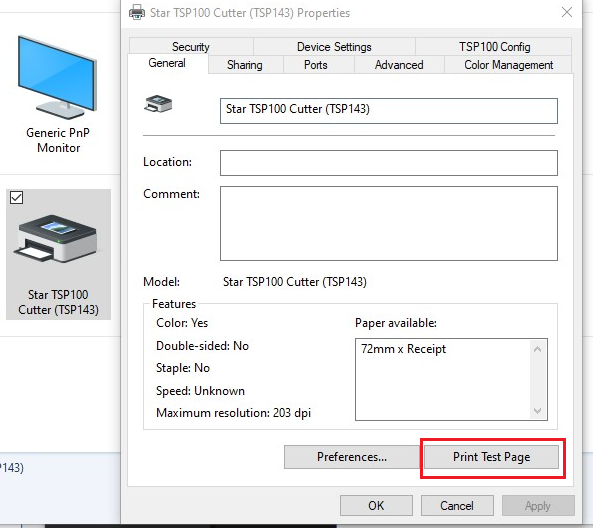
If the test page did not print, the issue will be specified on the Status section. The following are the common issues:
Printer Door is Open
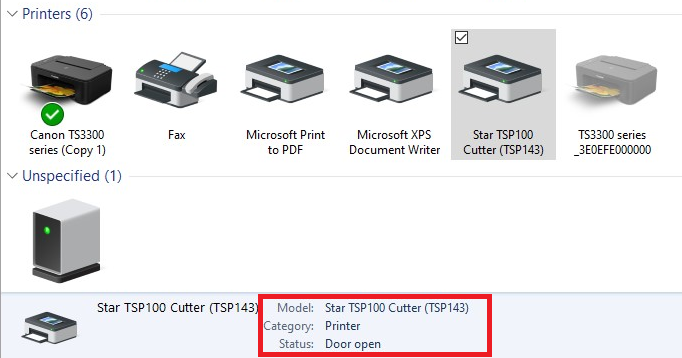
Solution: Make sure this is closed. Try opening and closing the printer door.
Our of Receipt Paper
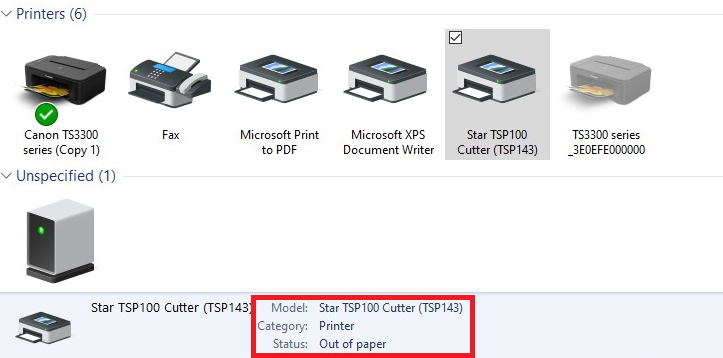
Solution: Add another paper and do a test print (make sure printer paper is placed correctly)
Printer shows Offline
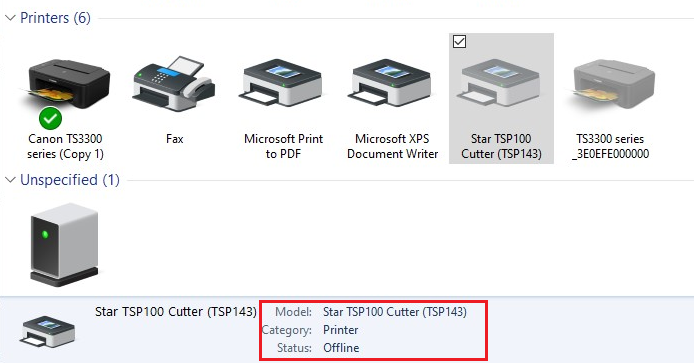
Solution: Re-install the printer driver. Follow the instructions:
- When installing the printer software and driver, make sure the printer is disconnected via USB cable.- After installation, restart the computer.
- Once the computer is back up, that’s when you plug in/connect the printer to the computer.
Note: If the test print works, move to the second solution - Check the Status of Cash Register.